
Close Menu
Battery Spotlight
    Battery Spotlight
    • Home
    • Phone Batteries
    • Laptop Batteries
    • Car Batteries
      • Golf Cart Batteries
    • Battery Info
      • Battery Chargers
      • Battery Life
      • Battery Maintenance
      • Marine Batteries
      • Rechargeable Batteries
      • Solar Batteries
    • About Us
      • Contact
    Battery Spotlight
    Navigation: Home » Laptop Batteries » How to Safely Remove Battery from HP Omen Laptop: A Step-by-Step Guide
    Laptop Batteries

    How to Safely Remove Battery from HP Omen Laptop: A Step-by-Step Guide

    Jackson DoyleBy Jackson DoyleApril 10, 20245 Mins Read
    Share Facebook Twitter Pinterest LinkedIn Tumblr Email WhatsApp Copy Link
    Share
    Facebook Twitter LinkedIn Pinterest Email Copy Link

    Ever wondered how to remove the battery from your HP Omen laptop without breaking a sweat? Picture this: you’re in the middle of an important task when suddenly your laptop battery gives up on you. Fret not, as we’ve got you covered with a simple solution. In this article, we’ll walk you through the step-by-step process of safely removing the battery from your HP Omen laptop.

    Table of Contents

    Toggle
    • Check Laptop Model
    • Safety Precautions
    • Shut Down the Laptop
    • Disconnect the Charger
    • Removing the Battery
    • Conclusion
    • Frequently Asked Questions
    • Why is it important to disconnect the charger before removing the battery from an HP Omen laptop?
    • How should I properly disconnect the charger before removing the battery?
    • What precautions should I take when removing the battery from an HP Omen laptop?

    Check Laptop Model

    When removing the battery from your HP Omen laptop, the first step is to check the laptop model. This information is usually located on a sticker on the bottom of your laptop. Ensure you have the correct model before proceeding with the battery removal process.

    Here are a few ways to identify your HP Omen laptop model:

    • Look for the model information on the sticker on the bottom of the laptop.
    • Check the laptop’s original packaging or documentation for model details.
    • Access the system information on your laptop to find the model number.

    Knowing your laptop model is essential to verify compatibility when purchasing a new battery for your HP Omen.

    Safety Precautions

    When removing the battery from your HP Omen laptop, it’s essential to prioritize safety. Here are some precautionary measures to keep in mind:

    • Power Off: Ensure your laptop is powered off before attempting to remove the battery.
    • Static Electricity: Discharge any static electricity from your body by touching a metal object before handling the battery.
    • Proper Tools: Use the appropriate tools, such as a screwdriver, to safely detach the battery.
    • Gentle Handling: Handle the battery with care to avoid any damage to the components.
    • Refer to Manual: If unsure, consult the user manual for specific instructions on removing the battery safely.
    • Avoid Moisture: Keep the battery and surrounding areas dry to prevent any electrical damage.

    Remember to always prioritize safety when handling electronic devices to prevent accidents or damage.

    Recommended Products

    BOWEIRUI FM08 922976-855 922752-421 Laptop Battery Replacement for Hp Omen 17-AN014NG TPN-Q195 Series Notebook HSTNN-LB8A 12-Pin Connector (14.6V 83.22Wh 5700mAh)
    BOWEIRUI FM08 922976-855 922752-421 Laptop Battery Replacement for Hp Omen 17-AN014NG TPN-Q195 Series Notebook HSTNN-LB8A 12-Pin Connector (14.6V 83.22Wh 5700mAh)

    【Specifications】Battery Model : HSTNN-LB8A ** Voltage: 14.6V ** Capatity: 83.22Wh ** Type: Li-ion Battery.

    SEE ALSO  Maximize Your Gaming Laptop Battery Life: Practical Tips & Solutions
    VIEW LATEST PRICE

    As an affiliate, we earn on qualifying purchases.

    Mobik 83Wh WK06XL M41711-005 Laptop Battery Replacement for HP Omen 16-b0xxx 16-b0000TX 16-B0047TX 16-C0xxx 16-C0167AX 16-b1001TX 16-n0023dx Omen 7 Plus 17-ck0xxx 17T-CK100 M41640-AC1 11.58V 6880mAh
    Mobik 83Wh WK06XL M41711-005 Laptop Battery Replacement for HP Omen 16-b0xxx 16-b0000TX 16-B0047TX 16-C0xxx 16-C0167AX 16-b1001TX 16-n0023dx Omen 7 Plus 17-ck0xxx 17T-CK100 M41640-AC1 11.58V 6880mAh

    【Customer First】24 x 7 email support. We specialize in providing quality power products and quality customer service. (Note: Amazon return windows will close after one month, If you have any problem with battery, please Contact us - in “YOUR ORDER” options click the “contact seller”.)

    VIEW LATEST PRICE

    As an affiliate, we earn on qualifying purchases.

    BOWEIRUI 70.91Wh SD06XL L84356-2C1 Laptop Battery Replacement for HP Omen 15-EK 15-EK0000 15-EN 15-EN0000 15-EK0XXX EK0008CA 5-EK0013DX 15-EK0023DX 15-EK0007MS 15-EK0071NG Series L84392-005 HSTNN-DB9U
    BOWEIRUI 70.91Wh SD06XL L84356-2C1 Laptop Battery Replacement for HP Omen 15-EK 15-EK0000 15-EN 15-EN0000 15-EK0XXX EK0008CA 5-EK0013DX 15-EK0023DX 15-EK0007MS 15-EK0071NG Series L84392-005 HSTNN-DB9U

    【Customer First】24 x 7 email support. For assistance with the SD06XL battery, please visit our product detail page OR please contact us by email at any time, our professional technical team is standing by to provide you with assistance and service.

    VIEW LATEST PRICE

    As an affiliate, we earn on qualifying purchases.

    Shut Down the Laptop

    When it comes to removing the battery from your HP Omen laptop, the first step is to shut it down properly. Forgetting this crucial step can result in potential damage or safety hazards. Here’s how to do it:

    • Save any ongoing work: Make sure to save any files or unsaved work before proceeding.
    • Close all applications: Exit out of any open applications to ensure a smooth shutdown process.
    • Click on the Start menu: Locate the Start menu on your screen and click on it.
    • Select the Power option: From the Start menu, select the Power option.
    • Choose Shut Down: Click on the Shut Down option to begin the shutdown process.
    Steps
    Save any ongoing work
    Close all applications
    Click on the Start menu
    Select the Power option
    Choose Shut Down

    Disconnect the Charger

    Now that you’re ready to remove the battery from your HP Omen laptop, the first step is to disconnect the charger. This ensures that there’s no power running through the device, making it safer to handle. Following this simple precaution can help prevent any unwanted accidents.

    To disconnect the charger, locate the power adapter where it’s plugged into your laptop. Gently but firmly grasp the connector and pull it out of the charging port. You’ll want to make sure that there’s no resistance and that the connection separates smoothly.

    SEE ALSO  Boost Your Samsung S8: Replace Your Battery for Better Performance

    It’s important to wait for a few moments after disconnecting the charger before proceeding to remove the battery. This allows any residual charge to dissipate, making the next steps safer to perform. Remember, safety first when handling electronic devices!

    By following these steps to disconnect the charger properly, you’re on your way to safely removing the battery from your HP Omen laptop. Proceed with caution and care as you move on to the next steps.

    Recommended Products

    330W Smart AC Power Adapter Compatible with HP OMEN 17 17.3 inch Gaming Laptop PC Charger Model 17-ck1020nr 17-ck1111nr 16-n0797nr 16-n0033dx ADP-330BB BF M34531-003 M34603-001 Power Supply Cord
    330W Smart AC Power Adapter Compatible with HP OMEN 17 17.3 inch Gaming Laptop PC Charger Model 17-ck1020nr 17-ck1111nr 16-n0797nr 16-n0033dx ADP-330BB BF M34531-003 M34603-001 Power Supply Cord

    Output Max: 19.5V 16.92A Max(330W) 4.5*3.0mm Blue Tip; Input Volt Range: 110-240V

    VIEW LATEST PRICE

    As an affiliate, we earn on qualifying purchases.

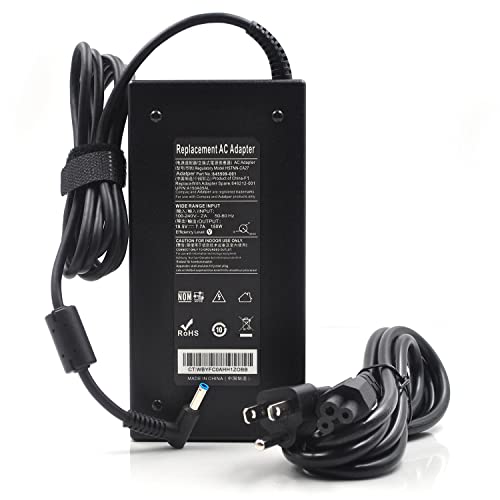
    150W Laptop Charger for HP OMEN 15 17 Victus 16 ZBook Studio G3 G4 G5 G6 G7 G8 Fury, Pavilion Gaming 15-cx 16, 150W/135W Compatible - VUOHOEG 4.5mm Blue Tip, TPN-DA09 917677-003
    150W Laptop Charger for HP OMEN 15 17 Victus 16 ZBook Studio G3 G4 G5 G6 G7 G8 Fury, Pavilion Gaming 15-cx 16, 150W/135W Compatible - VUOHOEG 4.5mm Blue Tip, TPN-DA09 917677-003

    POWERS WORKSTATIONS AND GAMING LAPTOPS — HP ZBook Studio G3-G8 and ZBook Fury push hard during 3D rendering, CAD, and video work. HP OMEN 15/17 with RTX graphics and Victus 16 demand the same sustained 150W. One adapter covers the workstation on your desk and the gaming laptop in your bag — so you only carry one charger for both devices.
    VIEW LATEST PRICE

    As an affiliate, we earn on qualifying purchases.

    150W Power Supply Charger 19.5V 7.7A AC Adapter Laptop Charger for HP ZBook Studio15 G3 G4 G5 HP ZBook G3 G4 OMEN x by 15 17 ADP-150XB B 710415-001 776620-001 75626-003 917677-003 with Power Cord
    150W Power Supply Charger 19.5V 7.7A AC Adapter Laptop Charger for HP ZBook Studio15 G3 G4 G5 HP ZBook G3 G4 OMEN x by 15 17 ADP-150XB B 710415-001 776620-001 75626-003 917677-003 with Power Cord

    POWER SPECS: AC input: 100 - 240V / 50-60Hz DC output: 19.5V/7.7A Power: 150W Connector size: 4.5*3.0mm (Please check the Plug size of the charger! Please pay attention ! ! ! ).

    VIEW LATEST PRICE

    As an affiliate, we earn on qualifying purchases.

    Removing the Battery

    When it comes to Removing the Battery from your HP Omen laptop, it’s essential to follow the right steps to ensure safety and prevent any mishaps. Here’s how to do it correctly:

    • First, power off your HP Omen laptop completely.
    • Locate the battery release latch. It’s usually found on the bottom of the laptop.
    • Slide or press the latch to release the battery.
    • Once the latch is released, gently lift the battery out of its compartment.
    SEE ALSO  Understanding Integrated Laptop Batteries: Tips for Longevity and Performance

    Remember, taking care when removing the battery is crucial to avoid any damage to the laptop or yourself.

    Recommended Products

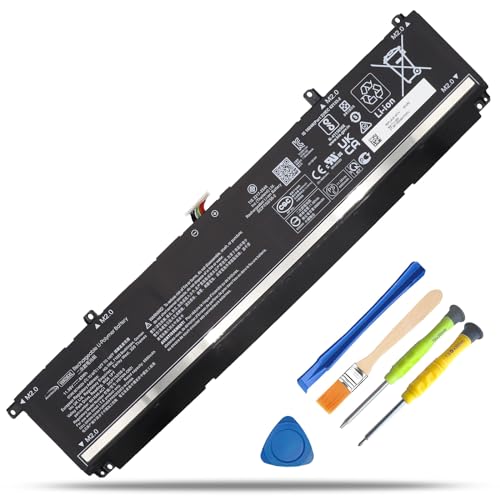
    SR04XL Battery for HP Omen 15-CE0XX 15-DC0XX 15-DC1XXX Series SR03XL 15-CE019DX 15-CE198WM 15-CE015DX 15-DC0051NR Pavilion 15-CB0XX 15-CX0XX 15-CX0056WM l08855-855 917678-1B1 917724-855 917678-2B1
    SR04XL Battery for HP Omen 15-CE0XX 15-DC0XX 15-DC1XXX Series SR03XL 15-CE019DX 15-CE198WM 15-CE015DX 15-DC0051NR Pavilion 15-CB0XX 15-CX0XX 15-CX0056WM l08855-855 917678-1B1 917724-855 917678-2B1

    Specifications: Battery Model: SR04XL SR03XL, Voltage: 15.4V Capacity: 70.07Wh ; Cells: 4-cell; Color: Black ,Condition :New,Packages includes: 1x SR04XL Battery,2 x Screwdrivers,1x Instruction for SR04XL battery
    VIEW LATEST PRICE

    As an affiliate, we earn on qualifying purchases.

    WK06XL Laptop Battery Replacement for HP Omen 16-b0xxx 16-b0000TX 16-B0047TX 16-C0xxx 16-C0167AX Omen 7 Plus 17-ck0xxx 17-CK0007NV 17T-CK100 Series M41640-AC1 M41640-CD1 M41711-005 11.58V 83Wh
    WK06XL Laptop Battery Replacement for HP Omen 16-b0xxx 16-b0000TX 16-B0047TX 16-C0xxx 16-C0167AX Omen 7 Plus 17-ck0xxx 17-CK0007NV 17T-CK100 Series M41640-AC1 M41640-CD1 M41711-005 11.58V 83Wh

    Compatible Laptop Models: Fit for HP Omen 7 16-b0000 16-b0000TX 16-b0001TX 16-b0002TX 16-b0003TX 16-b0004TX series; HP Omen 7 plus 17-ck0000 17-CK0000TX 17-CK0001NL 17-CK0007NV 17-CK0013SA 17-CK0079NG series; HP Omen 7 16-b1000 16-b1001TX 16-b1002TX 16-b1003TX 16-b1004TX series; HP Omen 8 Plus 17-ck0000 17-ck1000TX 17-ck1001TX series; HP Omen 9 plus 17-ck2000 17-ck2000TX 17-cm2000TX series; HP Omen 16-C0000 16-C0001NU 16-C0002NS 16-C0003NE series; HP Omen 9 plus 17T-CK 17T-CK100 CTO series

    VIEW LATEST PRICE

    As an affiliate, we earn on qualifying purchases.

    VVXQING WK06XL M41711-005 83Wh Laptop Battery Replacement for HP Omen 16-b0xxx 16-b0000TX 16-B0047TX 16-C0167AX Omen 7 Plus 17-ck0xxx 17-CK0007NV 17T-CK100 Series WK06XL 83Wh 6880mAh
    VVXQING WK06XL M41711-005 83Wh Laptop Battery Replacement for HP Omen 16-b0xxx 16-b0000TX 16-B0047TX 16-C0167AX Omen 7 Plus 17-ck0xxx 17-CK0007NV 17T-CK100 Series WK06XL 83Wh 6880mAh

    【Specifications】Model: WK06XL . Voltage: 11.58V . Capacity: 83Wh/6880mAh 6-cell . Color: Black . 100% brand New from Manufacturer.

    VIEW LATEST PRICE

    As an affiliate, we earn on qualifying purchases.

    Conclusion

    That’s it! By following these simple steps, you can safely remove the battery from your HP Omen laptop without any hassle. Remember to always prioritize safety by disconnecting the charger first and handling the battery with care. Taking these precautions will help you maintain your laptop in good condition and ensure a smooth battery removal process. Happy tech troubleshooting!

    Frequently Asked Questions

    Why is it important to disconnect the charger before removing the battery from an HP Omen laptop?

    It is crucial to disconnect the charger to prevent electrical shock or damage to the laptop components.

    How should I properly disconnect the charger before removing the battery?

    Gently unplug the power adapter from the laptop and allow any residual charge to dissipate.

    What precautions should I take when removing the battery from an HP Omen laptop?

    Power off the laptop, locate the battery release latch on the bottom, release it, and gently lift the battery out of its compartment.

    Share. Facebook Twitter Pinterest LinkedIn Tumblr Email WhatsApp Copy Link
    Jackson-Doyle
    Jackson Doyle

      Battery industry professional with 5+ years of experience. Bachelor of Science in Electrical Engineering from Georgia Tech. Specializes in power systems and renewable energy.

      Related Posts

      Laptop Batteries

      Maximize Your Laptop Battery Life: Effective Tips You Need to Know

      January 6, 2025
      Laptop Batteries

      Unlocking the Power: Does MSI Battery Calibration Really Work?

      January 2, 2025
      Laptop Batteries

      Does the Samsung S7 Have a Removable Battery? Understanding the Implications

      December 31, 2024
      Laptop Batteries

      Ultimate Guide: Where to Buy Authentic Laptop Batteries Directly from Manufacturers

      December 28, 2024
      Laptop Batteries

      5 Signs Your Laptop Battery Is Dead: Tips to Extend Battery Life

      December 27, 2024
      Laptop Batteries

      Should You Replace Your Laptop Battery? Signs, Tips & Lifespan Facts

      December 26, 2024
      Add A Comment
      Leave A Reply Cancel Reply

      Search
      Affiliate Disclaimer

      As an Amazon Associate I earn from qualifying purchases.

      Latest Articles

      How to Replace Battery in Samsung Phone: A Step-by-Step Guide for Easy Replacement

      Android Batteries

      How to Remove Battery from Samsung Smart TV Remote: A Step-by-Step Guide for Easy Replacement

      Android Batteries

      How to Check Your Battery Health on Samsung: Simple Methods to Extend Your Phone’s Lifespan

      Android Batteries

      How Much Is a Battery for a Samsung Galaxy S6: Pricing and Replacement Options Explained

      Android Batteries

      How to Remove Battery from Samsung Galaxy S7: A Step-by-Step Guide for Easy DIY Fixes

      Android Batteries

      Why is My Battery Going Down While Charging Android – Effective Solutions to Fix the Issue

      Android Batteries
      Battery Spotlight

      Battery Spotlight is a website dedicated to helping you solve common battery problems.

      Read more about us here

      Affiliate Disclaimer
      As an Amazon Associate I earn from qualifying purchases.

      Site Navigation
      • Above Mirror Bathroom Lighting
      • Android Batteries
      • Bathroom Pendant Lighting
      • Battery Chargers
      • Battery Life
      • Battery Maintenance
      • Car Batteries
      • Ceiling Lighting Ideas
      • Golf Cart Batteries
      • Japandi Lighting
      • Laptop Batteries
      • Marine Batteries
      • Mood Lighting Living Room
      • Phone Batteries
      • Rechargeable Batteries
      • Reviews
      • Solar Batteries
      • Uncategorized
      • Vaulted Ceiling Lighting
      Latest Articles

      How to Replace Battery in Samsung Phone: A Step-by-Step Guide for Easy Replacement

      How to Remove Battery from Samsung Smart TV Remote: A Step-by-Step Guide for Easy Replacement

      How to Check Your Battery Health on Samsung: Simple Methods to Extend Your Phone’s Lifespan

      How Much Is a Battery for a Samsung Galaxy S6: Pricing and Replacement Options Explained

      How to Remove Battery from Samsung Galaxy S7: A Step-by-Step Guide for Easy DIY Fixes

      • Home
      • About
      • Contact
      • Privacy Policy
      • Editorial Policy
      • Disclaimer
      • Terms and Conditions
      • Affiliate Disclosure
      © 2026 Battery Spotlight

      Type above and press Enter to search. Press Esc to cancel.