

Key Takeaways
- Understanding Beats Battery Life: Monitoring battery levels is essential to prevent interruptions in your listening experience.
- Common Battery Life Issues: Be aware of factors like inconsistent usage, extreme temperatures, and software updates that may affect battery performance.
- Methods to Check Battery Life: Use the Beats app or your Android Bluetooth settings to easily track the battery status of your Beats headphones.
- Troubleshooting Tips: Reconnect your headphones or reset your audio device to resolve rapid battery drain issues.
- Optimizing Battery Life: Turn off Bluetooth when not in use, manage device pairing, and regularly check for firmware updates to extend battery performance.
Have you ever been caught off guard by your Beats headphones dying right in the middle of your favorite playlist? It’s frustrating when you want to enjoy your music, but you’re left guessing how much battery life is left.
Understanding Beats Battery Life
Understanding your Beats battery life enhances your listening experience. Monitoring battery levels helps you avoid interruptions during your favorite tracks.
Importance of Battery Life Monitoring
Monitoring battery life is crucial for a seamless audio experience. Knowing when to charge your Beats keeps you from unexpected shutdowns. Regular checks allow you to enjoy music or calls without inconvenience. It’s especially important when you’re on the go or during long listening sessions. Accurate tracking helps you optimize your device’s performance and prolong its lifespan.
Common Battery Life Issues
Battery life issues often arise from various factors. Here are common problems you might encounter:
- Inconsistent Usage: Frequent switching between devices can drain battery life faster.
- Environmental Impact: Extreme temperatures can affect battery performance, reducing overall battery health.
- Software Updates: Occasionally, software updates can introduce bugs that might lead to battery drain.
- Bluetooth Connectivity: Continuous Bluetooth connection can use additional power, especially if there are connectivity issues.
Being aware of these factors allows you to take steps to extend battery life and enhance your overall experience with your Beats headphones.
How to See Beats Battery Life on Android
Monitoring the battery life of your Beats headphones on Android keeps your listening experience uninterrupted. You can check battery levels using the Beats app or your Bluetooth settings.
Recommended Products

Custom acoustic architecture and updated drivers for powerful Beats sound.
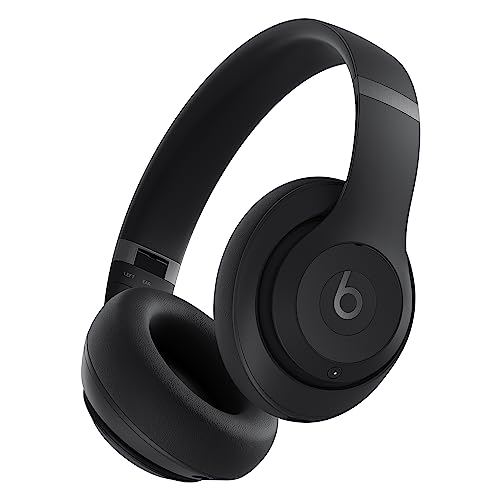
INCREDIBLE SOUND: Custom acoustic platform delivers rich, balanced audio for music, calls and everyday listening.

Custom acoustic architecture and updated drivers for powerful Beats sound.
Using the Beats App
- Download the Beats App: Install the Beats app from the Google Play Store if you haven’t yet.
- Open the App: Launch the app after installation.
- Connect Your Headphones: Ensure your Beats headphones are connected to your Android device via Bluetooth.
- View Battery Life: The app displays battery levels and other stats about your headphones.
Checking Bluetooth Settings
- Access Bluetooth Settings: Open the Settings app on your Android device and select “Connected devices” or “Bluetooth.”
- Find Your Beats Headphones: Locate your connected Beats headphones in the list of paired devices.
- Check Battery Status: Tap on the device name to view battery status, if supported.
By using these methods, you can easily track the battery life of your Beats headphones and enjoy your audio without interruptions.
Troubleshooting Battery Life Issues
Battery issues can disrupt your listening experience. If you’re experiencing rapid battery drain, try the following solutions to troubleshoot the issue effectively.
Recommended Products

Compatible Models: STEALTH 400, 420X, STEALTH 500, 600, 700X, FT603048P Wireless Headset

Wireless Charging Function & Type-C Charging Cable Quick Charge - The A9 earbuds have wireless charging function and the package comes with a Type-C fast charging cable.
Reconnecting Your Beats
Reconnecting your Beats headphones can often resolve connectivity and battery issues. Here’s how to do it:
- Turn off Bluetooth on your Android device.
- Remove your Beats from the list of paired devices.
- Restart your headphones by holding the power button until they turn off.
- Turn on Bluetooth again on your device.
- Pair your Beats as you did initially.
This process refreshes the connection, which can stabilize battery usage.
Resetting Your Audio Device
Resetting your audio device can fix glitches contributing to battery issues. Follow these steps:
- Power off your Beats headphones completely.
- Hold the power button and the volume down button simultaneously for about 10 seconds.
- Release both buttons when the indicator light flashes.
After resetting, reconnect your headphones to ensure optimal performance. This step can clear software hiccups that may affect battery life.
Tips for Optimizing Battery Life
Optimizing battery life enhances your listening experience with Beats headphones. Utilize these tips to extend battery performance.
Recommended Products


Compatible Model: Designed for Beats Earbuds Replacement Tips, compatible with Beats Powerbeats Pro, Beats Flex, Beats X and urBeats, etc. Wide range of applications, as long as the diameter of the headphone jack between 3.8mm to 4.0mm are universal. ⚠️These eartips do NOT fit for Powerbeats 2/3. Headphones NOT included.

Managing Connectivity Settings
- Turn Off Bluetooth: When not using your headphones, disable Bluetooth on your device. This prevents battery drain from idle searching.
- Manage Device Pairing: Avoid connecting to multiple devices at once. Connect only to the device you’re actively using. This reduces battery strain.
- Use Airplane Mode: If you’re in a low-connectivity area, enable Airplane Mode. This minimizes Bluetooth activity, conserving battery.
Regular Firmware Updates
- Check for Updates Often: Regularly check the Beats app for firmware updates. Updating keeps your headphones’ software current, improving performance and battery life.
- Follow Update Instructions: Download and install updates as prompted within the app. Ensure your headphones remain charged during the process to avoid interruptions.
- Restart After Updates: Restart your headphones after updating. This ensures that any changes take effect, optimizing battery management settings.
Implementing these tips can significantly improve your Beats headphones’ battery life, allowing you to enjoy uninterrupted music sessions.
Conclusion
Keeping track of your Beats headphones’ battery life doesn’t have to be a hassle. By using the Beats app or checking your Bluetooth settings, you can easily monitor your battery status and avoid those frustrating moments when your music suddenly cuts out.
Remember to stay proactive about battery management. Simple steps like turning off Bluetooth when not in use or ensuring your headphones are updated can make a big difference. With a little attention to these details, you can enjoy your audio experience without interruptions. Happy listening!
Frequently Asked Questions
How can I check the battery life of my Beats headphones?
You can check the battery life of your Beats headphones using the Beats app on Android or through your device’s Bluetooth settings. To use the app, download it from the Google Play Store, connect your headphones, and view the battery stats. Alternatively, access Bluetooth settings, locate your connected headphones, and check the battery status if supported.
What causes my Beats headphones to drain battery quickly?
Common factors contributing to rapid battery drain include inconsistent usage patterns, environmental conditions, software updates, and multiple Bluetooth connections. Being aware of these issues allows you to adjust your usage and help extend battery life.
How do I troubleshoot battery life issues with my Beats headphones?
To troubleshoot battery life problems, try disconnecting the headphones by turning off Bluetooth, removing them from paired devices, restarting both the headphones and your device, and then re-pairing them. This can help refresh the connection and improve battery performance.
How can I extend the battery life of my Beats headphones?
To extend battery life, manage your Bluetooth settings by turning it off when not using the headphones, avoid connecting to multiple devices at once, and use Airplane Mode in low-connectivity areas. Regular firmware updates through the Beats app also help optimize battery management.
What should I do if my Beats headphones won’t turn on?
If your Beats headphones won’t turn on, try resetting them by powering off the device and holding down the power and volume down buttons until the indicator light flashes. This can resolve software glitches that might be affecting power and performance.
