

Key Takeaways
- Understanding Battery Percentage: Knowing the battery percentage is crucial for managing your Android device’s power effectively and avoiding unexpected shutdowns.
- Multiple Methods to Check Battery Percentage: You can easily view battery percentage through Quick Settings, Battery Settings, and Battery Widgets, ensuring constant awareness of your battery status.
- Importance of Monitoring Battery Health: Regularly checking battery percentage can help in maintaining device performance and connectivity by preventing low battery-induced restrictions.
- Optimizing Battery Performance: Adjusting screen brightness, limiting background apps, and utilizing Battery Saver mode are essential tips for extending battery life on Android devices.
- Utilizing Third-Party Apps: Consider using apps like Greenify, AccuBattery, GSam Battery Monitor, Battery Guru, and Power Battery to monitor battery health and optimize performance effectively.
Ever wonder how much battery life you have left on your Android device? You’re not alone. Many people find themselves in a pinch when their phone suddenly dies, leaving them disconnected and frustrated.
Understanding Battery Percentage on Android
Battery percentage indicates the exact amount of charge remaining on your Android device. Knowing this number helps you manage usage effectively and avoid unexpected shutdowns.
What is Battery Percentage?
Battery percentage shows the remaining charge in a device’s battery, expressed as a percentage from 0% to 100%. A reading of 100% means a full charge, while 0% means the battery is empty. This metric allows you to gauge how much time you have before you need to recharge.
Importance of Monitoring Battery Percentage
Monitoring battery percentage is essential for maintaining device functionality. Low battery levels may lead to reduced performance; features like GPS and background syncing may become restricted or disabled. Staying aware of your battery status helps you plan your activities and ensures you remain connected when needed.
Methods to See Battery Percentage on Android
You can easily check the battery percentage on your Android device using several methods. Each method offers a quick way to stay informed about your battery life.
Recommended Products

【Portable Charger with Built in Cables】Slim USB C 10000mAh power bank has 4 built in cables (iOS, Type-C, USB, Micro) and 3 Charging port , Widely compatible with almost all types smart devices such as for iPhone 15/15 Plus/15 Pro/15 Pro Max, Samsung S23,S22,S21,S20, Google, Pixel, Android, iPad, Tablet and more. We use high quality materials to ensure the durability, tear resistance, and bend resistance of this power bank with built in cables. (Airline-approved)
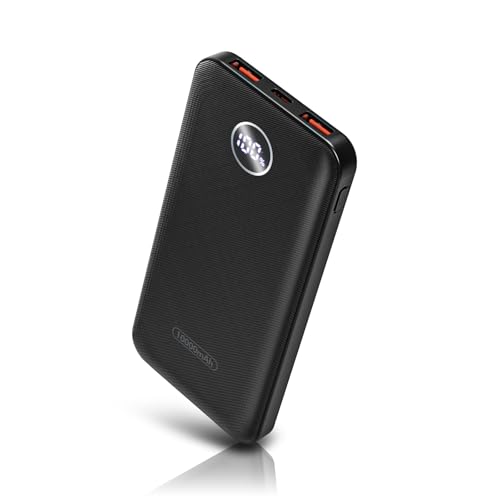
Slim Size but Powerful Capacity: The slim portable charger boasts a compact size of just 5.53 x 2.7 x 0.65 inches and weighs only 7.76 oz, making it as convenient to hold as a phone case. This design allows for easy portability, perfect for business trips or vacations. With a substantial capacity of 10,000 mAh, this power bank can charge your devices multiple times, providing you with peace of mind and ensuring that your mobile devices stay powered throughout the day.

Multi-Device Charging SupportCharge up to 3 devices at the same time with ease. This portable power bank works seamlessly with iOS and USB-C devices, keeping your IOS, Android, and other essentials juiced up—no more waiting around for sequential charging.
Using Quick Settings
- Swipe down from the top of your screen.
- Look for the battery icon. The battery percentage often appears next to this icon.
- Tap the battery icon to see more details, like how much time you have left or which apps consume the most power.
Accessing Battery Settings
- Open the Settings app.
- Scroll down and tap on “Battery.”
- Look for “Battery percentage.” You can enable this option to show the percentage in the status bar.
Utilizing Battery Widgets
- Long-press an empty area on your home screen.
- Select “Widgets.”
- Find a battery widget that displays percentage information.
- Drag the widget to your home screen. Now, you’ll see the battery percentage at a glance.
These methods ensure you always stay aware of your Android device’s battery status, helping you plan your usage effectively.
Additional Tips for Battery Management
Managing battery life on your Android device effectively enhances your overall experience. Use the following tips to optimize your battery performance and monitor usage.
Recommended Products

【Size Before You Buy】Before purchasing the Milavan Smart Ring, we recommend referring to the size chart and carefully measuring your finger circumference. This helps ensure a comfortable fit and avoid unnecessary returns or exchanges

Android battery health monitoring and battery status alert app
Optimizing Battery Performance
- Adjust Screen Brightness: Lower screen brightness reduces battery consumption. Set it to automatic mode to adapt to your surroundings.
- Limit Background Apps: Close apps running in the background. Use the app switcher to swipe away unused apps.
- Reduce Refresh Rate: If your device allows it, lower the refresh rate. Switching to a standard rate extends battery life significantly.
- Enable Battery Saver Mode: Activate Battery Saver mode to limit background activity when your battery is low. This slows down app performance slightly but conserves energy.
- Turn Off Location Services: Disable GPS for apps when it’s not needed. Keep location access to “While using the app” instead of “Always.”
- Manage Connectivity Options: Turn off Wi-Fi, Bluetooth, or mobile data when not in use. Quick toggles in the Quick Settings menu make this easy.
Third-Party Apps for Battery Monitoring
- Greenify: This app helps you identify apps that consume battery while not in use. It hibernates them, preventing them from running in the background.
- AccuBattery: Monitor battery health, usage, and charge cycles with AccuBattery. It provides insights into how apps impact your battery’s lifespan.
- GSam Battery Monitor: Get detailed statistics on battery usage, including which apps use the most power. It offers charts and graphs for easy comprehension.
- Battery Guru: This app suggests tips based on your usage patterns. Use it to optimize settings and extend battery life effectively.
- Power Battery: Power Battery provides lots of handy features, such as a memory booster and junk file cleaner, to maximize battery efficiency.
Using these strategies and tools will keep your battery status in check and enhance your device’s longevity.
Conclusion
Staying on top of your battery percentage can make a world of difference in how you use your Android device. By knowing exactly how much charge you have left you can avoid those frustrating moments when your phone unexpectedly dies.
With the methods outlined in this post you can easily check your battery status and make informed decisions about your usage. Plus with a few simple optimizations you can extend your battery life and keep your device running smoothly.
So go ahead and put these tips into action. You’ll not only stay connected but also enjoy a more reliable experience with your Android device.
Frequently Asked Questions
How can I check the battery percentage on my Android device?
You can check the battery percentage by swiping down from the top of the screen to open Quick Settings, where the battery icon shows the percentage. Alternatively, go to the Settings app, tap on Battery, and enable the option to display the percentage in the status bar. You can also use battery widgets on your home screen for quick access.
What should I do if my Android battery is draining quickly?
To improve battery life, reduce screen brightness, limit background apps, enable Battery Saver mode, and turn off location services when not needed. You can also manage connectivity options like Wi-Fi and Bluetooth, which consume power.
Are there any apps to help me monitor my battery life?
Yes, several apps can help you monitor battery life effectively, such as Greenify, AccuBattery, GSam Battery Monitor, Battery Guru, and Power Battery. These apps provide insights and control over battery usage, helping to extend your device’s longevity.
Why is it important to monitor my battery percentage?
Monitoring your battery percentage is crucial to avoid unexpected shutdowns and maintain device functionality. Knowing your battery level allows you to plan your activities and ensure you stay connected when you need your device the most.
What features might be affected by low battery levels on Android?
Low battery levels can lead to reduced performance and restricted features, such as slower app performance, limited background activity, and the inability to use certain functionalities like GPS or high-performance settings. It’s important to keep an eye on the battery percentage to avoid these issues.
