

Key Takeaways
- Understand Battery Health: Battery health is a measure of your phone’s battery capacity remaining compared to its original state. A healthy battery retains 80% to 100% of its capacity.
- Check Battery Health Easily: You can monitor your Samsung phone’s battery health through built-in settings or the Samsung Members app, providing vital information on usage and performance.
- Recognize Signs of Poor Health: Look for symptoms such as rapid battery drain, overheating, and inconsistent battery readings to identify potential issues early.
- Utilize Third-Party Apps: Consider using apps like AccuBattery and GSam Battery Monitor for deeper insights into your battery’s performance and usage patterns.
- Implement Maintenance Tips: Follow best practices such as avoiding extreme temperatures, limiting fast charging, and using original chargers to extend battery lifespan and efficiency.
- Benefit from Longevity: Maintaining good battery health leads to better performance, longer usage times, and can prevent unexpected shutdowns—ultimately enhancing your overall smartphone experience.
Is your Samsung phone running out of juice faster than it used to? You’re not alone. Many people face battery issues as their devices age, leading to frustrating moments when you need your phone the most. Understanding your battery health can help you pinpoint problems and improve your phone’s performance.
Understanding Samsung Phone Battery Health
Understanding battery health is crucial for maintaining the performance of your Samsung phone. Battery health reflects the condition and capacity of your battery, revealing whether it can hold a charge effectively.
What Is Battery Health?
Battery health indicates how much of its original capacity a battery retains after a period of use. Over time, lithium-ion batteries, commonly used in smartphones, naturally degrade. A healthy battery retains between 80% to 100% of its original capacity. If the capacity drops below this range, you may start to notice issues like:
- Reduced usage time
- Longer charging times
- Unexpected shutdowns
Signs of Poor Battery Health
Recognizing signs of poor battery health helps you act before the problem worsens. Watch for these indicators:
- Rapid battery drain during regular use
- Phone overheating during charging or operation
- Inconsistent battery percentage readings
Monitoring these signs can help you assess your battery’s health accurately.
How to Check Battery Health on Your Samsung Phone
You can assess your Samsung phone’s battery health through built-in settings:
- Open Settings: Tap on the “Settings” app on your home screen.
- Battery and Device Care: Scroll down and select “Battery and Device Care.”
- Battery: Tap on “Battery” to view details about usage and consumption.
- Battery Usage: Check for apps that consume excessive battery power and manage them accordingly.
Samsung’s built-in diagnostics can often provide a health summary, helping you make informed decisions about your battery.
Third-Party Apps for Battery Health
If you seek deeper insights, consider using third-party apps designed for monitoring battery health. Popular options include:
- AccuBattery: This app tracks battery usage and health status over time.
- GSam Battery Monitor: This app provides detailed statistics about component usage, helping you identify power-hungry applications.
Using these applications can enhance your understanding of battery performance, allowing for proactive management.
Tips for Maintaining Battery Health
Maintaining battery health increases your phone’s longevity. Here are practical tips:
- Avoid extreme temperatures: Keep your phone in a range of 32°F to 95°F (0°C to 35°C) to prevent damage.
- Limit fast charging: Use fast charging sparingly to reduce stress on the battery.
- Optimize settings: Enable power-saving mode to reduce unnecessary battery drain.
Implementing these tips helps extend your battery’s lifespan, ensuring it remains functional for a longer period.
Why Battery Health Matters
Understanding battery health is essential for maintaining optimal performance on your Samsung phone. A healthy battery not only ensures longer usage times but also prevents unexpected shutdowns during critical moments.
Importance of Battery Longevity
Battery longevity significantly impacts your daily experience. When your battery lasts longer, you enjoy uninterrupted usage without the need for frequent recharges. For example, a battery in good health can typically endure through an entire day of regular use, while a degraded battery might require charging multiple times. Keeping your battery healthy extends its lifespan, saving you money on replacements.
Signs of Deteriorating Battery Health
Identifying signs of deteriorating battery health allows you to take proactive measures. Look out for these indicators:
- Rapid Battery Drain: If your phone discharges quickly, even with minimal use, this signals potential battery issues.
- Overheating: Excessive heat during charging or usage suggests that the battery isn’t functioning correctly.
- Inconsistent Battery Percentage Readings: Sudden drops or spikes in battery percentage can indicate a weakening battery.
Monitoring these signs helps you maintain your device better and plan for necessary maintenance or replacement.
How to Check My Samsung Phone Battery Health
Checking your Samsung phone’s battery health is straightforward. You can use built-in settings and the Samsung Members app for detailed insights.
Recommended Products

High-Capacity Power: 3200mAh Li-ion battery ensures long-lasting performance and reliability for your Samsung Galaxy Mega 6.3 2013 samsung model, reducing the need for frequent recharging. (Not for S4)

Sim Card Slot Count: single_sim; Display Type: AMOLED; Operating System: Android 13.0; Water Resistance Level: not_water_resistant
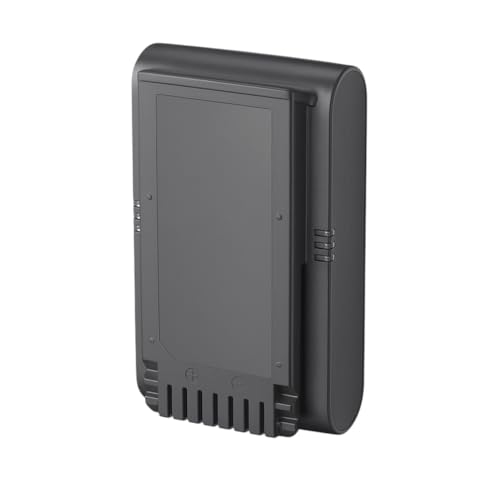
Rechargeable battery for the Samsung Jet 75 Series Stick Vacuum.
Using Built-In Settings
- Open Settings: Tap on the settings icon on your home screen or app drawer.
- Select Battery and Device Care: Scroll down and choose ‘Battery and Device Care.’
- Tap on Battery: This provides an overview of your battery usage and health.
- Review Battery Usage: Here, you’ll see which apps consume the most power.
The battery health percentage might not be directly displayed in every model, but monitoring usage patterns helps identify issues.
Utilizing Samsung Members App
- Download Samsung Members: If not installed, download it from the Galaxy Store or Google Play Store.
- Open the App: Launch the app and sign in with your Samsung account.
- Access Diagnostics: Tap on ‘Get Help’ at the bottom of the screen, then select ‘Diagnostics.’
- Select Battery Status: Choose ‘Battery’ to view detailed information about health, charge cycles, and more.
This app provides precise data on battery performance, helping you make informed decisions regarding maintenance or replacement.
Tips to Maintain Samsung Phone Battery Health
Maintaining battery health helps ensure your Samsung phone operates efficiently and lasts longer. Here are some effective tips:
Recommended Products

This battery is compatible with Samsung galaxy S2 SII GT-I9100 GT-I9105, to ensure that the battery you purchase is a perfect match for your device, be sure to check the model number of your device before ordering (you can check the model number of your device in the ‘Settings’ of your device).


Charging Best Practices
- Avoid Overcharging: Disconnect your phone once it reaches 100% to prevent potential long-term damage.
- Use Original Chargers: Use the charger that came with your phone to maintain compatibility and minimize risk.
- Charge Regularly: Keeping your battery between 20% and 80% extends its lifespan. Frequent small charges are better than one full charge from zero.
Reducing Battery Drain
- Limit Background App Activity: Navigate to Settings, then Battery and Device Care. Check which apps are running in the background and limit their activity.
- Adjust Screen Brightness: Lowering brightness or enabling adaptive brightness can save battery life.
- Disable Unused Features: Turn off features like Bluetooth, GPS, and Wi-Fi when not in use. Each of these can consume battery even when idle.
- Utilize Battery Saver Mode: Activate this mode through the battery settings. This option reduces performance to save energy.
- Update Your Apps: Regular updates often include optimizations that can help improve battery efficiency.
Implementing these practices can significantly boost your Samsung phone’s battery health and overall performance.
Conclusion
Taking care of your Samsung phone’s battery health is essential for enjoying a seamless experience. By regularly checking your battery’s condition and being mindful of its usage, you can prevent frustrating moments when your phone suddenly shuts down.
Remember to keep an eye on signs of battery wear and implement the tips for maintaining its longevity. With just a little effort, you can extend your battery’s lifespan and ensure your device stays reliable throughout the day.
So go ahead and give your battery the attention it deserves—you’ll thank yourself later!
Frequently Asked Questions
What causes Samsung phone batteries to deplete quickly as they age?
As Samsung phone batteries age, their capacity diminishes due to chemical reactions within the battery. This can result in rapid battery drain, longer charging times, and unexpected shutdowns, making it essential for users to monitor their battery health regularly.
How can I check the battery health of my Samsung phone?
To check your Samsung phone’s battery health, go to the Settings app, select ‘Battery and Device Care,’ then tap ‘Battery’ for an overview. While not all models show a direct battery health percentage, you can review battery usage to identify high-drain apps.
Why is battery health important for my Samsung phone?
Battery health is crucial because it affects how long your phone lasts between charges and prevents unexpected shutdowns. A healthy battery can enhance your daily experience, allowing for uninterrupted use without frequent recharges.
What are the signs of poor battery health in Samsung phones?
Signs of poor battery health include rapid battery drain, overheating, and inconsistent battery percentage readings. If you notice these issues, it may be time to evaluate your battery’s condition and consider maintenance or replacement.
What are some tips for maintaining my Samsung phone’s battery health?
To maintain battery health, avoid extreme temperatures, limit fast charging, and keep your battery between 20% and 80%. Additionally, reduce background app activity, adjust screen brightness, and utilize the battery saver mode to extend your battery’s lifespan.
