

Key Takeaways
- Power Off the Device: Always turn off your Motorola Razr completely before starting the battery removal process to ensure safety and prevent electrical issues.
- Gather the Right Tools: Essential tools include a small Phillips screwdriver, a plastic pry tool, and tweezers. A suction cup tool and static wrist strap can also enhance safety and ease during removal.
- Carefully Remove the Back Cover: Use the plastic pry tool to gently detach the back cover, starting from one corner to avoid damage.
- Unscrew and Disconnect the Battery: After removing screws securing the battery connector, gently lift it from its place and then take out the battery with caution.
- Inspect for Damage: Once the battery is removed, examine it for any signs of wear or swelling to determine if a replacement is necessary.
- Follow Safety Precautions: Handle all components with care, use static-free practices, and avoid touching battery terminals to prevent short circuits during removal and replacement.
Have you ever found yourself struggling with a phone that just won’t charge? If you own a Motorola Razr, knowing how to remove the battery can be a game-changer. Whether your battery’s worn out or you need to troubleshoot a pesky issue, this simple skill can save you time and hassle.
Overview of Motorola Razr Battery Removal
Removing the battery from a Motorola Razr is a straightforward process that can help resolve issues related to charging and battery performance. Understanding the steps involved ensures you handle the phone safely and effectively.
Key Steps for Battery Removal
- Power Off the Device
Before starting, make sure the Motorola Razr is completely powered off. This prevents potential harm to the device and reduces the risk of electrical shock.
- Gather Necessary Tools
You’ll need a few tools: a small Phillips screwdriver, a plastic pry tool, and a clean workspace. These items facilitate a smooth battery removal process.
- Remove the Back Cover
Use the plastic pry tool to gently detach the back cover from the phone. Start at one corner and carefully work your way around to avoid damaging the casing.
- Unscrew the Battery Connector
Locate the screws securing the battery connector. Using the Phillips screwdriver, remove these screws and keep them in a safe place.
- Disconnect the Battery
Once the screws are removed, gently lift the battery connector from its position. Handle the battery with care to avoid damage.
- Take Out the Battery
Depending on the model, you may need to pull on a small tab or simply lift the battery out. Ensure you do this gently to avoid bending or damaging any components.
- Inspect the Battery
After removal, take a moment to check the battery for any signs of wear or swelling. If you notice abnormalities, consider replacing the battery.
Additional Considerations
- Safety Precautions
Always ensure your hands are dry and you’re working in a static-free environment. Avoid touching the battery terminals to prevent short circuits.
- Battery Replacement
If you’re replacing the battery, ensure you purchase a compatible model. Using an incompatible battery can lead to performance issues.
- Follow Up
After replacing the battery or reassembling your device, power it on to ensure it functions correctly. Check if the charging issues are resolved.
Understanding these steps makes battery removal simple and efficient, allowing you to tackle frustrations with your Motorola Razr quickly.
Tools Needed
Gathering the right tools simplifies the battery removal process. You’ll need a few essential items and some optional ones, depending on your setup.
Recommended Products
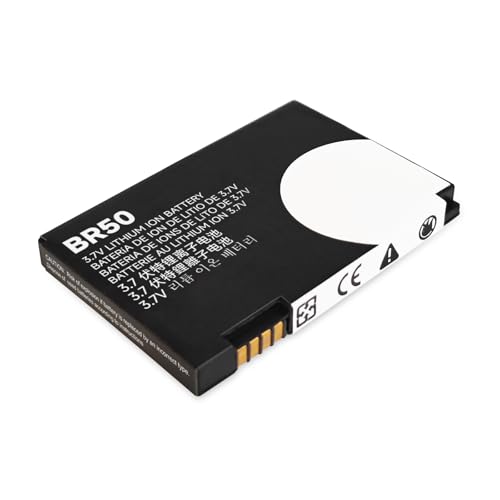
Extended Compatibility: Fits Motorola RAZR V3, V3i, V3c, V3m, V3T, V3Z, V3IM, U6 PEBL, Prolife 300/500, and all models using BR-50 battery type. Verify match by checking your original battery label
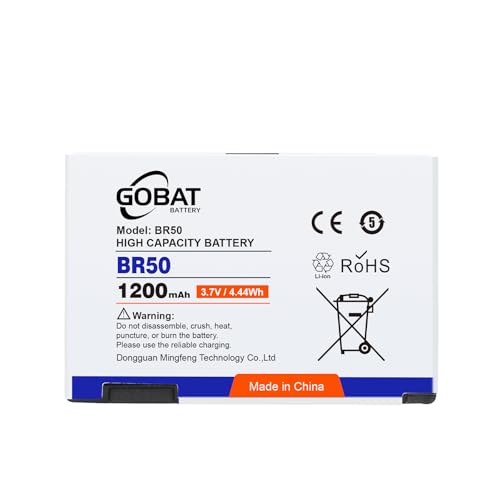
{COMPATIBLE MODELS}:This Replacement battery Compatible with Motorola RAZR V3, V3i, V3c, V3m, V3T, V3Z, V3IM, U6 PEBL, Prolife 300, Prolife 500.

Battery Model:QR30,Compatible with:Moto Razr+ 2025/Razr+ 2024/Razr 50 Ultra. Make sure your device is suitable for this replacement battery before ordering.
Essential Tools
- Screwdriver: A small Phillips-head screwdriver is crucial for unscrewing the battery connector and other screws.
- Plastic Pry Tool: Use this tool to navigate around the phone’s edges and safely detach the back cover without causing damage.
- Tweezers: Helpful for gripping small components and disconnecting the battery connector.
- Static Wrist Strap: This helps prevent static electricity from damaging your phone’s internal components.
Optional Tools
- Replacement Battery: If the goal is to replace the battery, ensure you have a compatible new battery on hand.
- Suction Cup Tool: This can assist in lifting the back cover if it’s tightly secured.
- Magnifying Glass: Useful for inspecting small screws or connections during the process.
Having these tools ready makes the battery removal from your Motorola Razr straightforward and safe.
Step-by-Step Guide to Remove Battery
Follow these steps to remove the battery from your Motorola Razr efficiently and safely.
Recommended Products

【Compatible Model】:100% compatible with QR30.Please confirm that your device is suitable for this replacement battery by checking the model number before purchasing

【Battery Compatible Model】: This Upgraded high capacity battery compatible with Motorola RAZR V3, V3i, V3c, V3m, V3T, V3Z, V3IM, U6 PEBL, Prolife 300, Prolife 500 and more that use BR-50 battery type. Check original battery label for model match.

This digitizer is designed for MOTO Razr 2025(Razr 60). In order to ensure seamless installation and stable use of your purchased accessories, please be sure to double check that the model number of the equipment you need to replace is exactly the same as the model number in the list above before placing your order.
Power Off Your Device
Turn the device off completely before starting. This ensures safety during the battery removal process and prevents any accidental power-related issues. To do this, press and hold the power button until the shut-down menu appears, then select “Power off.”
Remove SIM Card and Memory Card
Locate the SIM card and memory card slots. Use a SIM card ejector tool or a thin object to push into the tiny hole next to the card tray. This releases the tray. Remove both cards to prevent any damage during the battery removal process.
Unscrew the Back Cover
Gather your small Phillips-head screwdriver. Locate the screws on the back cover of your Motorola Razr. Carefully unscrew each screw and keep them in a safe place. After removing the screws, use a plastic pry tool to gently lift and remove the back cover, allowing access to the battery.
Detach the Battery
Identify the battery connector attached to the circuit board. Use the Phillips screwdriver to carefully unscrew this connector. Once unscrewed, gently lift the battery from its compartment using tweezers or your fingers. Avoid using excessive force to prevent damage to the device or battery.
Common Issues to Watch For
Removing the battery from a Motorola Razr can present several challenges. Watch for the following common issues to ensure a smooth process.
Difficulty Opening the Device
Opening the Motorola Razr can be tricky. You might struggle with the back cover if it hasn’t been pried open correctly. When using a plastic pry tool, apply gentle pressure along the edges to avoid breaking the clips that hold the cover in place. If you encounter resistance, re-evaluate your technique and don’t force the cover. Consider warming the edges slightly with a hairdryer to loosen adhesive, which may help ease the removal process.
Damage to Internal Components
During battery removal, care’s essential to protect internal components. Ensure you’re grounded to prevent static discharge, which can damage sensitive parts. Be cautious when handling screws and connectors, as they may be fragile. Use tweezers for delicate parts, and avoid touching gold connectors on the motherboard. Always check for any loose screws or small components before reassembling to avoid causing further issues. Proper handling prevents complications and keeps your device safe while you replace the battery.
Conclusion
Removing the battery from your Motorola Razr can be a straightforward process when you know what to do. By following the steps outlined in the article you can troubleshoot charging issues or replace a worn-out battery with ease.
Remember to gather the right tools and take your time to avoid any mishaps. Keeping an eye on battery wear and ensuring compatibility with replacements is key to maintaining your device’s performance.
With a bit of patience and care you’ll be able to tackle battery issues confidently and keep your Razr running smoothly.
Frequently Asked Questions
How can I fix my non-charging Motorola Razr phone?
To troubleshoot a non-charging Motorola Razr, first check the charging cable and outlet. If they are functional, consider removing the battery. Follow the battery removal process outlined in the article to inspect for any wear or damage. If the battery looks worn out, replace it with a compatible new one.
What tools do I need to remove the battery from my Motorola Razr?
You’ll need a small Phillips-head screwdriver, a plastic pry tool, tweezers, and a static wrist strap for safety. Optional tools include a replacement battery, suction cup tool, and magnifying glass to assist with the process.
What are the steps to remove the battery from a Motorola Razr?
Start by powering off your device completely. Remove the SIM card and memory card, then unscrew the back cover with a Phillips-head screwdriver. Use a plastic pry tool to access and unscrew the battery connector, then gently disconnect and lift out the battery.
What precautions should I take during battery removal?
Ensure that you ground yourself to avoid static discharge. Use tweezers for delicate parts and apply gentle pressure with the pry tool to prevent breakage. Check for any loose screws before reassembling to maintain device integrity.
How can I tell if my Motorola Razr battery is worn out?
Inspect the battery for signs of swelling, cracks, or corrosion. If the phone frequently shuts down or has significantly decreased battery life, it may indicate a worn-out battery needing replacement.
