Close Menu
Battery Spotlight
    Battery Spotlight
    • Home
    • Phone Batteries
    • Laptop Batteries
    • Car Batteries
      • Golf Cart Batteries
    • Battery Info
      • Battery Chargers
      • Battery Life
      • Battery Maintenance
      • Marine Batteries
      • Rechargeable Batteries
      • Solar Batteries
    • About Us
      • Contact
    Battery Spotlight
    Navigation: Home » Phone Batteries » Android Batteries » How to Remove Battery from Lenovo Yoga: Step-by-Step Guide for Easy Replacement
    Android Batteries

    How to Remove Battery from Lenovo Yoga: Step-by-Step Guide for Easy Replacement

    Leo HudsonBy Leo HudsonApril 13, 20257 Mins Read
    Share Facebook Twitter Pinterest LinkedIn Tumblr Email WhatsApp Copy Link
    Share
    Facebook Twitter LinkedIn Pinterest Email Copy Link

    Key Takeaways

    • Know Your Battery Type: Understand whether your Lenovo Yoga has a built-in or removable battery to tailor your removal approach appropriately.
    • Gather Essential Tools: Use the right tools such as a Phillips screwdriver, plastic pry tool, and anti-static wrist strap to simplify the battery removal process.
    • Safe Preparation: Always power down your device completely and discharge residual power before starting the battery removal to prevent electric shock.
    • Follow Step-by-Step Instructions: Adhere to the outlined steps for removing and replacing the battery to ensure a smooth and safe experience.
    • Avoid Common Mistakes: Check compatibility with your specific model, use appropriate tools, and work methodically to reduce the risk of damage.
    • Replace with Care: Choose the right replacement battery and follow proper installation guidelines to maintain optimal device performance.

    Have you ever found yourself needing to replace or troubleshoot your Lenovo Yoga’s battery? Whether it’s to improve performance or fix charging issues, knowing how to safely remove the battery can save you time and frustration.

    Table of Contents

    Toggle
    • Key Takeaways
    • Understanding Lenovo Yoga Battery Types
    • Built-In vs. Removable Batteries
    • Tools Needed for Removal
    • Step-by-Step Guide to Remove the Battery
    • Preparing Your Device
    • Removing the Back Cover
    • Disconnecting the Battery
    • Tips for Safely Removing the Battery
    • Avoiding Common Mistakes
    • Ensuring Personal Safety
    • Replacing the Battery
    • Choosing the Right Replacement
    • Installing the New Battery
    • Conclusion
    • Frequently Asked Questions
    • What types of batteries do Lenovo Yoga laptops use?
    • What tools do I need to replace the battery in a Lenovo Yoga laptop?
    • How do I prepare my Lenovo Yoga for battery removal?
    • What safety precautions should I take while changing the battery?
    • How can I find the right replacement battery for my Lenovo Yoga?

    In this article, you’ll learn step-by-step instructions to help you tackle this task with confidence. We’ll cover everything from the tools you’ll need to safety precautions, making the process as smooth as possible. By the end, you’ll be equipped to handle your device like a pro and ensure it runs at its best.

    Understanding Lenovo Yoga Battery Types

    Lenovo Yoga laptops feature different battery types, which impact how you approach battery removal and replacement. Knowing whether your device has a built-in or removable battery makes the process smoother.

    Recommended Products

    RHKRKQN 00HW020 53Wh Laptop Battery Replacement for Lenovo ThinkPad Yoga 460 20EL 20EM P40 Yoga 20GQ 20GR Yoga 14 20FY 20DM000VUS 20FY0002US S3 Yoga 14 Series Notebook SB10F46458 SB10F46459 00HW021
    RHKRKQN 00HW020 53Wh Laptop Battery Replacement for Lenovo ThinkPad Yoga 460 20EL 20EM P40 Yoga 20GQ 20GR Yoga 14 20FY 20DM000VUS 20FY0002US S3 Yoga 14 Series Notebook SB10F46458 SB10F46459 00HW021

    COMPATIBLE LAPTOP MODELS: Fit for Lenovo ThinkPad S3 Yoga 14, Yoga 460, Yoga 460 20EL, Yoga 460 20ELS039GE, Yoga 460 20ELS03A00, Yoga 460 20ELS03U00, Yoga 460 20EM, Yoga 460 20EM000QGE, Yoga 460 20EM000VGE, Yoga 460 20FY, Yoga 460 20FY0002US, Yoga 460 20G, Yoga 460 20G0 Series

    VIEW LATEST PRICE

    As an affiliate, we earn on qualifying purchases.

    L19L4PDC L19C4PDC L19M4PDC Battery Replacement for Lenovo Ideapad Yoga 7-14ITL5 82BH 7-15ITL5 82BJ Yoga 7i (15 inch) 2 in 1 Series, 5B10Z26482 SB10Z26481 5B10Z26485 SB10Z26483 5B10Z26479 SB10Z26486
    L19L4PDC L19C4PDC L19M4PDC Battery Replacement for Lenovo Ideapad Yoga 7-14ITL5 82BH 7-15ITL5 82BJ Yoga 7i (15 inch) 2 in 1 Series, 5B10Z26482 SB10Z26481 5B10Z26485 SB10Z26483 5B10Z26479 SB10Z26486

    Power Specs: Battery Type: Li-polymer Voltage: 15.36V Capacity:71Wh; Cells: 4-cell; The battery is durable and has overcurrent protection, anti-overcharge, anti-overdischarge and temperature control functions.

    VIEW LATEST PRICE

    As an affiliate, we earn on qualifying purchases.

    Fancy Buying L18C4P71 L18M4P72 Battery for Lenovo Thinkpad X1 Carbon 7th / 8th Gen, ThinkPad X1 Yoga 4th/5th Gen Series 02DL004 02DL005 02DL006 L18L4P71 SB10K97644 SB10K97642 SB10K97643 SB10T83174
    Fancy Buying L18C4P71 L18M4P72 Battery for Lenovo Thinkpad X1 Carbon 7th / 8th Gen, ThinkPad X1 Yoga 4th/5th Gen Series 02DL004 02DL005 02DL006 L18L4P71 SB10K97644 SB10K97642 SB10K97643 SB10T83174

    Battery Type: Lithium Polymer. Voltage: 15.36V Capacity: 51Wh ; Cells: 4-cell; Color: Black, Packages includes: 1x L18C4P71 battery , with auxiliary installation tool and user manual. This product is only compatible with ThinkPad X1 Yoga 4th Gen and 5th Gen, and is not compatible with 6th Gen, 7th Gen, or 8th Gen. It is also only compatible with ThinkPad X1 Carbon 7th Gen and 8th Gen, and not compatible with 9th Gen, 10th Gen, or 11th Gen. Please be sure to confirm the specific model of your computer before purchasing to avoid wrong purchase.

    SEE ALSO  Why Is My Samsung S21 Battery Draining So Fast: Proven Tips to Extend Your Battery Life
    VIEW LATEST PRICE

    As an affiliate, we earn on qualifying purchases.

    Built-In vs. Removable Batteries

    Built-in batteries secure power components inside your Lenovo Yoga laptop. These batteries typically require a more complex removal process and may involve disassembling the device. Models like the Lenovo Yoga 730 use built-in batteries.

    Removable batteries, however, allow for easier access. You can slide out the battery without significant disassembly. For instance, the Lenovo Yoga 3 Series has a removable battery, making replacements straightforward.

    Tools Needed for Removal

    Gathering the right tools eases battery removal. Here’s what you might need:

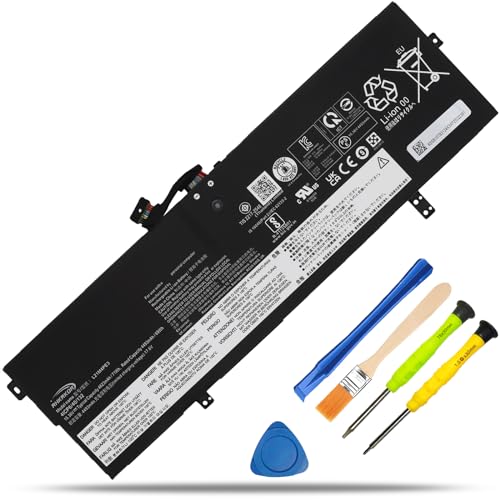
    • Screwdriver: A small Phillips screwdriver for removing screws.
    • Plastic Pry Tool: For carefully separating components without damage.
    • Tweezers: Helpful for handling small parts.
    • Anti-Static Wrist Strap: Prevents static damage while working on the laptop.

    With the appropriate tools, you’ll be equipped to remove the battery effectively. Ensure you perform this process on a hard, flat surface for the best results.

    Step-by-Step Guide to Remove the Battery

    Follow these steps for a seamless battery removal process.

    Recommended Products

    L15L4PC2 L15M4PC2 Laptop Battery Compatible with Lenovo Ideapad Yoga 710-11 710-14IKB 710-14ISK 710-15IKB 710-15ISK 710-151KB 710-14ISK-IFI 710-14ISK-ISE Series Notebook 5B10K90802 5B10K90778
    L15L4PC2 L15M4PC2 Laptop Battery Compatible with Lenovo Ideapad Yoga 710-11 710-14IKB 710-14ISK 710-15IKB 710-15ISK 710-151KB 710-14ISK-IFI 710-14ISK-ISE Series Notebook 5B10K90802 5B10K90778

    Battery type: Li-ion. Color: Black. Voltage: 7.64V/7.6V. Capacity: 53Wh, The battery is durable and has overcurrent protection, anti-overcharge, anti-overdischarge and temperature control functions.

    VIEW LATEST PRICE

    As an affiliate, we earn on qualifying purchases.

    L18M4PF1 L18D4PF1 69Wh Battery Replacement for Lenovo Yoga C940-15IRH 81TE Yoga 9-15IMH5 82DE/ IdeaPad S740-15IRH 81NW 81NW 81NX Series 5B10T83738 5B10U65276 4500mAh 4-Cells With Long interface cable
    L18M4PF1 L18D4PF1 69Wh Battery Replacement for Lenovo Yoga C940-15IRH 81TE Yoga 9-15IMH5 82DE/ IdeaPad S740-15IRH 81NW 81NW 81NX Series 5B10T83738 5B10U65276 4500mAh 4-Cells With Long interface cable

    【Customer First】24 x 7 email support. For assistance with the L18M4PF1 battery, please visit our product detail page OR please contact us by email at any time, (Note: Amazon return windows will be closed after one month. After that, you can click on seller store name on right corner, you can see "Ask a question" on the page and contact directly for any problem.).

    VIEW LATEST PRICE

    As an affiliate, we earn on qualifying purchases.

    OUWEE L19M4PH2 5B10Z33896 L19C4PH2 5B10Z33895 Battery Replacement for Lenovo Yoga 9-14ITL5 Type 82BG Series for Lenovo Yoga pro 14c Series 7.68V 60Wh 7630mAh
    OUWEE L19M4PH2 5B10Z33896 L19C4PH2 5B10Z33895 Battery Replacement for Lenovo Yoga 9-14ITL5 Type 82BG Series for Lenovo Yoga pro 14c Series 7.68V 60Wh 7630mAh

    【Specifications】 Replacement Battery for Lenovo laptop Replacement Battery, Type: Li-ion;Our L19C4PH2 Battery Replacement for Lenovo Standard Rechargeable li-ion battery. Voltage: 7.68V; Capacity:60Wh 7820mAh; Cells:4 cells; Color: Black;Condition: New; Battery lasts: 3-6 hours, Packages includes: 1x L19C4PH2 Battery,2 x Free Screwdrivers,1x Instruction for Laptop battery

    VIEW LATEST PRICE

    As an affiliate, we earn on qualifying purchases.

    Preparing Your Device

    1. Gather Tools: Bring together a Phillips screwdriver, a plastic pry tool, tweezers, and an anti-static wrist strap.
    2. Power Down: Shut down your Lenovo Yoga completely. Unplug the power adapter from the laptop.
    3. Eradicate Residual Charge: Press and hold the power button for 10 seconds to discharge any remaining power.
    SEE ALSO  How to Change Battery Icon on Samsung: Easy Steps for Personalizing Your Device

    Removing the Back Cover

    1. Place Laptop on Flat Surface: Lay the device screen down on a clean, hard surface.
    2. Remove Screws: Use the Phillips screwdriver to remove the screws from the back cover. Keep them in a small container for safekeeping.
    3. Pry Off the Cover: Insert the plastic pry tool into the seam of the back cover. Slide it around the edges to release the clips, carefully lifting off the cover.

    Disconnecting the Battery

    1. Locate the Battery Connector: Identify the battery connector on the motherboard.
    2. Unclip the Connector: Use the plastic pry tool or tweezers to gently lift the connector off its slot. Avoid tugging or pulling to prevent damage.
    3. Remove Battery: If your model has a removable battery, grip it firmly and pull it out. For built-in batteries, additional screws may require removal.

    Following these detailed steps ensures your battery removal is efficient and effective.

    Tips for Safely Removing the Battery

    Following proper steps ensures a safe battery removal process. Keep these tips in mind to avoid issues.

    Avoiding Common Mistakes

    • Check Compatibility: Confirm your Lenovo Yoga model before starting. This prevents unnecessary complications.
    • Dress Appropriately: Wear comfortable clothes. Avoid loose sleeves that could interfere with your work.
    • Use Proper Tools: Stick to recommended tools like a small Phillips screwdriver and a plastic pry tool. Using incorrect tools can damage your device.
    • Follow the Sequence: Adhere to the battery removal steps in order. Skipping steps can lead to mistakes or accidents.
    • Don’t Force Components: If something doesn’t come loose, double-check your method. Forcing parts can cause breaks or permanent damage.

    Ensuring Personal Safety

    • Power Down Fully: Always power down your laptop completely before removing the battery. This eliminates the risk of electrical shock.
    • Discharge Residual Charge: Press and hold the power button for 10-15 seconds after shutdown. This ensures no stored energy remains.
    • Use the Anti-Static Wrist Strap: Always wear it to prevent static electricity buildup. Static can damage sensitive laptop components.
    • Work in a Clean Environment: Use a hard, flat surface free from dust and clutter. A clean space reduces the risk of losing parts or damaging the device.
    • Avoid Liquid Exposure: Keep drinks away from the workspace. Spills can cause severe damage to your Lenovo Yoga.

    Keeping these tips in mind guarantees a smoother and safer battery removal process.

    Replacing the Battery

    Replacing the battery on your Lenovo Yoga is a straightforward process, especially with the right tools and knowledge. Follow these steps to ensure a successful replacement.

    Recommended Products

    BOWEIRUI 60.3Wh L18M3PFA L18D3PF2 Laptop Battery Replacement for Lenovo Yoga C740-15IML C740-15 81TD Series 5B10T83739 5B10T83740 5B10W67258 5B10W67402 SB10W67375 11.52V 5235mAh
    BOWEIRUI 60.3Wh L18M3PFA L18D3PF2 Laptop Battery Replacement for Lenovo Yoga C740-15IML C740-15 81TD Series 5B10T83739 5B10T83740 5B10W67258 5B10W67402 SB10W67375 11.52V 5235mAh

    【Customer First】24 x 7 email support. For assistance with the L18M3PFA battery, please visit our product detail page OR please contact us by email at any time, (Note: Amazon return windows will be closed after one month. After that, you can click on seller store name on right corner, you can see "Ask a question" on the page and contact directly for any problem.).

    SEE ALSO  How to Check Samsung Battery Health Percentage: Essential Tips for Maximizing Your Device's Lifespan
    VIEW LATEST PRICE

    As an affiliate, we earn on qualifying purchases.

    BOWEIRUI 01AV432 01AV434 Laptop Battery Replacement for Lenovo ThinkPad Yoga 260 370 X380 Series SB10K97589 SB10K97590 SB10K97591 SB10F46464 SB10F46465 01AV433 00HW026 00HW027
    BOWEIRUI 01AV432 01AV434 Laptop Battery Replacement for Lenovo ThinkPad Yoga 260 370 X380 Series SB10K97589 SB10K97590 SB10K97591 SB10F46464 SB10F46465 01AV433 00HW026 00HW027

    【Customer First】24 x 7 email support. For assistance with the 01AV432 battery, please visit our product detail page OR please contact us by email at any time, (Note: Amazon return windows will be closed after one month. After that, you can click on seller store name on right corner, you can see "Ask a question" on the page and contact directly for any problem.).

    VIEW LATEST PRICE

    As an affiliate, we earn on qualifying purchases.

    L19M4PH2 Battery Replacement for Lenovo Ideapad Yoga 9-14ITL5 82BG Yoga 9i (14inch) 2-in-1 C950 9-14ITL5-82BG001AUK 82BG00DRUE Series 5B10Z33896 L19C4PH2 5B10Z33895 SB10Z33898 7.68V 60Wh 4-Cells
    L19M4PH2 Battery Replacement for Lenovo Ideapad Yoga 9-14ITL5 82BG Yoga 9i (14inch) 2-in-1 C950 9-14ITL5-82BG001AUK 82BG00DRUE Series 5B10Z33896 L19C4PH2 5B10Z33895 SB10Z33898 7.68V 60Wh 4-Cells

    【Specifications】Model: L19M4PH2 Voltage: 7.68V Capacity: 60Wh/7820mAh Battery type: Li-ion. Also comes with installation tools

    VIEW LATEST PRICE

    As an affiliate, we earn on qualifying purchases.

    Choosing the Right Replacement

    Choosing the correct battery for your Lenovo Yoga is crucial for optimal performance. First, identify your specific yoga model, such as the Yoga 3 Series or Yoga 730. Then, check the voltage and capacity of the existing battery. Look for replacements from reputable manufacturers to avoid compatibility issues. Online retailers or Lenovo’s official website often provide options tailored to your model. Compare reviews and ratings to ensure you’re selecting a reliable battery.

    Installing the New Battery

    Installing the new battery involves a few simple steps:

    1. Power Down: Make sure your device is off before starting the installation.
    2. Inspect: Examine the new battery to confirm that it matches the specifications of the original.
    3. Position: Align the new battery with the connectors in your Lenovo Yoga. Ensure it’s firmly seated in the battery compartment.
    4. Reconnect: Attach the battery connector to the motherboard, making sure it’s secure.
    5. Replace Back Cover: Align and press the back cover into place. Use screws to secure it, if applicable.
    6. Power Up: Turn on the device and check battery recognition in the settings.

    By following these steps, you’ll successfully complete the battery replacement and enjoy improved performance from your Lenovo Yoga.

    Conclusion

    You’ve now got the tools and knowledge to tackle battery removal on your Lenovo Yoga. Whether you’re dealing with a built-in or removable battery you can confidently follow the steps to enhance your laptop’s performance.

    Remember to take your time and prioritize safety throughout the process. With the right precautions and attention to detail you can make this task easier than you might think.

    Enjoy the satisfaction of maintaining your device and keep it running smoothly for all your needs. Happy tinkering!

    Frequently Asked Questions

    What types of batteries do Lenovo Yoga laptops use?

    Lenovo Yoga laptops typically use either built-in or removable batteries. Built-in batteries are integrated into the laptop and require disassembly for replacement, while removable batteries can be easily taken out and replaced without additional tools or disassembly.

    What tools do I need to replace the battery in a Lenovo Yoga laptop?

    Essential tools for replacing a Lenovo Yoga battery include a small Phillips screwdriver, a plastic pry tool, tweezers, and an anti-static wrist strap. These tools ensure a smooth and safe battery replacement process.

    How do I prepare my Lenovo Yoga for battery removal?

    To prepare for battery removal, gather all necessary tools, power down the device, and discharge any residual charge. It’s also recommended to work on a hard, flat surface for optimal results.

    What safety precautions should I take while changing the battery?

    Ensure personal safety by fully powering down your laptop, wearing an anti-static wrist strap, and working in a clean environment. Avoid liquids near your workspace and handle components gently to prevent damage.

    How can I find the right replacement battery for my Lenovo Yoga?

    To find the right replacement battery, identify your specific Lenovo Yoga model, check the voltage and capacity of the current battery, and select replacements from reputable manufacturers to ensure compatibility.

    Share. Facebook Twitter Pinterest LinkedIn Tumblr Email WhatsApp Copy Link
    Leo-Hudson
    Leo Hudson

      Technical writer with 3+ years of experience. Bachelor of Arts in Environmental Studies from UC Santa Cruz. Passionate about sustainability and providing clear, concise how-to guides for common battery problems.

      Related Posts

      Android Batteries

      How to Replace Battery in Samsung Phone: A Step-by-Step Guide for Easy Replacement

      October 25, 2025
      Android Batteries

      How to Remove Battery from Samsung Smart TV Remote: A Step-by-Step Guide for Easy Replacement

      October 25, 2025
      Android Batteries

      How to Check Your Battery Health on Samsung: Simple Methods to Extend Your Phone’s Lifespan

      October 25, 2025
      Android Batteries

      How Much Is a Battery for a Samsung Galaxy S6: Pricing and Replacement Options Explained

      October 25, 2025
      Android Batteries

      How to Remove Battery from Samsung Galaxy S7: A Step-by-Step Guide for Easy DIY Fixes

      October 25, 2025
      Android Batteries

      Why is My Battery Going Down While Charging Android – Effective Solutions to Fix the Issue

      October 25, 2025
      Add A Comment
      Leave A Reply Cancel Reply

      Search
      Affiliate Disclaimer

      As an Amazon Associate I earn from qualifying purchases.

      Latest Articles

      How to Replace Battery in Samsung Phone: A Step-by-Step Guide for Easy Replacement

      Android Batteries

      How to Remove Battery from Samsung Smart TV Remote: A Step-by-Step Guide for Easy Replacement

      Android Batteries

      How to Check Your Battery Health on Samsung: Simple Methods to Extend Your Phone’s Lifespan

      Android Batteries

      How Much Is a Battery for a Samsung Galaxy S6: Pricing and Replacement Options Explained

      Android Batteries

      How to Remove Battery from Samsung Galaxy S7: A Step-by-Step Guide for Easy DIY Fixes

      Android Batteries

      Why is My Battery Going Down While Charging Android – Effective Solutions to Fix the Issue

      Android Batteries
      Battery Spotlight

      Battery Spotlight is a website dedicated to helping you solve common battery problems.

      Read more about us here

      Affiliate Disclaimer
      As an Amazon Associate I earn from qualifying purchases.

      Site Navigation
      • Above Mirror Bathroom Lighting
      • Android Batteries
      • Bathroom Pendant Lighting
      • Battery Chargers
      • Battery Life
      • Battery Maintenance
      • Car Batteries
      • Ceiling Lighting Ideas
      • Golf Cart Batteries
      • Japandi Lighting
      • Laptop Batteries
      • Marine Batteries
      • Mood Lighting Living Room
      • Phone Batteries
      • Rechargeable Batteries
      • Reviews
      • Solar Batteries
      • Uncategorized
      • Vaulted Ceiling Lighting
      Latest Articles

      How to Replace Battery in Samsung Phone: A Step-by-Step Guide for Easy Replacement

      How to Remove Battery from Samsung Smart TV Remote: A Step-by-Step Guide for Easy Replacement

      How to Check Your Battery Health on Samsung: Simple Methods to Extend Your Phone’s Lifespan

      How Much Is a Battery for a Samsung Galaxy S6: Pricing and Replacement Options Explained

      How to Remove Battery from Samsung Galaxy S7: A Step-by-Step Guide for Easy DIY Fixes

      • Home
      • About
      • Contact
      • Privacy Policy
      • Editorial Policy
      • Disclaimer
      • Terms and Conditions
      • Affiliate Disclosure
      © 2026 Battery Spotlight

      Type above and press Enter to search. Press Esc to cancel.