

Key Takeaways
- Understanding Battery Health: Monitoring your Samsung phone’s battery health is essential for optimal performance and longevity.
- Common Issues: Be aware of signs like rapid drain, overheating, and unexpected shutdowns, which may signal battery degradation.
- Checking Battery Health: Use the Samsung Members app or enter the code ##4636## in the dialer to assess battery health and obtain vital information.
- Interpreting Codes: Learn key metrics like battery health percentage, charge cycles, and temperature status to make informed decisions about battery maintenance.
- Replacement Considerations: Replace your battery if health falls below 80%, you experience rapid drain, or observe physical damage.
- Maintenance Tips: Regularly check battery health, update software, and follow best charging practices to extend battery life and ensure optimal device function.
Is your Samsung phone feeling sluggish or running out of juice faster than usual? You’re not alone. Many users face battery issues that can impact their daily routine. Knowing how to check your battery health can help you understand whether it’s time for a replacement or if there’s a simple fix.
Understanding Battery Health
Knowing your smartphone’s battery health is crucial for maintaining its performance. A healthy battery provides optimal usage and extends the life of your device.
Importance of Battery Health
Battery health impacts how your device performs. Batteries naturally degrade over time, reducing their capacity to hold a charge. By checking battery health, you determine if your battery needs replacement. Tracking this can help you avoid sudden shutdowns and sluggish performance, ensuring a smoother user experience.
Common Battery Issues
Several common battery issues can affect Samsung devices:
- Rapid Drain: If your phone loses charge quickly, it may indicate battery wear. Apps running in the background often contribute to this issue.
- Overheating: A battery that overheats can signal problems. High temperatures harm battery health and may lead to safety hazards.
- Charging Problems: Difficulty charging could stem from a faulty charger or cable. Check for breaks and try different charging sources.
- Unexpected Shutdowns: When your phone shuts down unexpectedly, regardless of the battery level, it suggests battery degradation.
Identifying these issues early can improve your phone’s longevity and performance.
Methods to Check Samsung Battery Health Code
Checking your Samsung battery health code helps you understand its condition. Several methods exist for this purpose, each easy to follow.
Recommended Products
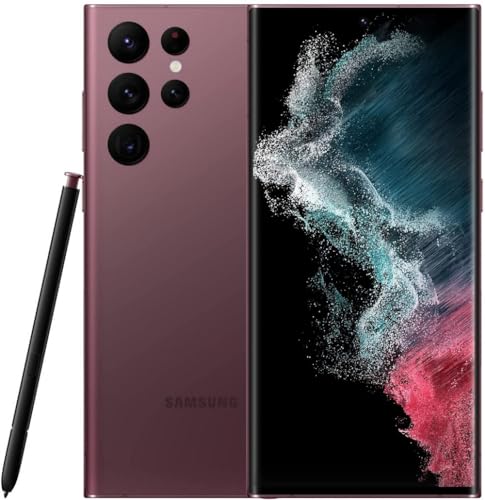
This device is locked to T-Mobile only and not compatible with any other carrier.

This device is locked to T-Mobile only and not compatible with any other carrier.

Rechargeable Samsung Jet battery for the Jet 75* Series cordless stick vacuum with 60 minute run time**
Using Samsung Members App
- Install the App: Download the Samsung Members app from the Galaxy Store or Google Play.
- Open the App: Launch the app and log in with your Samsung account.
- Navigate to Diagnostics: Tap on the “Get Help” tab, then select “Diagnostics.”
- Run Battery Test: Choose “Battery” to run a battery health check. The app displays your battery status, including charge capacity.
Accessing Secret Menu Codes
- Open Dialer: Launch the Phone app.
- Enter Code: Type ##4636## to access the testing menu. Your device displays various options.
- Select Battery Information: Tap on “Battery Information” to view stats like battery health and charge cycles.
- Analyze Data: Review the details to understand the battery’s residual capacity and overall condition.
Interpreting Battery Health Codes
Understanding battery health codes helps you assess your Samsung phone’s battery condition effectively. Several codes indicate important metrics regarding battery health, capacity, and usage patterns.
Recommended Products
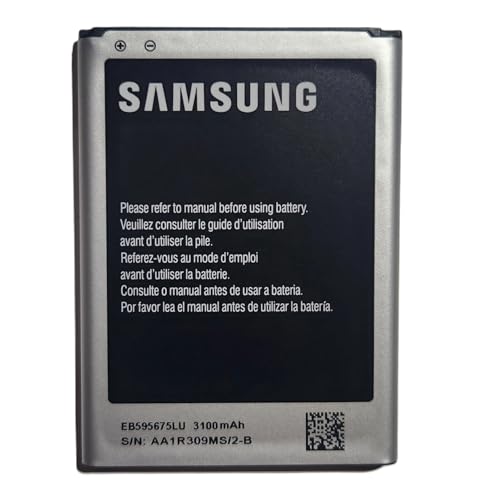
· 【Perfect Compatibility】This is a premium replacement battery specifically designed for Samsung Galaxy Note 2. Ensures a perfect fit and flawless performance for models: SGH-i317 (AT&T), SGH-T889 (T-Mobile), SCH-i605 (Verizon), SPH-R950 (Sprint), SPH-L900 (Sprint). Check your old battery's model number EB595675LA to confirm.

Tested for battery health and guaranteed to have a minimum battery capacity of 80%.

Compatible Phone Model: This battery kit is specifically designed for Samsung Galaxy A32 4G (with model SM-A325 series), A31 (with model SM-A315 series) and A22 4G (with model SM-A225 series), NOT work for A32 5G or A22 5G, please double confirm your phone model before purchasing
Common Codes and Their Meanings
- Battery Health Percentage: A value ranging from 0% to 100% reflects the battery’s current health. A value below 80% typically signals a need for replacement.
- Charge Cycles: This number shows how many times your battery has gone through a full charge. Each cycle can slightly reduce its lifespan, with an average lifespan being around 300 to 500 cycles.
- Temperature Status: Codes may indicate current operating temperature. Ideal performance occurs between 0°C and 40°C (32°F and 104°F). Temperatures outside this range can affect battery life.
- Voltage Levels: This value shows the voltages at which your battery operates. Consistently low voltages can indicate wear.
- Battery Capacity: Expressed in milliampere-hours (mAh), this measures the available battery capacity. Lower-than-expected values can indicate degradation.
When to Consider a Replacement
Evaluate the following situations to determine if a battery replacement is necessary:
- Health Percentage: If the battery health percentage falls below 80%, replacement is generally advised.
- Rapid Drain: Noticeable drops in battery percentage within a short time frame suggest significant wear.
- Inconsistent Charging: If the phone charges slowly or stops charging unexpectedly, it might be time for a new battery.
- Physical Damage: Signs like swelling or leakage indicate serious issues requiring immediate replacement.
- Overheating: Consistently high temperature readings during normal usage or charging can indicate degraded battery health.
Being aware of battery health codes assists in proactive management of your device, ensuring it runs smoothly for longer.
Tips for Maintaining Battery Health
Maintaining your Samsung battery health is crucial for optimal device performance. Here are some effective tips to help extend battery longevity.
Recommended Products

Product Type -Wearable Computer
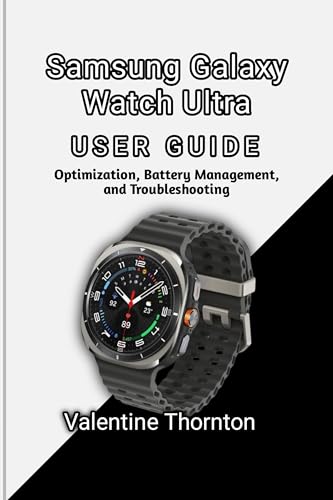

STYLE YOU CAN COUNT ON: Galaxy Watch3 combines style—two sizes, two finishes, three colors and, 50,000 plus¹ watch faces-with military-grade durability² and water resistance³
Regular Battery Maintenance
- Check Battery Health Regularly: Use the Samsung Members app or the code ##4636## to monitor battery performance. Keeping an eye on health codes ensures you’re aware of any issues.
- Update Software: Keep your device software up to date. Software updates often include optimizations that enhance battery performance.
- Clear Background Apps: Regularly close unused apps running in the background. Excessive background activity drains battery quickly.
- Limit High Resource Usage: Reduce activities like gaming or using location services when not needed. These tasks consume more power and heat the battery.
Best Charging Practices
- Use Original Chargers: Always use the charger provided with your device or certified replacements. Non-original chargers can lead to overheating and battery damage.
- Avoid Overcharging: Unplug your device after it reaches 100%. Continuous charging can wear down battery lifespan.
- Charge at Room Temperature: Ideal charging environments are between 32°F and 95°F (0°C to 35°C). Extreme temperatures can adversely affect battery health.
- Partial Charges are Fine: Frequent small charges are better than letting your battery drop to 0%. Aim to keep it between 20% and 80% for optimal health.
Implement these practices to ensure your Samsung device remains in peak condition, allowing you to enjoy extended usage without issues.
Conclusion
Taking charge of your Samsung battery health is essential for keeping your device running smoothly. By regularly checking its condition and understanding the health codes, you can make informed decisions about maintenance or replacement. Remember that simple practices like using original chargers and avoiding overcharging can go a long way in extending your battery’s life.
Don’t hesitate to take action if you notice signs of deterioration. With a little attention and care, you can enjoy your device’s performance for much longer. Stay proactive and keep your Samsung in top shape for all your daily needs. You’ve got this!
Frequently Asked Questions
What are common battery issues faced by Samsung phone users?
Many Samsung users experience common battery issues like rapid battery drain, overheating, charging problems, and unexpected shutdowns. These problems can result from background apps, faulty chargers, or battery degradation over time. Identifying these issues early is crucial for maintaining device longevity and performance.
How can I check the battery health of my Samsung phone?
You can check your Samsung phone’s battery health by using the Samsung Members app. Simply download the app, log in, and navigate to the diagnostics section. Alternatively, enter the code ##4636## in the Phone app to access battery details, including health, charge cycles, and more.
What are the indicators that my Samsung battery needs replacement?
Key indicators for battery replacement include a health percentage below 80%, rapid drain, inconsistent charging, overheating, and physical damage. If you notice these signs, it’s essential to assess your battery’s condition and consider a replacement to maintain optimal performance.
What maintenance tips can I follow to extend my Samsung battery’s lifespan?
To maintain battery health, regularly check your battery status, update your software, clear background apps, and limit high-resource usage. Charge your phone with the original charger, avoid overcharging, and try not to let the battery drop to 0%. These practices can help keep your battery in good condition.
How often should I check my Samsung battery health?
It’s a good practice to check your Samsung battery health every few months or whenever you notice performance issues. Regular monitoring will help you catch potential problems early and maintain your device’s efficiency, ensuring an optimal user experience over time.
