

Key Takeaways
- Understand Your Battery Type: Lenovo laptops primarily use lithium-ion and lithium-polymer batteries, each with its own specifications and lifespan. Knowing your type can aid in choosing appropriate maintenance practices.
- Identify Common Issues: Recognizing symptoms such as rapid drain, charging failures, and overheating can help you diagnose potential problems early on.
- Essential Tools for Repair: Gather key tools like a precision screwdriver set, multimeter, and antistatic wrist strap to ensure a smooth battery repair process.
- Follow Step-by-Step Repair Instructions: Adhere to a structured process for removing, testing, and replacing your laptop battery to improve performance effectively.
- Maintain Battery Health: Implement proper charging practices and store the battery correctly to extend its lifespan and maintain reliable performance.
- Regularly Check Battery Health: Use tools like Lenovo Vantage to monitor your battery’s health and make informed decisions about repairs or replacements.
Is your Lenovo laptop battery draining faster than you’d like? You’re not alone. Many users face this frustrating issue, and it can really disrupt your workflow. Whether you’re working from home or on the go, a reliable battery is essential for keeping you connected.
Overview of Lenovo Laptop Batteries
Lenovo laptop batteries come in various types, including lithium-ion and lithium-polymer. These batteries provide reliable power for day-to-day tasks. Understanding your battery’s specifications can help you optimize its lifespan and performance.
Battery Types
- Lithium-Ion: Common in many laptop models, these batteries offer high energy density and longevity. They typically last between 2 to 5 years.
- Lithium-Polymer: Often found in slimmer laptops, these batteries are lighter and more flexible in shape. They also provide a longer charge cycle than lithium-ion counterparts.
Battery Specifications
Each Lenovo laptop model features specific battery capacities, measured in watt-hours (Wh) or milliamp-hours (mAh). Identifying your battery’s capacity helps you assess how long your laptop can run on a single charge. Most Lenovo batteries range from 30Wh to 100Wh.
Common Battery Issues
Users frequently experience battery drain, failure to charge, or the laptop not recognizing the battery. Recognizing these symptoms allows for timely intervention. Sometimes, software updates can resolve charging issues, while physical damage or age may require replacement.
Maintenance Tips
- Calibration: Regularly calibrate your battery by charging it to 100% and then discharging it to 5% before recharging.
- Temperature: Keep your laptop in environments between 32°F and 95°F (0°C and 35°C). Extreme temperatures can impact battery performance.
- Power-Saving Features: Utilize Lenovo’s power settings to optimize battery usage during operation.
Checking Battery Health
You can monitor your battery’s health using the Lenovo Vantage software. This tool provides insights into your battery’s charge cycles, capacity, and overall status. Regular checks aid in identifying potential issues before they escalate.
Understanding Lenovo laptop batteries equips you with the knowledge to maintain optimal performance, ensuring your laptop remains a trustworthy partner in work and leisure activities.
Tools and Materials Needed
To repair a Lenovo laptop battery, gather the right tools and materials. This preparation ensures a smooth and efficient process.
Recommended Products

【Tech Specs & 100% New Products】Model: L18M4PH0 Voltage: 7.68V Capacity:60Wh/7820mAh Battery type: Li-ion. (We only use grade A battery cells that provide up to 500 recharge cycles over the life of the battery.Come with screwdrivers.)

Specifications :Model:L18C4PF3 ; Voltage:15.36V;Capacity:45Wh ;100% brand new from manufacture. Grade A product ensure fast charges and low power consumption.
Essential Tools
- Screwdriver Set: Use a precision screwdriver set with varying sizes, typically Phillips-head and flat-head, to handle battery housing screws.
- Plastic Pry Tools: Include plastic pry tools to safely open the laptop casing without damaging it.
- Multimeter: Utilize a multimeter to test battery voltage and check functionality. This tool helps identify issues accurately.
- Heat Gun or Hair Dryer: Employ a heat gun or hair dryer to gently warm adhesive areas for easier access to the battery.
Recommended Materials
- Replacement Battery: Purchase a compatible replacement battery specific to your Lenovo model. Ensure it meets original specifications.
- Adhesive Strips: Use adhesive strips for securing the new battery in place after replacement. Choose high-quality adhesive for durability.
- Isopropyl Alcohol: Keep isopropyl alcohol handy to clean surfaces before applying new adhesive.
- Antistatic Wrist Strap: Wear an antistatic wrist strap to prevent static electricity from damaging internal components during the repair.
By obtaining these tools and materials, you prepare yourself for a successful battery repair on your Lenovo laptop.
Common Battery Issues
Various battery issues can affect Lenovo laptops, impacting performance and reliability. Identifying these problems lets you take the appropriate steps to ensure your laptop runs smoothly.
Recommended Products

♣Battery type: Li-ion; Capacity: 2600mAh Voltage: 14.8V;Cells: 4-cell. The battery is durable and has overcurrent protection, anti-overcharge, anti-overdischarge and temperature control functions.

Battery type: Li-ion; Capacity: 48Wh; Cells: 6-cell; Voltage: 10.8V.
Symptoms of a Failing Battery
Recognizing battery failure symptoms is crucial for timely intervention. Common indicators include:
- Rapid Drain: The battery loses charge quickly during use, even with light tasks.
- Charging Issues: The battery refuses to charge or fails to reach full capacity.
- Overheating: The battery or laptop overheats during charging or operation.
- Swelling: Physical deformation of the battery, indicating potential leakage or damage.
- Error Messages: Operating system notifications about battery health or failures.
Diagnosing Battery Problems
Proper diagnostics help pinpoint battery issues effectively. Follow these steps:
- Check Battery Health: Use Lenovo Vantage or Windows Battery Report to assess health status.
- Inspect the Power Adapter: Verify that the charging cable and adapter are functioning correctly; look for frayed wires or faulty connectors.
- Reconnect the Battery: If possible, remove and reinsert the battery. Ensure connections are firm and free of dust or corrosion.
- Perform a Power Reset: For laptops with removable batteries, disconnect the power, remove the battery, and hold the power button for 15 seconds before reconnecting.
- Test with Another Battery: If available, try using a different compatible battery to determine if the issue lies with the original battery.
By recognizing symptoms and effectively diagnosing battery problems, you enhance your Lenovo laptop’s performance and longevity.
Step-by-Step Repair Process
Follow these steps to repair your Lenovo laptop battery effectively. Ensure you gather all necessary tools and materials before starting.
Recommended Products

【Specifications】Model: L20M3PF0 Voltage: 11.1V Capacity: 45Wh/4054mAh Battery type: Li-ion. Also comes with installation tools.

Specification: Battery type:Li-ion Voltage:10.8V Capacity:72Wh Cells:6cell. Rrecharge cycles:500; The battery is durable and has overcurrent protection, anti-overcharge, anti-overdischarge and temperature control functions.
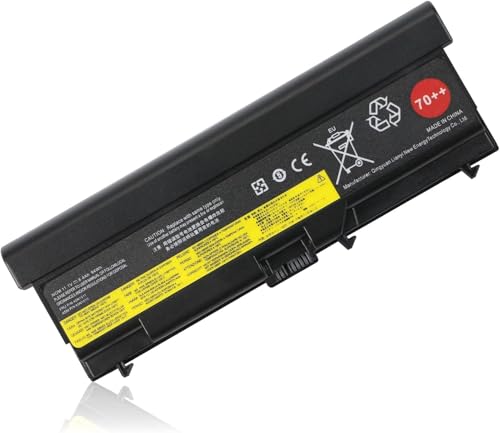
High Quality Battery Specifications: Brand new replacement battery with 11.1V voltage, 8.4Ah capacity (94Wh/8468mAh), featuring premium 70++ 9-cell configuration for extended power performance
Preparing the Laptop for Repair
- Power Down: Completely shut down your laptop to prevent electrical damage.
- Unplug: Disconnect the power adapter from the laptop.
- Ground Yourself: Use an antistatic wrist strap to eliminate static electricity. This protects sensitive components.
Removing the Battery
- Locate the Battery: Identify the battery compartment, usually on the back of the laptop.
- Unscrew: Use a precision screwdriver to remove any screws securing the battery.
- Release Clips: Gently press any clips or latches holding the battery in place.
- Lift the Battery: Carefully detach the battery and set it aside.
Testing the Battery
- Use a Multimeter: Measure the voltage output of the battery with a multimeter. A fully charged battery typically reads close to its rated voltage.
- Check for Swelling: Inspect the battery for any physical deformation, as swelling indicates a hazardous condition.
- Assess Connections: Examine the battery connectors for dirt or corrosion, as this can affect performance.
Replacing or Repairing Cells
- Evaluate Cell Condition: Open the battery casing and check individual cells for damage or wear.
- Replace Faulty Cells: If you find any defective cells, replace them with new cells of the same type and specification.
- Use Adhesive Strips: Re-secure the battery casing with adhesive strips to ensure a snug fit.
- Seal the Battery: If the battery is sealed, use appropriate tools to close it securely.
Following these steps enables effective repairs or replacements of your Lenovo laptop battery, improving its overall performance.
Tips for Maintaining Laptop Battery Health
Maintaining your Lenovo laptop battery health involves proper charging practices and smart storage recommendations.
Proper Charging Practices
Charge your laptop’s battery when it dips below 20%. This helps prevent deep discharges that can shorten its lifespan. Avoid keeping it plugged in at 100% for extended periods, as constant charging can stress the battery. Instead, unplug it once it reaches full charge, allowing it to discharge to about 40%-70% before recharging. Utilize Lenovo Vantage to enable battery conservation features, which will optimize charging cycles and preserve battery health over time.
Storage Recommendations
Store your laptop battery in a cool, dry place when not in use. Ideal temperatures range between 32°F and 86°F (0°C and 30°C). Ensure the battery is around a 50% charge before storing it, as both fully charged and completely drained batteries can lose capacity over time. Recheck the battery’s charge every six months and recharge it if necessary. If you’re storing your laptop long-term, disconnect the battery to further prevent degradation.
Conclusion
Repairing your Lenovo laptop battery doesn’t have to be a daunting task. With the right tools and a little patience you can restore your battery’s performance and extend its life. Remember to keep an eye on battery health and follow the maintenance tips to ensure smooth operation.
By diagnosing issues early and addressing them promptly you can avoid potential headaches down the road. Whether you’re working from home or on the go a reliable battery will keep you connected. So roll up your sleeves and get started on that repair—you’ve got this!
Frequently Asked Questions
Why is my Lenovo laptop battery draining so quickly?
A quick battery drain can be caused by background applications, high screen brightness, old battery health, or not using power-saving settings. Check for software updates and monitor battery usage through the Lenovo Vantage tool to identify power-hungry applications.
What type of batteries do Lenovo laptops use?
Lenovo laptops typically use lithium-ion or lithium-polymer batteries. Lithium-ion batteries are common for their reliability and efficiency, while lithium-polymer batteries offer a lighter design and longer life expectancy.
How can I maintain my Lenovo laptop battery?
To maintain battery health, charge your laptop when it falls below 20% and unplug it at 100%. Use Lenovo Vantage for battery conservation features, store the battery at around 50% charge in a cool place when not in use, and check the battery every six months.
What common issues do Lenovo laptop batteries face?
Common battery issues include rapid draining, failure to charge, overheating, swelling, and error messages. Identifying these symptoms early can help you take necessary action to repair or replace the battery.
How do I diagnose battery problems on my Lenovo laptop?
Diagnose battery problems by checking the battery health with Lenovo Vantage, inspecting the power adapter, reconnecting the battery, performing a power reset, and testing with a different battery when possible to pinpoint the issue.
What tools do I need for Lenovo laptop battery repair?
Essential tools for Lenovo laptop battery repair include a precision screwdriver set, plastic pry tools, a multimeter, and a heat gun or hair dryer. You’ll also need a replacement battery, adhesive strips, isopropyl alcohol, and an antistatic wrist strap.
Can I fix a swollen Lenovo laptop battery?
If your Lenovo laptop battery is swollen, it’s best to replace it immediately as it’s a safety hazard. Follow proper procedures to remove the battery carefully, or consult a professional for assistance to avoid damage.
How do I perform a laptop battery replacement?
Start by powering down and unplugging your laptop. Ground yourself to prevent static damage, remove the battery, test its condition, check for damage, and replace or repair individual battery cells according to the instructions. Finally, reassemble securely.
Is it necessary to use Lenovo Vantage software?
Using Lenovo Vantage is highly beneficial as it helps monitor battery health, manage power settings, and provide essential updates. Regular use of this software can enhance your laptop’s performance and extend battery lifespan.
How often should I check my Lenovo laptop battery’s health?
It’s recommended to check your Lenovo laptop battery’s health every six months, especially if you frequently store it for longer periods. Regular checks help identify any potential issues before they worsen.
