

Key Takeaways
- Battery Types: ASUS TUF laptops typically use Lithium-Ion (Li-ion) or Lithium Polymer (Li-Po) batteries, each with unique benefits affecting performance and longevity.
- Maintenance Tips: Proper battery care, including regular charging, temperature control, and software updates, are essential for prolonging battery lifespan and maintaining optimal performance.
- Essential Tools: A Phillips-head screwdriver, plastic pry tools, tweezers, and an anti-static wrist strap are necessary for safely replacing the laptop battery.
- Step-by-Step Process: Follow a detailed procedure that includes powering off the laptop, removing the old battery, installing the new one, and reassembling the device to ensure a successful battery replacement.
- Troubleshooting: If issues arise post-replacement, check connections, compatibility, and consider power cycling the laptop or running diagnostics to resolve common battery recognition and power issues.
Is your ASUS TUF laptop struggling to hold a charge? You’re not alone. Many users face this common issue, especially as their devices age. A worn-out battery can slow you down and disrupt your workflow, but replacing it doesn’t have to be a daunting task.
Understanding ASUS TUF Laptop Batteries
ASUS TUF laptops rely on specific battery types to enhance their performance and durability. Knowing the details about these batteries helps you understand their importance in your device.
Types of Batteries Used
ASUS TUF laptops typically utilize lithium-ion batteries, which are known for their efficiency and longevity. Here are common battery types you might encounter:
- Lithium-Ion (Li-ion): Most ASUS TUF models use Li-ion batteries for their lightweight properties and high energy density.
- Lithium Polymer (Li-Po): Some models may feature Li-Po batteries, offering a thinner profile and more flexible designs.
Identifying the exact battery type in your laptop ensures you purchase the correct replacement and maintain compatibility with your device.
Importance of Proper Battery Maintenance
Proper battery maintenance extends lifespan and ensures optimal performance. Consider these tips:
- Regular Charging: Charge your laptop when it drops to around 20% battery level, and avoid letting it drain completely.
- Temperature Control: Keep your laptop in a cool, dry place. Excessive heat can damage battery health.
- Software Updates: Ensure your ASUS TUF laptop runs the latest updates to optimize power management settings.
Maintaining your laptop battery contributes significantly to its longevity, preventing early wear and enhancing overall performance.
Tools Needed for Battery Replacement
Replacing the battery on your ASUS TUF laptop requires specific tools for a smooth process. Here’s a rundown of what you’ll need.
Recommended Products

ESD Safety Tools: The purpose of the 1 megohm resistor is for safety: Anti static wristband can continuously discharge the static electricity from the human body through the built-in 1 MΩ resistor to the ground, protecting your electronic components from accidental electrostatic discharge (ESD) damage during repairs. Made of 7 pure copper foil wires, which can eliminate static electricity within 0.1s, achieving a balance of charge between the hand and electronic devices

ESD Safety Tools: The purpose of the 1 megohm resistor is for safety: Anti static wristband can continuously discharge the static electricity from the human body through the built-in 1 MΩ resistor to the ground, protecting your electronic components from accidental electrostatic discharge (ESD) damage during repairs. Made of 7 pure copper foil wires, which can eliminate static electricity within 0.1s, achieving a balance of charge between the hand and electronic devices
ESD Safety Tools: The purpose of the 1 megohm resistor is for safety: Anti static wristband can continuously discharge the static electricity from the human body through the built-in 1 MΩ resistor to the ground, protecting your electronic components from accidental electrostatic discharge (ESD) damage during repairs. Made of 7 pure copper foil wires, which can eliminate static electricity within 0.1s, achieving a balance of charge between the hand and electronic devices
Essential Tools
- Screwdriver Set: You’ll need a Phillips-head screwdriver for most screws.
- Plastic Pry Tools: These tools help avoid damage when opening the laptop casing.
- Tweezers: Use these for handling small screws or connectors.
- Anti-Static Wrist Strap: Wearing this strap prevents static electricity from damaging your laptop’s components.
Optional Tools
- Magnetized Screw Tray: This keeps small screws organized and prevents loss.
- Flashlight: A flashlight helps illuminate dark areas inside the laptop for better visibility.
- Compressed Air: Use compressed air to clear out dust before installing the new battery, ensuring optimal performance.
- Multi-Meter: This tool tests the voltage of the new battery to confirm it’s functional before installation.
Step-by-Step Guide to Change ASUS Laptop Battery TUF
Here’s how to change the battery in your ASUS TUF laptop, ensuring you follow each step for a smooth process.
Recommended Products

【Specification】Voltage: 15.4V. Capacity: 90Wh/5845mA. Battery Type: Li-Polymer. Condition: Brand new, from high quality materials, top circuit boards and smart chip.

Laptop Battery for Asus, Model: B31N1726 ;Color: Black; Voltage: 11.4V; Capacity: 48Wh.
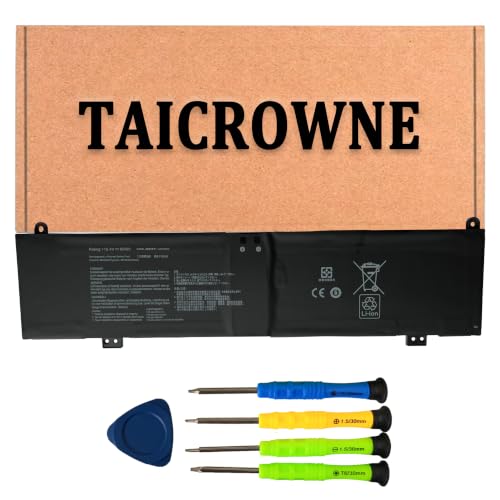
Specification: Battery Type: C41N2013 ; Voltage: 15.4V ; Capacity: 90Wh 5845mAh ; Packages includes: 1 battery, 1 Instruction Manual. Condition: 100% brand new from manufacturer.
Preparing Your Laptop
- Power off your laptop. Always turn off your device completely before starting any replacement.
- Unplug the charger. Disconnect the power adapter from the laptop to prevent any electrical hazards.
- Gather your tools. You’ll need a Philips-head screwdriver, plastic pry tools, and tweezers. An anti-static wrist strap can help prevent static damage.
- Work on a flat, clean surface. Ensure you have ample space to lay out components and avoid losing screws or parts.
Removing the Old Battery
- Locate the battery compartment. Depending on the model, this may be at the back of the laptop.
- Unscrew the battery. Use your Phillips-head screwdriver to remove the screws securing the battery.
- Disconnect the battery cable. Gently lift the connector using a plastic pry tool to avoid damaging any components.
- Remove the battery. Carefully lift the old battery out of the compartment.
Installing the New Battery
- Position the new battery. Place the new battery in the same orientation as the removed one.
- Reconnect the battery cable. Firmly but gently push the connector back into place.
- Screw in the new battery. Use your Phillips-head screwdriver to secure the battery with the screws you removed earlier.
Reassembling the Laptop
- Close the battery compartment. If applicable, return any covers or panels that were removed during disassembly.
- Reconnect the power adapter. Once everything is reassembled, plug in your laptop to test the new battery.
- Power on the laptop. Turn on your laptop and ensure it’s charging correctly.
Follow these steps carefully for a successful battery replacement in your ASUS TUF laptop.
Troubleshooting Common Issues
Sometimes, issues arise after replacing your ASUS TUF laptop battery. Reviewing common problems can help you troubleshoot effectively.
Battery Not Recognized
If your laptop doesn’t recognize the new battery, follow these steps:
- Check Connections: Ensure the battery cable is securely connected to the motherboard.
- Inspect the Battery: Verify that the replacement battery is compatible with your ASUS TUF model.
- Power Cycle the Laptop: Disconnect the power adapter, remove the battery, hold the power button for 15 seconds, reconnect everything, and then power it on.
- Software Update: Ensure your BIOS and operating system are updated. Updates can resolve recognition issues.
Power Issues After Replacement
If you face power-related problems post-replacement, consider these solutions:
- Recheck Installation: Confirm the battery is correctly installed and seated properly in its compartment.
- Inspect Power Adapter: Make sure your charger functions correctly; a faulty adapter can lead to charging problems.
- Calibrate the Battery: Charge the laptop to 100%, then discharge it completely. Recharge it again to calibrate the new battery.
- Run Diagnostics: Use ASUS’s built-in diagnostic tools to check the battery’s health and performance.
Addressing these troubleshooting areas can help resolve common issues after changing your ASUS TUF laptop battery.
Conclusion
Changing the battery in your ASUS TUF laptop can breathe new life into your device and enhance your productivity. With the right tools and a little patience you can tackle this task confidently. Remember to stay organized and follow the steps carefully to ensure a smooth replacement process.
Don’t forget about battery maintenance after you’ve made the switch. Simple habits like regular charging and keeping your laptop cool can go a long way in extending your new battery’s lifespan. If you run into any hiccups after the replacement take a moment to troubleshoot and check connections.
You’ve got this and soon you’ll be enjoying a fully functional laptop once again!
Frequently Asked Questions
What are the common issues with ASUS TUF laptop batteries?
ASUS TUF laptop users often face declining battery performance as their devices age. Common issues include difficulty holding a charge, reduced productivity, and sudden shutdowns due to low battery. This can hinder the overall user experience and necessitate a battery replacement.
What types of batteries are used in ASUS TUF laptops?
ASUS TUF laptops predominantly utilize lithium-ion (Li-ion) and lithium polymer (Li-Po) batteries. Knowing your battery type is crucial for selecting the correct replacement and ensuring optimal performance and compatibility during the battery swap.
How can I maintain my ASUS TUF laptop battery?
To maintain your ASUS TUF laptop battery, regularly charge it, keep it in a temperature-controlled environment, and ensure software is updated. These practices help prolong battery life and enhance overall performance, reducing the need for frequent replacements.
What tools do I need to replace my ASUS TUF laptop battery?
Essential tools for replacing an ASUS TUF laptop battery include a Phillips-head screwdriver, plastic pry tools, tweezers, and an anti-static wrist strap. Optional tools like a magnetized screw tray and flashlight can aid in the process for better organization and visibility.
Can I replace my ASUS TUF laptop battery myself?
Yes, replacing your ASUS TUF laptop battery can be done independently by following a step-by-step guide. Ensure you have the right tools, shut down your laptop, and work on a clean, static-free surface for better results.
What should I do if my laptop doesn’t recognize the new battery?
If your ASUS TUF laptop doesn’t recognize the new battery, check all connections to ensure they are secure. Additionally, confirm the battery’s compatibility, update your software, and power cycle the laptop to resolve any recognition issues.
How do I troubleshoot power issues after replacing the battery?
Post-replacement power issues can be addressed by rechecking connections, ensuring compatibility, updating software, and calibrating the new battery. If problems persist, inspect the power adapter and use built-in diagnostic tools for further assistance.
