

Key Takeaways
- Required Tools: Essential tools for safely removing a OnePlus battery include a small Phillips screwdriver, plastic opening tool, tweezers, and a suction cup.
- Power Off: Always power off your OnePlus device completely before starting the battery removal process to prevent short-circuiting.
- Back Cover Removal: Carefully use a plastic opening tool and suction cup to facilitate the back cover removal, working steadily to avoid damage.
- Disconnecting Battery: Locate and gently disconnect the battery connector from the motherboard using tweezers or a plastic tool, following careful steps to avoid damage.
- Address Common Issues: Be prepared for common challenges, such as adhesive resistance and battery connector problems; applying heat and being patient can help mitigate these issues.
- Safety Precautions: Follow safety precautions like using the correct tools and wearing protective gear, including safety glasses and an anti-static wrist strap.
Ever found yourself struggling with a phone that just won’t hold a charge? You’re not alone. Many OnePlus users face battery issues that can be frustrating and inconvenient. Whether you’re dealing with a swollen battery or simply need to replace an aging one, knowing how to safely remove it can save you time and money.
Tools You Will Need
Removing a OnePlus battery requires specific tools for a safe and effective process. Below are the tools necessary for this task.
Recommended Products

HIGH QUALITY: Thin flexible steel blade easily slips between the tightest gaps and corners.

Professional Tools: Showpin's 3-in-1 iopener includes LCD and double-headed screen opening tool plus a cleaning cloth. Suitable for mobile phones, iPads, and other mobile devices, facilitating the easy removal or replacement of the LCD screen and battery.
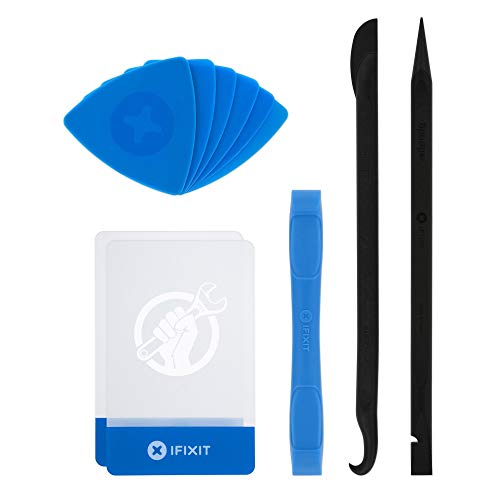
EFFECTIVE: Open your tech device and safely remove components with ease. Essential for DIY repairs like displays, batteries, motherboards, headphone jacks, joysticks, and more.
Essential Tools
- Small Phillips screwdriver
Use this for removing the screws that secure the back cover and battery.
- Plastic opening tool
Utilize this tool to gently pry open the back cover without damaging the device.
- Tweezers
Tweezers help you handle small components, especially when removing the battery connectors.
- Suction cup
Apply a suction cup to lift the back cover more easily, minimizing the risk of scratches.
Optional Tools
- Spudger
A spudger assists in opening the phone and loosening adhesive while avoiding damage.
- Magnetic mat
A magnetic mat keeps screws organized, preventing loss during the removal process.
- Anti-static wrist strap
Wearing this strap protects your device from static electricity during handling.
Use these tools to ensure a smooth battery removal process for your OnePlus device.
Step-by-Step Guide
Follow these steps to safely remove the battery from your OnePlus device. Ensure you have the right tools handy before starting the process.
Recommended Products
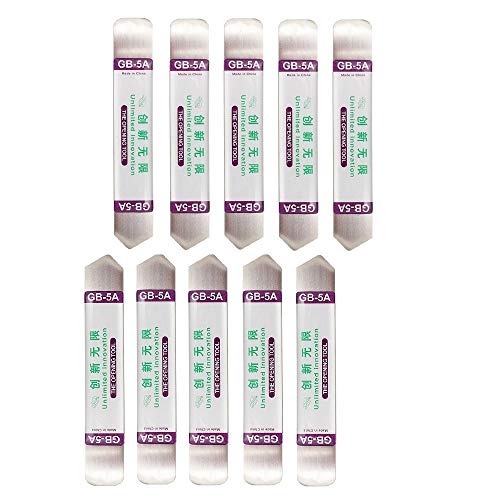
Ideal For Opening: iPhone, Smart phone, iPad, Tablet, Laptop, PC, LCD and other plastics or metals

Upgraded 18 in 1 Professional Repair Toolkit Screwdriver Set For Mobile Devices, Tablets, Computers, laptops, Repair, battery Change, Cleaning, Upgrading etc.

Powerful Function: This 2 in 1 opening repair tool kit is professtional tool that compatible with repairing moble devices, iPhone, iPads, iPods or any other smart phones.Good helper to remove screen when you need repair your phone.
Preparing Your Device
- Power off your OnePlus phone completely. Hold the Power button, then select “Power off.”
- Remove any SIM cards and microSD cards. Use a SIM ejector tool or a paper clip for this.
- Work on a clean, flat surface to avoid losing small parts. Consider using a magnetic mat to keep screws organized.
Removing the Back Cover
- Use a plastic opening tool to create a gap between the back cover and the phone. Start at a corner and gently pry it open.
- Insert the suction cup near the edge and pull lightly while continuing to pry. This helps separate the adhesive.
- Carefully lift the back cover off. Set it aside to prevent scratches or damage.
Disconnecting the Battery
- Locate the battery connector on the motherboard. This is typically near the bottom of the device.
- Use a small Phillips screwdriver to remove any screws securing the battery connector cover.
- Gently lift the battery connector with tweezers or a plastic tool to disconnect it from the motherboard.
Removing the Battery
- Check for any screws holding the battery in place. Remove them if necessary.
- Use a plastic opening tool to carefully pry the battery away from the adhesive. Start at a corner and work your way around.
- Once loose, use your fingers or tweezers to lift the battery out. Avoid using metal tools to prevent short-circuiting.
Follow these steps carefully for a successful battery removal.
Common Issues
OnePlus users often face various issues when dealing with battery removal. Understanding these common problems can help you tackle the task effectively.
Recommended Products

🌈【Wide Application & Universal】: This 22 in 1 opening pry tools set is designed for assemble or disassemble all your electric devices. Suitable for iPhone 14 13 12 11 Pro Max / XS / XR / X / 8 Plus / 7 Plus / 7 / 8 / 6S / 6S Plus, iPad, iPod, android phone, laptop, tablet, smartwatch, Macbook, computer, LCD screen, battery, camera, game consoles, speaker and more. Whether you're a professional or a amateur, this set can repair anything you need.

Open adhesive assembled devices with smooth glass, metal or plastic top and bottom surfaces.
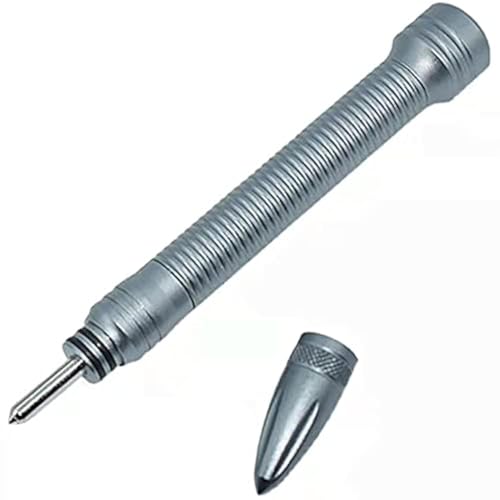
【Compatible Model】This Item Can be used for most glass battery case back cover, like for iPhone,for Samsung, for Xiaomi,for Huawei ,for OnePlus,and more
Difficulty in Removing the Back Cover
Removing the back cover of your OnePlus device might pose a challenge. Adhesive used to secure the cover can make it difficult to lift it off. If you encounter resistance, consider these tips:
- Use Heat: Apply gentle heat with a hairdryer to soften the adhesive. Keep the dryer a few inches away to avoid damaging the device.
- Work Slowly: Start at one corner with the plastic opening tool. Gradually slide it around the edges, applying gentle pressure.
- Be Patient: Take your time. Rushing can result in scratches or damage to internal components.
Battery Connector Issues
After successfully removing the back cover, you may face issues with the battery connector. A poorly connected battery can prevent your device from powering on. To address this:
- Inspect the Connector: Ensure the connector is clean and free of debris. Use compressed air to blow out any dust.
- Reconnect Firmly: Carefully align the battery connector and press it down until it clicks into place. Avoid excessive force to prevent damage.
- Check for Damage: If the connector appears damaged, consider visiting a technician for repair.
By being aware of these common issues, you can navigate the battery removal process more smoothly and effectively.
Safety Precautions
Ensure safety before removing the battery from your OnePlus device. Following these precautions helps prevent accidents or damage during the process.
Powering Off Your Device
Turn off your device completely before starting. This step minimizes the risk of short-circuiting the battery or causing electrical damage. To power off, hold down the power button, then select the shutdown option on the screen. Wait for the device to turn off entirely before proceeding.
Handling Tools Safely
Use the right tools carefully to avoid injury and prevent damage. Only use plastic opening tools and avoid metal ones; metal can scratch or damage components. Wear safety glasses to protect your eyes from debris. Keep your workspace organized to avoid misplacing screws and tools. If necessary, use an anti-static wrist strap to prevent static electricity from damaging your device.
Conclusion
Removing the battery from your OnePlus device can seem daunting but with the right tools and steps it’s totally manageable. By following the guide and taking necessary precautions you can ensure a smooth process.
Remember to work patiently and carefully so you don’t accidentally damage your phone. If you encounter any hiccups along the way just take a deep breath and keep going.
With a little practice you’ll feel more confident tackling battery issues in the future. Your OnePlus will thank you for the extra care and attention!
Frequently Asked Questions
What are common battery issues for OnePlus users?
Many OnePlus users encounter issues like poor battery life, inability to hold a charge, and the need for battery replacement. These problems can lead to frustration, especially when the device becomes unreliable.
How do I safely remove a swollen battery from my OnePlus phone?
To remove a swollen battery, power off the device, and use essential tools like a plastic opening tool and suction cup. Carefully detach the back cover, disconnect the battery connector, and then remove the battery while avoiding metal tools to prevent short-circuiting.
What tools are needed for battery removal from a OnePlus device?
Essential tools include a small Phillips screwdriver, plastic opening tool, tweezers, and a suction cup. Optional tools that can aid in the process are a spudger, magnetic mat, and anti-static wrist strap.
What precautions should I take before removing the battery?
Always power off the device completely to reduce the risk of electrical damage. Use only plastic tools, wear safety glasses for protection, and keep your workspace organized to prevent static damage or accidents during the process.
Why is the back cover difficult to remove?
The back cover may be challenging to remove due to adhesive. Applying gentle heat, working slowly, and being patient can help loosen the adhesive without damaging the device.
What should I do if I encounter issues with the battery connector?
If you face battery connector issues, inspect it for any damage. Reconnect it firmly and ensure there are no obstructions. Checking the connection before replacing the battery is crucial for proper functionality.
How can I improve my OnePlus device’s battery life?
To enhance battery life, update your software regularly, close unused apps, reduce screen brightness, and manage location services. Regular maintenance can significantly prolong battery performance.
