

Key Takeaways
- Battery Sharing Feature: The Samsung S22 Ultra allows for convenient battery sharing via its Wireless PowerShare feature, enabling you to charge other devices wirelessly.
- Activation Process: Easily activate battery sharing by accessing the Quick Settings panel and tapping on the Wireless PowerShare icon.
- Charging Procedure: Place compatible devices back-to-back for optimal charging, ensuring they make full contact for effective power transfer.
- Requirements for Use: Your S22 Ultra must have at least 30% battery remaining to share power, and the receiving device must support wireless charging.
- Tips for Efficiency: Enable Battery Saving Mode before sharing and ensure both devices’ battery levels are sufficient to enhance the sharing experience.
Have you ever found yourself in a pinch, with your phone battery running low while a friend desperately needs a charge? If you own a Samsung S22 Ultra, you’re in luck. This powerful device comes with a handy feature that lets you share your battery with others, ensuring you both stay connected.
Overview Of Battery Sharing On Samsung S22 Ultra
Battery sharing on the Samsung S22 Ultra lets you transfer your phone’s battery power to another device. This feature quickly comes in handy when someone else’s phone runs low on juice. You can charge other smartphones, earbuds, or smartwatches wirelessly.
Key Features
- Wireless PowerShare: Use this function to share battery power with compatible devices. It harnesses the Qi wireless charging standard, enhancing convenience and versatility.
- Easy Activation: Start battery sharing through the Quick Settings panel. Just swipe down from the top of your screen to access settings.
How It Works
- Activate PowerShare: Go to the Quick Settings menu, tap on “Wireless PowerShare,” and turn it on.
- Position Devices: Place the device you want to charge back-to-back against your S22 Ultra.
- Charging Set-Up: You’ll see an on-screen indicator showing that charging has started.
Limitations
- Battery Percentage: You can share battery power only when your S22 Ultra has enough charge. Keep at least 30% remaining for effective sharing.
- Compatible Devices: Ensure that the device you want to charge supports wireless charging.
Benefits include staying connected with friends during outings or extending the battery life of your gadgets without needing a power bank. Enjoy the convenience of helping others stay powered up while you’re out and about.
How To Enable Battery Sharing
Enabling battery sharing on your Samsung S22 Ultra is straightforward. Follow these steps to activate the Wireless PowerShare feature.
Accessing The Settings
- Swipe Down: From the top of your screen, swipe down to open the Quick Settings panel.
- Locate PowerShare: Look for the Wireless PowerShare icon, which looks like two overlapping circles.
- If Not Visible: Tap the three-dot menu at the top right, select “Edit buttons,” and drag the Wireless PowerShare icon into your Quick Settings for easy access.
Activating Wireless PowerShare
- Turn On PowerShare: Tap the Wireless PowerShare icon in your Quick Settings panel. The feature activates, and you’ll see a prompt indicating it’s on.
- Position Devices: Align the back of your S22 Ultra with the device you want to charge. Ensure both devices are touching for optimal charging.
- Check Battery Level: Ensure your S22 Ultra has at least 30% battery remaining. This threshold is necessary for the feature to work effectively.
With these steps, you can easily share battery power with others wherever required.
How To Share Battery With Other Devices
Sharing battery power from your Samsung S22 Ultra is simple and effective. By using the Wireless PowerShare feature, you can help keep your friends’ devices charged while out and about. Follow these guidelines to ensure an effective battery-sharing experience.
Recommended Products

【15W Samsung S26 Fast Charging Stand】☛HUHUTa 15W Samsung S26 Ultra wireless charger stand supports fast charging speed up to 15W. The 15W for Samsung galaxy s26+ wireless charging station fast charge for samsung galaxy s26 s25 ultra s25 edge, iPhone 17 16 pro max, Google pixel 10a 10 9 pro xl from 0% to 50% in just 35 mins and a full charge in about 2.5 hours---2X Faster than a standard 7.5W charger, provides you a super high speed charging experience. ⚠️For a better fast charging experience, please use an 18W/20W or higher power adapter (Adapter Is NOT Included).

S22 Ultra Case with screen protector (1 x Top Quality, 9H anti-scratch, Tempered Glass); Case-Friendly design (Not edge to edge coverage as plastic protector, so to avoid glass pushed off)Lace case is compatible with Samsung Galaxy S22 Ultra 6.8 inch only (2022 Release), NOT for S22 in 6.1 inch, NOT for S22 Plus in 6.6 inch, NOT for other phone model, please identify your phone model before ordering; Support wireless charging and powershare; anti-slippery design
Placing The Device Correctly
Place the devices back-to-back for optimal charging. Position the S22 Ultra directly on top of the device you’re sharing power with. Ensure both devices are touching to establish a proper connection. You may notice some devices have designated areas for wireless charging, so aligning them correctly enhances efficiency.
Monitoring The Charging Status
Keep an eye on the charging status during the transfer. The S22 Ultra will display an on-screen indicator showing the charging progress. This helps you monitor how much power is being shared. If the receiving device is charging slowly or not at all, double-check the alignment and make sure both devices are sufficiently charged as well.
Tips For Efficient Battery Sharing
Using Wireless PowerShare effectively enhances your experience with the Samsung S22 Ultra. Here are some practical tips to ensure efficient battery sharing.
Recommended Products
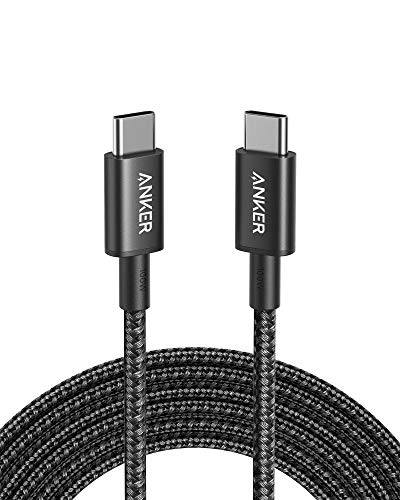
The Anker Advantage: Join the 55 million+ powered by our leading technology.
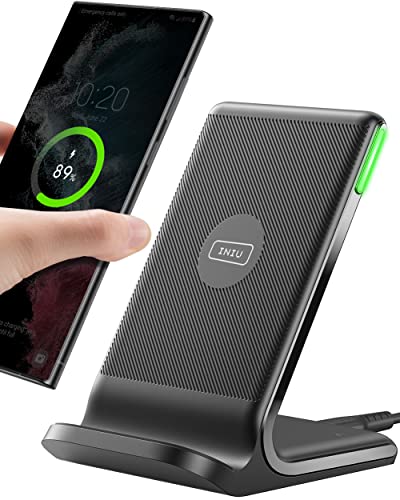
From INIU--the SAFE Fast Charge Pro: Experience the safest charging with over 38 million global users. At INIU, we use only the highest-grade materials, so we do have the confidence to provide an industry-leading 3 years INIU care

【6 in 1 Multi Charger Cord for All Devices】: The up-to-date 6 in 1 design with USB A/C to 4 different USB ports. Including Dual Lightning, Micro-USB and USB Type C connectors support to charger most of the cell phones available on market.Perfect for home use, office, travel, car, uber lyft business or sharing with friends.
Battery Saving Mode
Enable Battery Saving Mode on your S22 Ultra before initiating battery sharing. This mode reduces background activities, making power transfer easier. To activate it, go to Settings > Battery and Device Care > Battery. Toggle on the Battery Saving Mode. The device conserves energy while sharing, allowing both devices to maintain a charge during use.
Managing Device Compatibility
Ensure that the device you’re sharing with supports wireless charging. Check the specific model’s features to confirm compatibility. Most smartphones, earbuds, and smartwatches from reputable brands support it. To maximize efficiency, consider the following:
- Align devices properly: Position them back-to-back precisely for optimal charging.
- Check battery levels: Both devices should be charged sufficiently to avoid interruptions during sharing.
- Disconnect after charging: Once the receiving device shows a full charge, remove it promptly to save your battery life.
By following these tips, you can make the most out of your Samsung S22 Ultra’s battery-sharing feature.
Conclusion
Sharing battery power on your Samsung S22 Ultra is a game changer for staying connected. Whether you’re out with friends or on the go, this feature lets you lend a helping hand when someone’s device is running low.
By following the simple steps to activate Wireless PowerShare, you can easily transfer power to other compatible devices. Just remember to keep an eye on both devices’ battery levels and position them correctly for optimal charging.
With a little planning and these handy tips, you’ll ensure that you and your friends can keep your devices charged and ready for whatever adventures come your way. Happy sharing!
Frequently Asked Questions
What is Wireless PowerShare on the Samsung S22 Ultra?
Wireless PowerShare is a feature that allows users to share their phone’s battery wirelessly with other devices. It’s beneficial for charging smartphones, earbuds, or smartwatches when one device is low on power.
How do I activate Wireless PowerShare?
To activate Wireless PowerShare, swipe down from the top of the screen to access the Quick Settings panel. Tap the Wireless PowerShare icon, then position your S22 Ultra back-to-back with the device you wish to charge.
Are there any requirements for using Wireless PowerShare?
Yes, the Samsung S22 Ultra must have at least 30% battery remaining, and the receiving device must support wireless charging.
How can I maximize battery sharing efficiency?
Ensure both devices are aligned correctly back-to-back for optimal charging. Enable Battery Saving Mode on your S22 Ultra and monitor the charging status during the transfer.
Can I share battery power if my S22 Ultra is below 30%?
No, the S22 Ultra needs to have at least 30% battery remaining to use the Wireless PowerShare feature effectively.
Is there a way to check the charging progress while using Wireless PowerShare?
Yes, the S22 Ultra displays an on-screen indicator that shows the charging progress, allowing you to monitor the transfer effectively.
What should I do once the receiving device is fully charged?
Once the receiving device is fully charged, it’s best to disconnect promptly. This helps conserve battery life on your S22 Ultra.
Can I use Wireless PowerShare while my phone is being charged?
No, Wireless PowerShare cannot be used while your S22 Ultra is plugged in to charge. It requires the phone to be on standalone battery power.
