

Ever wondered why your laptop battery seems to drain faster than you can say “fully charged”? Picture this: you’re in the middle of an important task, and suddenly, the dreaded low battery warning pops up. Frustrating, right? Don’t worry, you’re not alone in this struggle. But what if there were simple tricks you could use to make your laptop battery last longer?
In this article, you’ll uncover practical tips and tricks to extend the battery life of your laptop. Imagine being able to work, stream, and browse without constantly worrying about finding the nearest power outlet. By implementing these strategies, you’ll not only save time but also prolong the lifespan of your laptop battery. Ready to bid farewell to those battery woes and enjoy a longer-lasting charge? Let’s dive in and make your laptop battery work smarter, not harder.
Understanding Battery Basics
Chances are, you’ve faced low battery warnings right when you needed your laptop the most. Understanding how your laptop battery works can help you make simple changes that can extend its lifespan and improve its overall performance.
Battery Types
- Most laptops use lithium-ion batteries due to their high energy density and low self-discharge rate.
- They are ideal for laptops as they can hold a charge for longer periods, even when not in use.
Battery Lifespan
- Laptop batteries have a limited number of charge cycles — typically around 300 to 500 cycles.
- A charge cycle is counted each time you discharge 100% of your battery’s capacity, not the cumulative charges of, say, using 25% of the battery four times.
Charging Habits
- Contrary to popular belief, it’s not necessary to fully discharge your battery before recharging it.
- Frequent short charges are better for lithium-ion batteries than letting them drain completely.
- High temperatures can have a negative impact on battery life.
- Avoid using your laptop in hot environments or leaving it in direct sunlight for extended periods.
These simple tips and tricks can go a long way in maximizing your laptop’s battery life and ensuring that it’s there for you when you need it most.
Adjusting Power Settings
When it comes to lengthening the battery life of your laptop, adjusting your power settings can make a world of difference. Here’s what you can do:
- Dim the screen: Lowering the brightness of your screen can save power and help extend your battery life.
- Manage sleep settings: Setting your laptop to sleep or hibernate after a shorter period of inactivity can prevent unnecessary power drain.
- Optimize power plan: Choose a power plan that balances performance and energy efficiency, such as the “Power Saver” mode.
- Turn off peripherals: Disconnect external devices like USB drives or Bluetooth devices when not in use to preserve battery power.
By making these small but impactful adjustments to your power settings, you can maximize the useful life of your laptop battery.
| Key Points | |
|---|---|
| Dim the screen | |
| Manage sleep settings | |
| Optimize power plan | |
| Turn off peripherals |
Recommended Products

Wireless for Boundless Winning - Cables truly will affect your detailed battle reaction, Redragon M810 pro wireless gaming mouse with 2.4Ghz nano receiver offers you the purest mouse moving experience and hype your KDA rise again.

【High Sound Quality】 USB computer speakers are simple and practical, independent speakers provide clear sound and deep bass, let your music into your life from the laptop speakers

900J Surge Protector Outlet: Featuring a power strip with surge protection, overload protection, short circuit protection offers a comprehensive safeguard for electronics; The switch shuts off automatically during overloads to protect devices
Managing Background Apps
Managing background apps is essential for optimizing your laptop’s battery life. These apps consume resources even when you’re not actively using them, leading to unnecessary power drain. Here are some tips to help you efficiently manage background apps:
- Close Unnecessary Apps: Shut down programs running in the background that you’re not using. This simple step can significantly improve battery life.
- Use Task Manager: Monitor which apps are consuming the most resources using the Task Manager. End tasks for apps that are unnecessarily draining your battery.
- Disable Startup Programs: Prevent apps from automatically starting up with your laptop. This reduces the number of background apps running and conserves battery power.
- Update Apps: Ensure your apps are up-to-date. Developers often release updates to improve efficiency and fix bugs that may impact battery usage.
- Opt for Native Apps: Native apps are often more optimized for your system and consume less power than web apps. Consider using these whenever possible.
By effectively managing background apps, you can maximize your laptop’s battery life and ensure longer usability when you’re on the go.
Utilizing Battery Saver Mode
When you want to make the most of your laptop’s battery life, turning on the Battery Saver Mode can be a game-changer. Here’s how you can do it:
- Navigate to the battery icon on the taskbar
- Select Battery Saver to activate this mode
- Adjust settings to customize how and when Battery Saver kicks in to maximize your laptop’s efficiency
Remember, Battery Saver Mode conserves power by limiting background activity, adjusting system settings, and optimizing performance.
Recommended Products
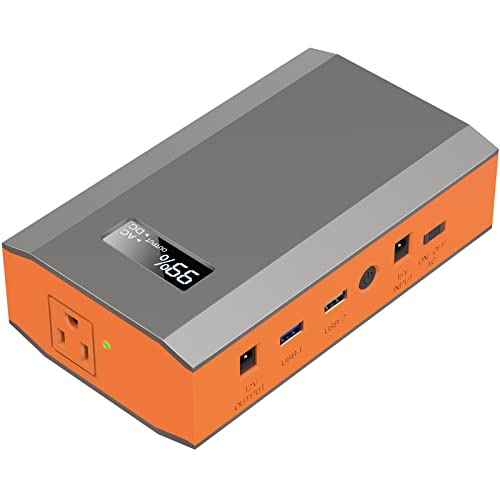
🌍Portable Outdoor Charger 110V: with a battery pack 88.8Wh(AC+DC+USB OUTPUT Total),the power bank can power your laptops, mini-fans and other portable smart devices, as a creative outdoor power bank, about 1.6 lbs Only(Size:6.89" L x 3.98" W x 1.89" H) easy to carry. Rated power is 65W(Tips:AC output needs to be turned on or off manually. If DC output is only turned on and no electronics are connected, the portable power bank will be turned off within 20 seconds)

【Anti-Sweat & Ergonomic Design】E-YOOSO Large Mouse is made of anti-slip and anti-sweat custom material, built with a comfortable contoured shape that naturally fits big hands. The finger rests on both sides of the mouse provide additional support, every finger can hold comfortably for a long time. X-31 large mouse adopts a large size design, and also has forward and backward buttons, make your web surfing more efficient, perfect performance for more than 50,000,000 keystrokes!
![TECKNET Bluetooth Mouse, [ USB + BT1 + BT2 ] Wireless Mouse for Laptop, Silent Click, Ergonomic Design, 4800 DPI Computer Mice Wireless, Dual Mode for Laptop, Computer, iPad, MacBook](https://m.media-amazon.com/images/I/3168zISzkJL._SL500_.jpg)
Dual Mode for 3 Devices - This computer mouse offers Bluetooth 5.0/3.0 and USB-A connection, can connect up to 3 devices. Seamlessly switch between your laptop, PC, tablet, and MacBook with a single click. Elevate your workflow and conquer multitasking.
Conclusion
By implementing these simple strategies, you can make a big difference in extending your laptop’s battery life. Managing background apps, utilizing the Task Manager, and enabling Battery Saver Mode are effective ways to optimize performance and prolong battery usage. Remember to regularly update your apps for improved efficiency and consider using native apps over web-based ones. These small adjustments can lead to significant improvements in your laptop’s battery life, allowing you to work or play on the go without worrying about running out of power. With these tips in mind, you can enjoy a longer-lasting battery and a more efficient laptop experience.
Frequently Asked Questions
How can I optimize my laptop’s battery life?
To optimize your laptop’s battery life, close unnecessary background apps, monitor resource consumption using Task Manager, disable startup programs, update apps for efficiency, and use native apps over web apps. Additionally, turning on Battery Saver Mode can extend battery life by limiting background activity, adjusting system settings, and optimizing performance.
Why is managing background apps important for laptop battery life?
Managing background apps is crucial for laptop battery life because these apps consume resources even when not in use, draining the battery faster. By closing unnecessary apps and monitoring resource consumption, users can improve battery life significantly.
How does Battery Saver Mode help extend laptop battery life?
Battery Saver Mode extends laptop battery life by limiting background activity, adjusting system settings to conserve power, and optimizing performance for efficiency. Enabling this mode can help users make the most out of their laptop’s battery while on the go.
