

Key Takeaways
- Identify Common Culprits: Background apps, location services, high display brightness, constant notifications, and poor network connectivity are major factors contributing to battery drain on Android devices.
- Utilize Built-In Tools: Access battery usage settings on your device to monitor battery consumption by apps, helping you pinpoint those that drain power most significantly.
- Implement Practical Adjustments: Regularly close unused apps, manage location settings, lower screen brightness, and turn off unnecessary features like Bluetooth and Wi-Fi to conserve battery life.
- Embrace Energy-Saving Modes: Enable Battery Saver or Extreme Battery Saver features on your device to optimize performance and extend battery longevity during critical times.
- Consider Third-Party Applications: Use apps like AccuBattery or GSam Battery Monitor to gain deeper insights into battery health and performance, enabling better management of power consumption.
- Adapt Notifications and Data Usage: Limit notifications and disable background data for non-essential apps to further reduce battery drain and enhance overall device efficiency.
Ever found yourself scrambling for a charger when your Android phone battery seems to drain faster than you can keep up? You’re not alone. Many users face this frustrating issue, often wondering what’s behind their phone’s sudden power loss.
In this article, you’ll discover the common culprits that suck the life out of your device. From background apps to location services, understanding these factors can help you take control of your battery life. By the end, you’ll have practical tips to keep your phone running longer, making those unexpected low-battery alerts a thing of the past.
Overview Of Battery Drain Issues
Battery drain on Android devices can stem from various factors. Identifying these issues helps you manage your device’s power more effectively.
Common Culprits of Battery Drain
- Background Apps
Background apps continue to run even when you’re not using them. They consume power for tasks like syncing data or sending notifications.
- Location Services
GPS and location-based services can significantly deplete battery life. If apps continually track your location, battery usage increases.
- Display Brightness
High screen brightness settings draw more power. Reducing brightness or enabling adaptive brightness can help extend battery life.
- Notifications
Frequent notifications from apps can wake up your phone and consume power. Limiting notifications can reduce battery consumption.
- Network Connectivity
Weak Wi-Fi or mobile signal leads to increased battery usage. Your device works harder to maintain a connection, draining battery faster.
Real-World Examples
Using a navigation app while your phone is connected to Bluetooth in the car exemplifies cumulative drain. Both activities significantly draw power while in use.
Practical Steps to Reduce Battery Drain
- Close Unused Apps
Regularly check your recent apps and close those you aren’t using. This action prevents unnecessary background activity.
- Limit Location Access
Change location settings for apps to “while using” rather than “always.” This reduces location-related battery drain when the app isn’t active.
- Adjust Display Settings
Set your screen brightness to auto-adjust or lower it manually to save energy.
- Turn Off Unneeded Features
Disable Bluetooth, NFC, or Wi-Fi when not in use. Each feature drains battery, especially when searching for connections.
By understanding these battery drain issues, you can take steps to enhance your Android device’s battery life effectively.
Common Causes Of Battery Drain
Understanding the common causes of battery drain helps in managing your Android device more effectively. Here are the main culprits:
Background Apps
Background apps run even when you aren’t using them. These apps often consume resources and battery life. For instance, social media apps continuously check for updates, which can drain your battery significantly. To minimize this, close unused apps regularly. You can also manage app settings to restrict background activity for specific apps.
Location Services
Location services use GPS and other technologies to determine your device’s location. Frequent use of navigation apps or location-based services can lead to substantial battery drain. For example, using a maps app while driving can deplete battery reserves quickly. To reduce this drain, limit location access to only essential apps and switch off location services when not in use.
Screen Brightness
Screen brightness directly impacts battery life. High brightness settings can rapidly deplete power. A bright screen is especially demanding in outdoor settings. Adjusting your display brightness to a lower level or enabling adaptive brightness can extend battery life. Whenever possible, reduce brightness in low-light environments to lessen the strain on your battery.
Identifying Battery Drain Sources
Detecting what drains your Android battery helps you manage power consumption effectively. Focus on these areas to identify the main sources of battery drain.
Recommended Products
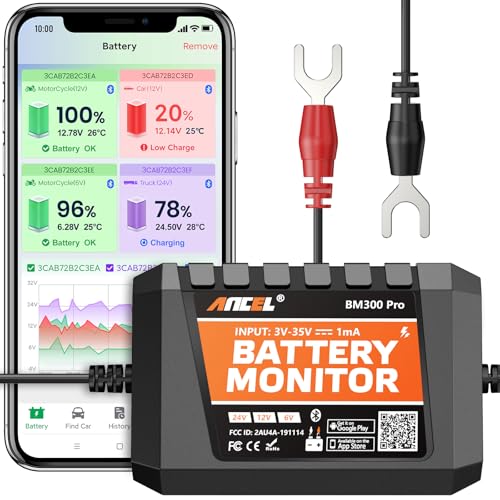
ONE DEVICE FITS ALL: Why juggle multiple single-voltage monitors? Engineered for true versatility, it auto-detects and adapts to any standard system: from 6V classic cars and 12V daily drivers to 24V diesel rigs, large RVs, and marine setups. Compatible with all common battery types including Lead-Acid (Flooded, AGM, Gel, EFB) and Lithium-Ion. This is the single, future-proof solution for enthusiasts with diverse vehicles or evolving needs. Note: 6V only for SOC, voltage & temp monitoring; no charging & cranking tests.

🔋High Value Battery Tester: BM200 is your go-to solution for 12V lead-acid and lithium battery. Equipped with advanced features like voltage & cranking & charging system test, abnormal alarm and real-time trip records.This battery monitor ensures your car battery is always in optimal condition. Whether it's for your car, motorcycle, truck, RV or boat, this 12V battery tester has got you covered. Get it, and forget winter breakdown worries.
- Live Fire OS battery percentage, charging state, and power source
Using Built-In Tools
Android devices come with built-in battery usage tools. Access these tools by navigating to Settings > Battery > Battery Usage.
- View Detailed Usage: Check which apps consume the most power. You’ll see a list of apps ranked by battery usage.
- Analyze Activity: Tap on each app for detailed insights. Notice if an app uses power while not in active use.
- Adjust Settings: Select apps for limitations on background activity. This setting reduces battery drain from apps that run without your knowledge.
Third-Party Applications
Consider using third-party apps designed to monitor battery health. These apps provide additional insights and features.
- Battery Monitor: Use applications like AccuBattery or GSam Battery Monitor for comprehensive battery statistics. They track real-time usage and alert you about draining processes.
- Optimize Settings: Many of these apps help optimize settings. They’ll suggest tweaks based on your usage patterns.
- Deactivate Unused Features: Features like location services or Bluetooth can be disabled through these apps when not in use. This method minimizes unnecessary battery consumption.
By leveraging these built-in tools and third-party applications, you gain greater control over your Android device’s battery life.
Tips To Improve Battery Life
Improving your Android device’s battery life starts with simple adjustments that offer significant results. Implement these strategies to help extend the time between charges.
Adjusting Settings
- Lower brightness levels. Reducing screen brightness or using adaptive brightness saves power. Set brightness to automatic or a comfortable low level for indoor use.
- Disable background data. Limit background data usage for apps. Go to Settings > Network & internet > Data usage, select the app, and turn off background data.
- Turn off unnecessary notifications. Notifications can wake your screen and drain battery. Manage notification settings for each app in Settings > Apps & notifications.
- Limit location access. Change location settings to “Device only” for essential apps. Go to Settings > Location, select Mode, and choose the option that saves power.
- Use dark mode. Enabling dark mode can save battery life on OLED screens. Activate it under Settings > Display > Dark theme.
Battery Saver Mode
- Enable Battery Saver. Access Battery Saver by going to Settings > Battery > Battery Saver. This feature reduces performance, lower brightness, and limits background tasks.
- Schedule Battery Saver. Automatically enable Battery Saver during specific times. In the Battery Saver settings, choose “Turn on automatically,” and set parameters like battery percentage or specific hours.
- Use Extreme Battery Saver. Some devices offer an Extreme Battery Saver option. This setting limits access to apps and notifications, extending battery life significantly during critical moments.
Implementing these tips allows you to take control of your battery life and minimize disruptions from low-battery notifications.
Conclusion
Taking control of your Android’s battery life is easier than you think. By identifying the main culprits behind battery drain and making a few simple adjustments, you can significantly extend your device’s usage time.
Remember to keep an eye on background apps and manage your location services. Lowering your screen brightness and limiting notifications can also work wonders. With a little effort and the right tools, you’ll be able to enjoy your phone without constantly worrying about running out of power. So go ahead and implement these tips to make the most of your Android experience.
Frequently Asked Questions
What causes battery drain on Android phones?
Battery drain on Android phones can be caused by several factors like background apps, high screen brightness, location services, and frequent notifications. Understanding these culprits helps users manage battery life more effectively.
How can I close background apps to save battery?
To close background apps, simply access the task manager by tapping the recent apps button, then swipe away any unused apps. Additionally, check app settings to limit background activity for specific apps.
Do location services drain battery?
Yes, location services can significantly deplete battery life, especially when using navigation apps. It’s best to limit location access to essential apps and turn it off when not needed.
How can I adjust screen brightness to save battery?
Adjust your screen brightness by going to Settings > Display. Consider lowering the brightness level or enabling adaptive brightness, which automatically adjusts based on your environment.
What tools can help monitor battery usage?
Android devices come with built-in battery usage tools found in Settings > Battery > Battery Usage. For more comprehensive insights, consider third-party apps like AccuBattery or GSam Battery Monitor.
What are some quick tips to improve battery life?
To enhance battery life, lower screen brightness, disable background data for apps, turn off unnecessary notifications, limit location access, and enable Battery Saver mode when not in use.
What is Battery Saver mode?
Battery Saver mode reduces performance and limits background tasks to extend battery life. You can schedule it to activate automatically during certain times for convenience.
What does the Extreme Battery Saver option do?
The Extreme Battery Saver option significantly extends battery life by limiting app access and notifications. It’s useful for critical moments when you need to conserve battery power.
