

Key Takeaways
- Importance of Battery Percentage: Knowing your battery percentage helps in managing device usage and preventing unexpected shutdowns.
- How to Check: Users can easily view the battery percentage by swiping down the notification shade and locating the battery icon.
- Enabling Battery Percentage: Two primary methods to enable battery percentage on Android devices include using the Settings menu and the Quick Settings panel.
- Third-Party Apps: For enhanced battery tracking, apps like Battery Widget Reborn and GSam Battery Monitor offer additional features and customizable displays.
- Custom ROMs: Advanced users can customize their battery display options further by installing custom ROMs, which provide more control over features.
- Troubleshooting Tips: Common issues like battery percentage not showing or displaying incorrect values can typically be resolved through simple solutions such as restarting the device or calibrating the battery.
Ever found yourself guessing how much battery life you have left? It can be frustrating when your phone suddenly dies, leaving you in the lurch. Knowing your battery percentage can help you manage your device better and avoid those unexpected shutdowns.
Understanding Battery Percentage
Knowing your phone’s battery percentage helps you manage your device effectively. Instead of guessing how much power remains, you can see an exact figure. This insight prevents unexpected shutdowns, especially during important tasks.
Battery percentages give you control over your device usage. When you know the exact percentage, you can decide whether to charge your phone or conserve battery life by adjusting settings. For example, if your battery’s at 20%, you can reduce screen brightness or close background apps to extend usage.
Most Android devices display battery percentage in the status bar. You can customize this setting easily.
How to Check the Battery Percentage
- Swipe Down: Pull down the notification shade from the top of your screen.
- Locate the Battery Icon: You’ll see the battery symbol at the top.
- View Percentage: The exact percentage appears next to the battery icon, if enabled.
Benefits of Displaying Battery Percentage
- Awareness: Stay informed about battery health to prevent surprises.
- Planning: Make informed decisions about when to charge your device.
- Efficiency: Optimize settings based on your battery needs.
Enabling battery percentage provides clarity and enhances user experience. It allows you to maintain confidence in your device throughout the day.
Steps To Enable Battery Percentage
Enabling the battery percentage on your Android device helps you track battery life more effectively. Follow these steps for two methods to display the battery percentage.
Using Settings Menu
- Open the Settings app on your Android device.
- Scroll down and select Battery.
- Tap on Battery percentage or Battery settings (this may vary by device).
- Toggle the option to Show battery percentage on.
After completing these steps, you’ll see the battery percentage next to the battery icon in your status bar.
Using Quick Settings
- Swipe down from the top of your screen to access the Quick Settings panel.
- Look for the Battery icon or Battery Saver option.
- Press and hold the Battery icon until the Battery settings menu opens.
- In the settings, enable the Show battery percentage option.
Once enabled, the battery percentage will appear prominently in your status bar, providing quick accessibility while using your device.
Additional Methods
You can further customize how you view battery percentage on your Android device through additional methods. Explore the following options for more control over battery information.
Recommended Products

Displays Battery Percentage in status bar
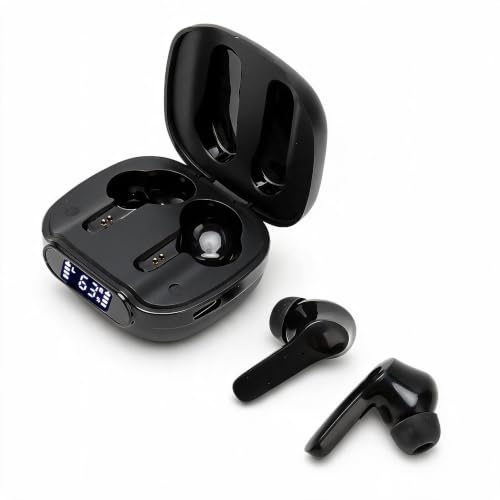
Power Display: Language translator device supports battery percentage display, which can monitor the power of the headset in real time. When there is no power, it can be charged in time to ensure the normal use of the next time.

【Active Stylus Pen with LED Display — Real-Time 1%-100% Battery Readout】Never run out mid-drawing. The built-in LED screen shows precise battery percentage and auto-wakes when you pick up the pen — the only active stylus pen for iPad, Android, and Samsung with a live LED battery display. USB-C fast charging delivers full-day use from just 50 minutes of charge time, no Bluetooth required.
Using Third-Party Apps
You can download various third-party apps designed to display battery percentage more prominently. Apps like Battery Widget Reborn or GSam Battery Monitor offer detailed insights into battery health, usage history, and percentage display options. To use these apps, follow these steps:
- Open the Google Play Store.
- Search for a battery monitoring app.
- Select an app and tap ‘Install’.
- Follow the app’s setup instructions.
- Customize the settings to display battery percentage in your preferred format.
These apps often provide a widget you can place on your home screen for easy access, showing battery percentage alongside other vital information.
Custom ROMs
Custom ROMs provide advanced users with more control over their device’s features, including battery display options. If you’re comfortable with modifying your device, consider installing a custom ROM like LineageOS or Pixel Experience. To do so:
- Unlock the bootloader of your device.
- Install a custom recovery, such as TWRP.
- Download the desired ROM and transfer it to your device.
- Boot into recovery mode and flash the ROM.
- Reboot your device and configure settings.
Custom ROMs often include enhanced battery options, allowing you to display battery percentage in varied formats and locations on the screen. Always ensure you’re following guides specific to your device model to avoid issues.
Troubleshooting Common Issues
When displaying battery percentage on your Android device, you might encounter a few issues. Here are common problems and their solutions:
Battery Percentage Not Showing
If the battery percentage doesn’t appear after enabling it:
- Restart Your Device: Sometimes, a simple restart resolves display issues. Power off your device, then turn it back on.
- Check Battery Settings: Go to Settings, then Battery. Ensure the option for showing battery percentage is toggled on.
- Update Software: Outdated software might cause glitches. Check for system updates in Settings, then About Phone.
Incorrect Battery Percentage
If the percentage shows an inaccurate value:
- Calibrate Your Battery: Use your device until it shuts down, then charge it to 100% without interruption. This can recalibrate the battery readings.
- Clear App Cache: Some apps might interfere with battery readings. Go to Settings, then Apps. Find the app causing issues and clear its cache.
Third-Party Apps Not Displaying Battery Percentage
If third-party battery apps don’t function correctly:
- Reinstall the App: Uninstall the app and then reinstall it from the Google Play Store. Ensure you’ve downloaded a reliable app.
- Grant Necessary Permissions: Some battery apps require permissions to access battery info. Check your app settings to ensure all necessary permissions are enabled.
Custom ROM Issues
For users with custom ROMs, such as LineageOS:
- Verify ROM Settings: Each custom ROM has different options. Look for battery settings under System or Display in the settings menu.
- Consult Community Forums: If problems persist, community forums often contain troubleshooting steps specific to your ROM.
By following these steps, you can resolve common issues related to displaying battery percentage on Android devices effectively.
Conclusion
Knowing your battery percentage is a game changer for managing your Android device. It keeps you informed and helps you avoid those surprise shutdowns. With just a few simple steps you can easily enable this feature and gain better control over your device’s usage.
Whether you choose to stick with the built-in options or explore third-party apps you’ve got plenty of ways to customize your experience. If you run into any hiccups along the way don’t hesitate to troubleshoot.
Staying aware of your battery life can make your daily routine smoother and more efficient. So go ahead and make that change—you’ll be glad you did!
Frequently Asked Questions
Why is knowing my phone’s battery percentage important?
Knowing your phone’s battery percentage helps prevent unexpected shutdowns and allows you to manage your device effectively. By being aware of your battery life, you can charge your phone on time and adjust settings to conserve energy when necessary.
How can I check the battery percentage on my Android device?
You can check the battery percentage by going to the Settings app, selecting Battery, and enabling the option to show battery percentage. Alternatively, swipe down from the top of the screen to access the Quick Settings panel and toggle the Show battery percentage option.
Are there apps that help monitor battery usage?
Yes, there are third-party apps like Battery Widget Reborn and GSam Battery Monitor that provide detailed insights into battery health and usage. These can be downloaded from the Google Play Store and often include widgets for easy access on your home screen.
What should I do if my battery percentage isn’t showing?
If your battery percentage isn’t displaying, restart your device, check the battery settings, update your software, or try calibrating the battery. If you’re using a third-party app, ensure it has the necessary permissions and clear its cache if needed.
Can I customize how my battery percentage is displayed?
Yes, advanced users can customize battery percentage visibility by using custom ROMs like LineageOS or Pixel Experience. This may require unlocking the bootloader and flashing the ROM to change how the battery percentage is displayed on your device.
