

Key Takeaways
- Understand Key Factors: Key elements like screen brightness, background apps, and location services significantly influence your Android battery life.
- Adjust Screen Brightness: Lowering screen brightness or enabling adaptive brightness can greatly enhance battery longevity.
- Manage Background Apps: Regularly closing unused apps running in the background helps conserve energy and improve performance.
- Utilize Battery Saver Mode: Activating battery saver mode limits background processes and can extend your device’s battery life effectively.
- Optimize Location and Connectivity Settings: Switch to battery-saving modes for location services and manage connectivity features like Wi-Fi and Bluetooth to reduce power consumption.
- Leverage Battery Management Apps: Tools such as Greenify and AccuBattery provide valuable insights and help optimize battery performance for longer usage.
Ever found yourself scrambling for a charger when your Android battery drops to single digits? You’re not alone. Many people struggle with their devices dying at the most inconvenient times. With all the apps and features we rely on, it’s easy to drain your battery faster than you’d like.
Understanding Battery Life
Battery life refers to the amount of time your Android device can operate before needing a recharge. Several factors affect battery life, including the screen brightness, app usage, and background processes. Understanding these elements helps you make informed decisions to extend your device’s usage.
Key Components of Battery Life
- Screen Brightness: The brighter the screen, the more power it consumes. Adjusting brightness to a lower level can significantly enhance battery longevity.
- Background Apps: Many apps run in the background, consuming power without your knowledge. Regularly check for and close any unused applications to conserve energy.
- Location Services: GPS and location services drain battery life. Limiting location access for apps when not in use can save significant energy.
Practical Steps to Monitor Battery Health
- Check Battery Usage: Go to Settings > Battery to view which apps consume the most energy.
- Enable Battery Saver: Activating battery saver mode can limit background processes and conserve battery.
- Update Software: Regular updates can optimize battery performance. Install the latest updates through Settings > System > Software Update.
Common Myths About Battery Life
- Myth: Continuously charging your phone harms the battery.
Reality: Modern batteries are designed to stop charging once full, preventing damage. - Myth: Closing apps saves battery life significantly.
Reality: Android manages resources efficiently, so reopening recently used apps consumes less power than closing and reopening them.
Understanding these factors equips you with the knowledge to improve your device’s battery performance, ensuring you stay powered throughout the day.
Tips to Prolong Battery Life Android
Prolonging your Android device’s battery life requires a few simple adjustments and practices. Implementing these strategies can help you maintain power longer throughout your day.
Adjusting Screen Brightness
Adjust your screen brightness to save battery life. Lower brightness helps reduce power consumption. Here’s how to do it:
- Open the Settings app.
- Tap on Display.
- Slide the Brightness level down to a comfortable setting.
- Enable Adaptive Brightness if available. This feature automatically adjusts brightness based on your environment.
Managing Background Apps
Managing your background apps significantly contributes to longer battery life. Background apps can consume resources without you noticing. To minimize their impact:
- Go to Settings.
- Select Apps or Applications.
- Identify apps you don’t use frequently.
- Tap on Force Stop for those apps to prevent them from running in the background.
You can also limit notifications, which reduces wake times for your device.
Using Battery Saver Mode
Using the Battery Saver mode is a quick way to extend battery life. This built-in feature limits background activity and reduces performance, effectively conserving power. Here’s how to enable it:
- Open Settings.
- Tap on Battery.
- Select Battery Saver or Power Saving Mode.
- Toggle it on to activate the feature.
You may also customize the settings to activate Battery Saver at a specific battery percentage, adding an extra layer of conservation.
Optimizing Settings
Optimizing settings on your Android device can significantly prolong battery life. By managing specific features, you reduce energy consumption effectively.
Recommended Products
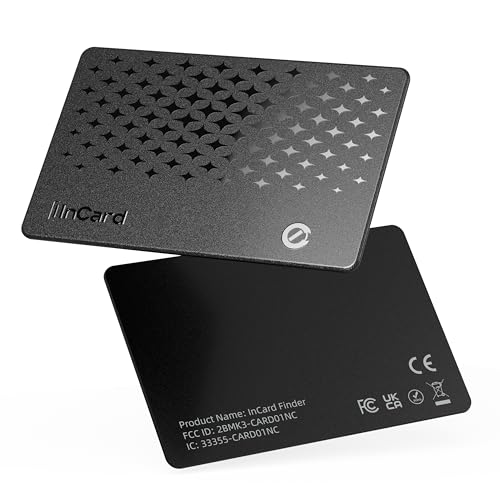
📱 Global Cloud Positioning – Works with both Google's Find Hub and Apple Find My (Not for GPS & Huawei)

Next‑Generation Multi‑Mode Tracking - GPS/Wi‑Fi/LBS/Bluetooth work together to deliver accurate, real‑time location and fewer blind spots—indoor and outdoor confidence

Next‑Generation Multi‑Mode Tracking - GPS/Wi‑Fi/LBS/Bluetooth work together to deliver accurate, real‑time location and fewer blind spots—indoor and outdoor confidence.
Location Services
Location services can drain battery quickly. To optimize this feature, change your location settings to “Battery saving” mode. This mode uses Wi-Fi and mobile networks instead of GPS, which consumes more power.
- Go to Settings.
- Tap Location.
- Select Mode and choose Battery saving.
- Turn off location access for apps that don’t need it.
You can also remove apps that use location services in the background. Regularly check which apps frequently access your location and adjust their settings accordingly.
Connectivity Features
Connectivity features like Wi-Fi, Bluetooth, and mobile data impact battery life. Here are some practical steps to manage them:
- Wi-Fi: When connected to Wi-Fi, your device consumes less power than when using mobile data. Ensure Wi-Fi is on whenever available.
- Bluetooth: Turn off Bluetooth when not in use. Keeping it on continuously drains battery.
- Mobile Data: Disable mobile data when Wi-Fi is accessible. If you’re in a location with weak signals, consider switching it off altogether.
By managing these connectivity settings, you reduce energy draw, effectively extending your battery life throughout the day.
Apps to Help Prolong Battery Life
Utilizing the right apps can significantly enhance your Android device’s battery performance. These tools track usage patterns and optimize settings to maximize energy efficiency.
Battery Management Apps
Battery management apps monitor and manage your device’s energy consumption. They identify background processes draining power and offer solutions. Popular options include:
- Greenify: Hibernates apps running in the background, reducing battery drain.
- AccuBattery: Provides insights into battery health and usage statistics, helping you adjust your habits.
- GSam Battery Monitor: Offers detailed information on battery usage by individual apps.
Using any of these apps can streamline performance and prolong charge duration.
Cleaning and Optimization Tools
Cleaning and optimization tools help maintain your device’s efficiency by removing unnecessary files and closing background apps. Effective tools include:
- CCleaner: Cleans cache files and unneeded apps, freeing up storage and improving speed.
- SD Maid: Manages system files and ensures no leftover data lingers to slow down your device.
- Files by Google: Organizes files while also suggesting deletions, making room for smoother operation.
Regularly using these tools not only boosts performance but also conserves battery life by minimizing the workload on your device.
Conclusion
By taking a few simple steps you can significantly extend your Android device’s battery life. Adjusting settings like screen brightness and location services can make a big difference. Regularly monitoring your battery health and using management apps helps you stay on top of power consumption.
Don’t forget to keep your software updated and clean out unnecessary files. With these tips in hand you can enjoy your device longer without the constant worry of running out of battery. Staying proactive about battery management means you’ll always be ready to tackle whatever your day brings.
Frequently Asked Questions
What causes low battery levels on Android devices?
Low battery levels on Android devices are typically caused by high screen brightness, excessive app usage, and continuous background processes. Location services and connectivity features can also drain battery life quickly, especially when apps are constantly running.
How can I extend my Android battery life?
To extend your Android battery life, adjust the screen brightness, manage background apps, and limit location services. Enabling battery saver mode and keeping your software updated can also help improve battery performance.
How do I check battery health on my Android?
You can check battery health on your Android by going to settings and looking for battery usage. This section provides insights into which apps are consuming the most power and if battery saver mode is enabled.
Are there any myths about battery life I should be aware of?
Yes, a common myth is that leaving apps open drains battery life significantly. Modern batteries are designed to manage this efficiently, and continuous charging won’t damage them. Therefore, closing apps frequently is not necessary for battery conservation.
What are the best practices for managing location services?
To manage location services effectively, change your settings to “Battery saving” mode which utilizes Wi-Fi and mobile networks instead of GPS. Additionally, disable location access for apps that don’t require it to conserve energy.
Which apps can help improve battery performance?
Apps like Greenify and AccuBattery assist in tracking usage patterns and optimizing settings for better battery life. Cleaning tools such as CCleaner and Files by Google help to remove unnecessary files, enhancing device efficiency significantly.
