

Key Takeaways
- Optimize Screen Settings: Adjust screen brightness and timeout settings to conserve battery life, as higher brightness and prolonged display time significantly drain power.
- Manage Apps Effectively: Regularly check for battery-draining apps, limit background activity, and uninstall unused applications to enhance battery efficiency.
- Enable Power-Saving Features: Activate Battery Saver Mode to reduce background processes and automatically adjust settings, significantly extending tablet usage when battery is low.
- Control Connectivity and Location Settings: Disable GPS, Wi-Fi, and Bluetooth when not in use, and restrict background location access to minimize battery consumption.
- Adopt Proper Charging Habits: Utilize the original charger, charge in short bursts, avoid overcharging, and monitor charge levels to maintain battery health and longevity.
- Keep Software Updated: Regularly update your tablet’s operating system, as improvements often enhance battery efficiency and overall performance.
Ever find yourself scrambling for a charger when your Android tablet’s battery is running low? You’re not alone. Many people face the frustration of a dying battery right when they need their device the most. Whether you’re streaming your favorite show or working on an important project, a longer-lasting battery can make all the difference.
Understanding Battery Life In Android Tablets
Understanding battery life in Android tablets involves recognizing key factors that influence performance and the significance of effective battery management.
Factors Affecting Battery Life
Battery life can vary widely due to several factors:
- Screen Brightness: Higher brightness drains battery faster. Adjust brightness to a comfortable level or use adaptive brightness features.
- Background Apps: Apps running in the background consume power. Close unused apps or limit background activity to save energy.
- Network Activity: Wi-Fi and mobile data usage affect battery life. Turn off connections when not in use, or switch to airplane mode in low-connectivity areas.
- Operating System Updates: New updates often enhance energy efficiency. Keep your tablet updated to benefit from performance improvements.
- Battery Age: Older batteries exhibit reduced capacity. Regularly monitor battery health and consider replacement if performance declines.
Importance of Battery Management
Effective battery management plays a crucial role in extending your tablet’s usability:
- Charging Practices: Avoid overcharging. Unplug the tablet when fully charged to prevent battery wear.
- Power-Saving Mode: Enable power-saving modes when working with low battery. This feature limits background processes and conserves energy.
- Usage Habits: Modify your usage habits. Close apps not in use, and schedule updates during charging times.
- App Optimization: Use built-in settings to optimize apps. Many Android devices allow adjustments to limit battery usage from specific apps.
Implementing these practices helps maximize battery life, ensuring your tablet performs when it counts.
Tips For Optimizing Battery Life
You can implement several strategies to extend the battery life of your Android tablet. Here are key areas to focus on:
Recommended Products
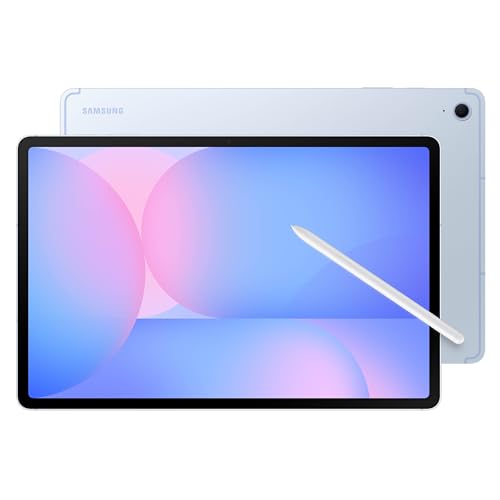
UNWIND WITH A BIGGER SCREEN: Enjoy more downtime on a large 13.1” screen,¹ whether you’re shopping online, unwinding with cat videos or playing your favorite word game. Plus, dual speakers make everything sound amazing.

Power Saver and Optimizer

UNWIND WITH A BIGGER SCREEN: Enjoy more downtime on a large 13.1” screen,¹ whether you’re shopping online, unwinding with cat videos or playing your favorite word game. Plus, dual speakers make everything sound amazing.
Adjusting Screen Brightness and Timeout
Reduce screen brightness to conserve battery. Navigate to Settings, select Display, and adjust the brightness slider. Setting it to automatic also helps, as it adapts based on ambient light.
Additionally, decrease the screen timeout duration. This setting turns off the display when not in use. Go to Settings, then Display, and select a shorter time limit, like 30 seconds or 1 minute.
Managing Apps and Background Processes
Keep a close eye on app usage. Some apps drain battery more than others, especially those running in the background. Frequently check which apps consume the most battery by going to Settings and selecting Battery.
Force stop or uninstall apps you rarely use. To do this, go to Settings, then Apps, choose the app, and hit Force Stop. Limit background processes by disabling unnecessary notifications and auto-sync features for apps.
Enabling Battery Saver Mode
Enable Battery Saver Mode to extend usage. This feature reduces background activity, limits app performance, and adjusts settings automatically. Access this mode by going to Settings, selecting Battery, and turning on Battery Saver.
Consider scheduling Battery Saver to activate at specific battery levels, like 20%. This proactive approach ensures your tablet preserves power when it matters most.
Utilizing Device Settings For Battery Savings
Adjusting your device settings plays a critical role in extending battery life on your Android tablet. You can make several tweaks to ensure your tablet uses power efficiently.
Recommended Products

🥇【2025 Upgrade Rugged Tablet + IP68, IP69K & MIL-STD-810】The HOTWAV R9 Plus tablet rugged boasts IP68, IP69K, and MIL-STD-810H certifications, ensuring extreme durability in harsh conditions. This rugged cellular tablet survives 1.2m drops and is water/dust-resistant (2m depth), making it ideal for engineers, warehouses, logistics, outdoor sports, and construction. The R9 Plus electroinc tablet includes an aluminum stand and the strap design is perfect for those who need to work in the field

【Latest Android 15 Tablet】Tablets equipped Latest Android 15 System, all functions have been strengthened than android 14 and has Stronger compatibility, faster responsive speed and smoother operation. Tablet With GMS certification (Google Mobile Service), pre-installed Google Play, Support social apps such as Facebook, Twitter, YouTube, Tiktok etc. Well for watching video, chatting online, reading ebook and more.
Location Services and Connectivity
Location services and connectivity options consume significant battery life. Here are ways to manage them:
- Disable GPS: Only enable GPS when necessary. Navigate to Settings > Location and switch it off when not in use.
- Manage Network Connections: Turn off Wi-Fi, Bluetooth, and mobile data when you aren’t using them. Access these options from the quick settings menu.
- Limit Background Location: Allow apps to use your location only when in use. Check app-specific settings under Settings > Apps to adjust permissions.
App Permissions and Restrictions
Certain apps demand more resources, draining your battery quickly. Adjusting their permissions and restrictions helps conserve battery life:
- Review App Permissions: Go to Settings > Apps and select apps to view permissions. Restrict permissions like location, microphone, or camera for apps that don’t need them.
- Limit Background Activity: Prevent apps from running in the background. Find this option under Settings > Apps and select the app you wish to manage. Disable background activity as needed.
- Uninstall Unused Apps: Remove apps that you rarely use. Long-press the app icon and select uninstall to free up battery resources.
These adjustments help maintain a healthy battery life while ensuring your device remains functional during essential tasks.
Best Practices For Charging
Charging your Android tablet correctly maximizes its battery lifespan and performance. Implementing the following practices can lead to more efficient charging and longer battery life.
Recommended Products

Smart iPhone Recognition with Care Mode: Automatically recognizes supported iPhone models and adjusts charging for smarter, safer power delivery. Compatible only with iPhone 17 / 16 / 15 series, 11" iPad Pro (2024 / 2023 / 2021 / 2020), 12.9" iPad Pro (2022 / 2021 / 2020), and 13" iPad Pro (2024).Excluding iPhone 17e.

Smart iPhone Recognition with Care Mode: Automatically recognizes supported iPhone models and adjusts charging for smarter, safer power delivery. Compatible only with iPhone 17 / 16 / 15 series, 11" iPad Pro (2024 / 2023 / 2021 / 2020), 12.9" iPad Pro (2022 / 2021 / 2020), and 13" iPad Pro (2024).Excluding iPhone 17e.
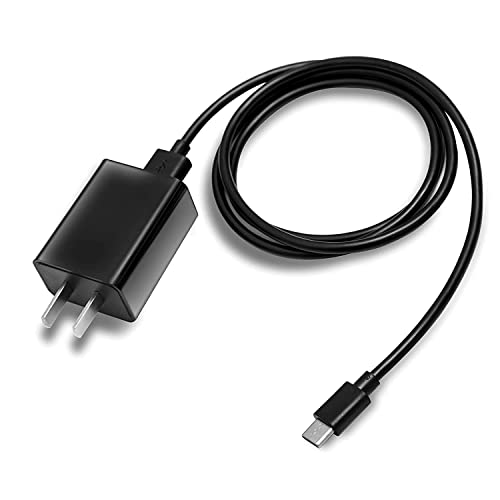
AC Adapter Charger & USB C Type C Charging Cable Cord Compatible for Fire 7, Fire HD 8, Fire HD 8 Plus Tablet, Fire HD T0 tablet, Fire 7 Kids Tablet, Fire HD 8 Kids Tablet, Fire HD 8 Kids Pro Tablet, Fire HD 10 Kids tablet, Fire HD 10 Kids Pro Tablet, Kindle Paperwhite, Kindle, Kindle Paperwhite Signature Edition, Kindle Paperwhite Kids.
Proper Charging Techniques
- Use the Original Charger: Always use the charger that came with your tablet. Different chargers deliver varying voltages and currents, which can affect charging efficiency.
- Charge in Short Bursts: Instead of waiting until your tablet is close to empty, charge it in shorter sessions. Plugging it in for 20 to 30 minutes can be beneficial without fully draining the battery.
- Keep it Cool: Avoid charging your tablet in hot environments. High temperatures can damage the battery and reduce its capacity over time.
- Turn it Off While Charging: If you need a quick charge, turn off your tablet or enable Airplane mode. This minimizes background activity and allows for faster charging.
Avoiding Overcharging
- Unplug After Charging: Once your tablet reaches 100%, unplug it. Prolonged charging can lead to overcharging, which wears down the battery over time.
- Use Smart Charging Features: Enable any smart charging options available on your device. These features can automatically manage charge levels to prevent overcharging.
- Avoid Overnight Charging: Refrain from charging your tablet overnight to reduce the risk of overcharging. Instead, set a specific time for charging during the day.
- Monitor Charge Levels: Keep track of your tablet’s battery percentage. Aim to charge it between 20% and 80%. This range helps maintain battery health and prolong longevity.
Conclusion
Taking control of your Android tablet’s battery life can make a world of difference. By implementing simple strategies like adjusting screen brightness and managing app usage, you can ensure your device lasts longer when you need it most.
Don’t forget to make the most of Battery Saver Mode and fine-tune your settings to limit background activity. These small changes can lead to a significant boost in performance.
With a little effort and attention, you’ll keep your tablet powered up and ready for any task, whether it’s streaming your favorite show or tackling important work. Enjoy your tech without the constant worry of a dying battery!
Frequently Asked Questions
What are common reasons for battery drain on Android tablets?
Battery drain on Android tablets can be caused by several factors, including high screen brightness, multiple background apps running, network activity (like GPS, Wi-Fi, and mobile data), outdated operating system versions, and battery age. Understanding these factors can help users identify why their battery drains quickly.
How can I improve my tablet’s battery life?
To improve battery life, adjust screen brightness and timeout settings, manage app usage by limiting background processes, and enable Battery Saver Mode. Regularly updating the operating system and uninstalling unnecessary apps can also help extend battery duration.
What is Battery Saver Mode and how does it work?
Battery Saver Mode reduces the device’s background activity, limits the performance of certain apps, and adjusts settings like screen brightness to conserve energy. It can be scheduled to activate at specific battery levels, ensuring your tablet lasts longer when needed.
Should I charge my tablet overnight?
It’s not advisable to charge your tablet overnight as it can lead to overcharging, which may degrade battery health over time. Instead, use smart charging features or charge it in shorter bursts to maintain battery longevity.
What charging practices should I follow for my Android tablet?
To maximize battery lifespan, use the original charger, avoid charging in extreme temperatures, and unplug the device once it reaches 100%. Short bursts of charging and enabling Airplane mode can result in quicker charging without excessive heat.
