

Key Takeaways
- Understand Battery Usage: Recognize factors affecting battery life, such as screen brightness, background apps, location services, and connectivity features.
- Manage Settings: Adjust your screen brightness, timeout settings, and background app activity to minimize battery drain.
- Utilize Battery Saver Mode: Activate built-in Battery Saver Mode to extend battery life during crucial times by limiting background activities and app performance.
- Optimize with Third-Party Apps: Consider using apps like Greenify, AccuBattery, and Battery Doctor to further enhance your device’s battery efficiency.
- Customize Battery Saver Options: Tailor Battery Saver settings to manage specific apps and their activity for improved performance and longevity.
- Limit Notifications and Connectivity: Reducing unnecessary app notifications and turning off Wi-Fi/Bluetooth when not needed can significantly save battery power.
Are you tired of your Android phone dying right when you need it most? You’re not alone. Many people find themselves frantically searching for a charger, only to realize their battery drains faster than they can keep up with.
Understanding Battery Usage on Android
Understanding how your Android device uses battery power can help you make informed decisions to extend its life. Various factors contribute to the drain, and knowing them allows you to implement effective strategies.
Factors Affecting Battery Life
- Screen Brightness: A bright display consumes more battery. Reducing brightness or using adaptive brightness can save power.
- Background Apps: Apps running in the background use processing power. Closing unused apps or adjusting background activity helps preserve battery.
- Location Services: GPS and location tracking drain battery significantly. Disable location services when not in use to extend battery life.
- Connectivity Features: Wi-Fi, Bluetooth, and mobile data continuously search for connections. Turn off these features when you don’t need them.
- App Notifications: Frequent notifications from various apps lead to screen wake-ups. Limiting unnecessary notifications can minimize usage.
Importance of Reducing Battery Usage
Reducing battery usage ensures your device lasts longer throughout the day. This is crucial, especially when you’re on the go. You gain several advantages, such as:
- Convenience: You won’t need to scramble for a charger during important tasks or outings.
- Performance: Less battery drain can lead to smoother device performance and responsiveness.
- Longevity: Minimizing battery usage contributes to the overall lifespan of your device’s battery, reducing the frequency of replacements.
Implementing these strategies makes your Android experience more reliable and enjoyable.
Tips to Reduce Battery Usage
Reducing battery usage on your Android phone enhances performance and reliability. Here are some effective strategies to help you save energy.
Recommended Products

The remote shutter can take pictures and start/stop recording videos. (Compatible with Instagram and Snapchat; Does not work with page-turning for TikTok or Kindle App)

【𝐁𝐮𝐢𝐥𝐭 𝐢𝐧 𝐂𝐚𝐛𝐥𝐞𝐬 𝐚𝐧𝐝 𝐀𝐂 𝐖𝐚𝐥𝐥 𝐏𝐥𝐮𝐠】This portable charger built-in cables and wall plug make it iPhone, Android, and USB C devices. No worry about carrying various cables or chargers. It's your best travel accessories for choosing.

Restore and maximize the life of your battery
Adjust Screen Brightness and Timeout
Adjusting screen brightness conserves battery life. Use the adaptive brightness setting to allow your device to automatically adjust based on lighting conditions. Lower brightness manually if it’s still too bright. Set your screen timeout to 30 seconds to minimize battery drain when not in use.
Manage Background Apps
Managing background apps prevents unnecessary battery consumption. Go to Settings and find the Battery section. Check for apps using excessive power. Force close apps that you aren’t using. Consider uninstalling or disabling apps that drain battery life when they’re not needed. Regularly check for updates as new versions may optimize performance.
Disable Unnecessary Features
Disabling unnecessary features reduces battery usage significantly. Turn off location services when not in use, and disable Bluetooth and Wi-Fi if you’re not connected to a network or device. Limit notifications from apps that aren’t essential. Using Airplane mode in low-signal areas helps conserve battery by preventing your phone from continuously searching for a connection.
Using Built-in Battery Saver Options
Android devices come equipped with built-in battery saver options designed to extend your phone’s battery life. By utilizing these features, you can lessen battery drain significantly during critical times.
Recommended Products


This Device Requires a Subscription. To start using it, simply select the tariff plan that fits your needs. Check the product gallery to see the tariff plans.
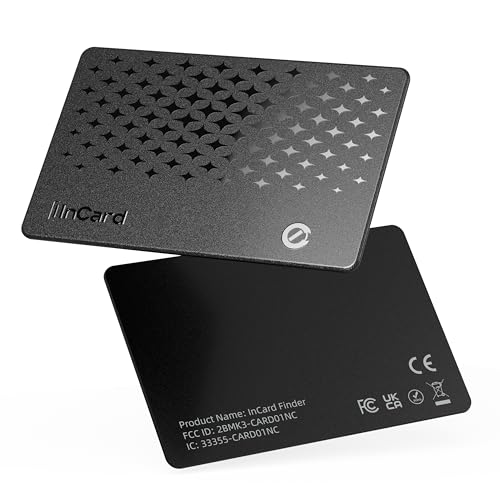
📱 Global Cloud Positioning – Works with both Google's Find Hub and Apple Find My (Not for GPS & Huawei)
Activating Battery Saver Mode
Activate Battery Saver Mode with just a few taps. Here’s how:
- Open Settings from your home screen or app drawer.
- Scroll down and select Battery.
- Tap Battery Saver.
- Toggle on Turn on automatically to enable it at a specific battery level, or tap Turn on now for immediate activation.
Battery Saver Mode reduces background activity, limits location services, and restricts app performance. You’ll notice improved battery longevity, especially during heavy usage.
Customizing Settings for Battery Saver
Customize your Battery Saver settings for optimal performance. This ensures you can maximize battery life according to your usage preferences. Follow these steps:
- Navigate to Battery in your Settings.
- Click on Battery Saver.
- Tap Battery Saver settings (if available).
- Adjust features like App functions and Background restrictions. Choose which apps can run in the background and how they behave while Battery Saver Mode is active.
These customizations help target specific apps that drain battery life, allowing you to enjoy your Android experience without frequent recharging. You maintain control over your device’s functionality while achieving longer battery life.
Third-Party Apps to Optimize Battery Life
Utilizing third-party apps can significantly optimize battery usage on your Android device. These apps offer additional features not found in the built-in settings and help extend battery life effectively.
Recommended Battery Saver Apps
- Greenify: Greenify hibernates apps running in the background, preventing them from consuming resources when not in use. This app effectively reduces battery drain by only allowing essential apps to function.
- AccuBattery: AccuBattery tracks battery usage and health, providing insights into how apps affect power consumption. It offers real-time data so you can optimize your charging habits.
- Battery Doctor: Battery Doctor cleans up unused apps and background processes, enhancing device performance and reducing battery usage. It also provides one-tap optimization features for convenience.
- GSam Battery Monitor: GSam Battery Monitor analyzes battery consumption patterns to identify which apps and settings use the most power. Use this information to make informed decisions about app usage.
- Power Save Mode: This app customizes device settings for energy efficiency. You can schedule power-saving modes based on your routine, preserving battery during critical times.
Features to Look For in Battery Saver Apps
- Background App Management: Look for apps with hibernation features that limit background activities. This can prevent unnecessary power consumption.
- Usage Analytics: Choose apps that provide detailed analytics on battery usage. Insights into specific apps and features help you adjust your habits.
- Customization Options: Opt for apps that allow customization of power-saving settings. Tailoring features to your preferences enhances effectiveness.
- One-Click Optimization: Find apps with one-click optimization. This simplifies battery-saving actions, making it easy to reduce consumption quickly.
- User-Friendly Interface: Select apps with intuitive designs. A straightforward interface promotes ease of use, allowing you to navigate settings effortlessly.
Conclusion
Reducing battery usage on your Android device doesn’t have to be a daunting task. By making a few simple adjustments and being mindful of your settings you can significantly extend your battery life.
Remember to keep an eye on background apps and disable features you’re not using. Utilizing built-in battery saver options and exploring third-party apps can also make a big difference.
With these tips in your toolkit you’ll enjoy a more reliable and efficient Android experience. So go ahead and take control of your battery life—it’s easier than you think!
Frequently Asked Questions
Why does my Android phone battery drain so quickly?
Many factors contribute to rapid battery drain on Android devices, such as high screen brightness, numerous background apps, location services, and excessive notifications. Understanding these elements can help users identify and address battery drain issues effectively.
How can I improve my Android phone’s battery life?
Improving battery life can be achieved by adjusting screen brightness, managing background apps, disabling unneeded connectivity features (like Bluetooth and Wi-Fi), and limiting notifications. Additionally, using Battery Saver Mode and Airplane Mode in low-signal areas can help conserve energy.
What is Battery Saver Mode, and how do I activate it?
Battery Saver Mode is a built-in feature on Android devices designed to extend battery life during critical times. You can activate it through your device’s settings under “Battery.” Customize the settings to reduce background activity and limit location services to enhance battery performance.
Are there apps that can help optimize battery life?
Yes, several third-party apps can help optimize battery life, including Greenify, AccuBattery, and Battery Doctor. These apps offer features like background app management, usage analytics, and one-click optimization, making it easier to extend battery performance on your Android device.
How often should I charge my Android phone?
It’s best to charge your Android phone when it drops below 20% and unplug it once it reaches 80-100%. Frequent full discharges and charges can affect battery lifespan. Keeping your phone’s battery in a moderate charge range helps maintain its health over time.
