

Key Takeaways
- Types of Samsung Remotes: Familiarize yourself with different Samsung remote types, including standard, smart, universal, and SmartThings remotes, each offering unique features for an enhanced viewing experience.
- Battery Replacement Tools: Be prepared with the correct batteries (AA or AAA), a screwdriver if needed, and a clean cloth for maintenance when changing your remote batteries.
- Step-by-Step Guide: Follow a simple process for battery replacement: locate the battery compartment, open it carefully, remove old batteries, insert new ones correctly, and close the compartment securely.
- Common Troubleshooting Tips: Address issues like unresponsive remotes, sticky buttons, or volume control problems by checking battery installation, cleaning the remote, and ensuring a clear line of sight to the TV.
- Professional Help: Seek assistance for external damage or persistent remote issues that aren’t resolved through basic troubleshooting, and check for any necessary software updates for both the remote and TV.
- Proper Battery Disposal: Always dispose of old batteries according to local regulations to ensure environmentally responsible waste management.
Have you ever found yourself in the middle of binge-watching your favorite show only to realize your Samsung remote is dead? It’s a frustrating moment that can leave you scrambling for a solution. Luckily, changing the batteries in your remote is a quick fix that can get you back to your entertainment in no time.
Understanding Samsung Remotes
Samsung remotes are essential for navigating your television and connected devices. They’re designed to enhance your viewing experience, making control simple and intuitive.
Types of Samsung Remotes
- Standard Remotes: Basic remote controls for Samsung TVs. They include essential buttons like power, volume, and channel control.
- Smart Remotes: These remotes offer advanced features. They often include voice control, touchpad navigation, and shortcuts for popular streaming services.
- Universal Remotes: Capable of controlling multiple devices, including your Samsung TV, Blu-ray player, and sound system. They simplify the user experience by reducing the number of remotes needed.
- Samsung SmartThings Remotes: Integrated with SmartThings, these remotes allow you to control smart home devices alongside your TV.
Common Features of Samsung Remotes
- Navigation Buttons: Arrow keys help navigate menus and options on your screen. They’re crucial for seamless interaction.
- Shortcut Keys: Many Samsung remotes come with buttons for quick access to popular apps like Netflix, YouTube, or Hulu. These save time during your viewing session.
- Voice Control: Smart remotes may feature built-in voice assistants, allowing you to change channels, adjust volume, or search content using voice commands.
- Bluetooth Connectivity: Some models connect via Bluetooth, enabling a more reliable connection without the need for direct line-of-sight with the TV.
- Backlit Buttons: Certain remotes feature illuminated buttons, improving usability in low-light conditions.
Understanding these aspects of Samsung remotes empowers you to enhance your entertainment experience while making battery replacement a straightforward task.
Tools Needed
You’ll need a few simple tools to change the batteries in your Samsung remote quickly and efficiently. Having these items on hand will streamline the process.
Recommended Products
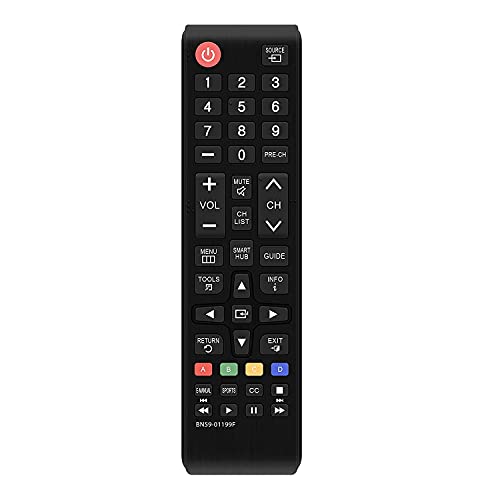
1. Universal infrared remote desgined.It is compatible with most of new and old Samsung TVs. Support 2K 4K UHD LED LCD HDTV,3D,Smart TV. Especially for Samsung remote Model:BN59-01199F,AA59-00666A,AA59-00741A. including smart hub buttons.

BN59-01391A TV remote control is a remote control with voice search and one-touch streaming control. Equipped with four dedicated buttons for major streaming services, including "Samsung TV Plus", "Netflix", "Prime Video" and "Disney+", just tap these buttons to quickly launch and seamlessly control the corresponding platform Content
Recommended Tools
- New Batteries: Ensure you have the correct type. Most Samsung remotes use AA or AAA batteries, but check the back of your remote to confirm.
- Screwdriver: If your remote has a battery compartment secured with screws, a small Phillips-head screwdriver will help you open it.
- Clean Cloth: Use a clean, dry cloth to wipe any dust or dirt from the remote while you change the batteries. This helps ensure good contact with new batteries.
Safety Precautions
- Avoid Over-Tightening: When using a screwdriver, don’t over-tighten screws if your remote has them. This can strip the screw holes or damage the remote.
- Handle with Care: Be gentle when handling the remote and battery compartment. Excessive force can break clips or other small components.
- Dispose of Old Batteries Properly: Dispose of old batteries according to local regulations. Many areas have specific recycling programs for batteries.
Step-by-Step Guide
Changing the batteries in your Samsung remote is straightforward. Follow these steps to ensure a smooth battery replacement process.
Locating the Battery Compartment
Identify the battery compartment on the back of the remote. Look for a small sliding door or a cover held in place by a clip or screws, depending on the remote model.
Opening the Remote
If your remote has a sliding cover, gently press and slide it off. For models with screws, use a small Phillips-head screwdriver to remove them. Keep the screws in a safe place to avoid losing them.
Removing Old Batteries
Carefully take out the old batteries from the compartment. Note the orientation of the batteries—look for + and – symbols. This orientation is crucial for inserting the new batteries correctly.
Inserting New Batteries
Insert the new AA or AAA batteries into the compartment. Make sure the + and – ends match the orientation indicated inside the compartment. Press the batteries down firmly to ensure a proper connection.
Closing the Remote
Replace the battery compartment cover. If your remote has screws, align the cover and tighten the screws securely, but avoid over-tightening to prevent damage. Slide on a cover if it’s the type that requires sliding.
Following these steps helps you quickly and easily replace the batteries in your Samsung remote, so you’re ready to dive back into your favorite shows.
Troubleshooting Tips
Facing issues with your Samsung remote can interrupt your viewing experience. Here are some common problems and solutions.
Recommended Products

【Universal Remote for Samsung TVs】Compatible with Samsung Crystal UHD, Neo QLED, QLED, OLED, Curved, Frame Smart TV Models — A replacement remote for all original Samsung TV remotes (Note: The Disney+ button on this remote may not function with TV models manufactured before 2022.)

【Wide Compatibility】 This premium voice remote is designed for All 2019–2026 Samsung TVs that support voice control. It is a perfect replacement for All 2019–2026 Samsung voice remotes. If your Samsung TV does not support voice control, that feature on this remote may not work.

【Wide Compatibility】This rechargeable voice remote is designed for All 2019-2026 Samsung Smart TVs. It is a perfect replacement for Samsung TV Remotes with recharging feature.
Common Issues
- Remote not responding: If your remote doesn’t respond, first check the batteries. Ensure they’re installed correctly and provide adequate power. Replace them if needed.
- Sticky buttons: Sticky buttons can result from dirt or debris. Use a clean cloth to gently wipe the buttons and the remote casing. If the issue persists, consider removing the batteries and using compressed air to clear out any trapped particles.
- Intermittent connection: If the remote occasionally disconnects, ensure no obstructions interfere with the signal. Move physical barriers like objects or furniture away from the line of sight between the remote and the TV.
- Volume control issues: If the volume doesn’t adjust, check if the mute function is activated. Also, make sure the remote is programmed correctly for the TV brand. Re-sync the remote if needed.
When to Seek Professional Help
- External damage: If your remote has visible damage, like cracked plastic or unresponsive buttons after cleaning, consider consulting a professional. Damage may impair functionality.
- Persistent issues: If problems continue despite troubleshooting efforts, it may indicate an internal malfunction. Contact Samsung customer service or a qualified technician for assistance.
- Software updates: Occasionally, remote issues arise from outdated software. Check if your TV requires an update and follow the necessary steps to ensure both devices function properly.
Utilizing these tips helps maintain your Samsung remote, allowing for uninterrupted binge-watching sessions and enhancing your overall viewing experience.
Conclusion
Changing the batteries in your Samsung remote doesn’t have to be a hassle. With just a few simple steps you can quickly get back to enjoying your favorite shows. Remember to keep the right tools handy and follow the guidelines for a smooth battery replacement process.
By understanding your remote’s features and how to troubleshoot common issues you’ll enhance your overall viewing experience. So the next time your remote stops working don’t panic. Just grab those new batteries and get back to what you love. Happy watching!
Frequently Asked Questions
How do I change the batteries in my Samsung remote?
To change the batteries in your Samsung remote, locate the battery compartment, usually on the back. Open it by sliding or lifting the cover. Remove the old batteries, noting their orientation, then insert new batteries (AA or AAA) correctly. Finally, close the compartment securely.
What types of Samsung remotes are available?
Samsung offers several types of remotes, including standard remotes for basic functions, smart remotes with voice control capabilities, universal remotes for multiple devices, and SmartThings remotes designed for smart home integration, each enhancing the viewing experience.
What tools do I need to replace batteries in a Samsung remote?
To replace batteries, you typically need new AA or AAA batteries, a small Phillips-head screwdriver for remotes with secured compartments, and a clean cloth to dust off any debris. These tools will help facilitate a smooth battery change.
What should I do if my Samsung remote is unresponsive?
If your Samsung remote is unresponsive, first check if the batteries are correctly installed or replace them if necessary. Make sure there’s a clear line of sight between the remote and the TV. If problems persist, try re-syncing the remote.
How often should I replace the batteries in my Samsung remote?
Battery life can vary based on usage, but it’s wise to check and possibly replace the batteries every few months or whenever you notice reduced performance or functionality. Keeping a spare set of batteries on hand can ensure uninterrupted viewing.
What common issues can occur with Samsung remotes?
Common issues include unresponsiveness, sticky buttons, volume control problems, and intermittent connections. Most of these can be resolved through battery replacement, cleaning the buttons, and ensuring a clear signal path to the television.
What precautions should I take when replacing batteries?
When replacing batteries, avoid over-tightening screws on the battery compartment to prevent damage. Handle the remote with care, and make sure to dispose of old batteries according to local regulations to ensure safety and environmental protection.
