

Key Takeaways
- Understand Battery Life Factors: Screen brightness, connectivity options, and active features greatly impact the battery performance of the Samsung Galaxy Watch 4.
- Utilize Power Saving Modes: Activate Power Saving Mode and Sleep Mode to limit functions while preserving essential features, helping to prolong battery life.
- Adjust Display Settings: Lower the screen brightness and reduce screen timeout duration to significantly extend battery life.
- Manage Apps and Notifications: Limit background apps and customize notification settings to reduce unnecessary battery drain.
- Adopt Proper Charging Habits: Avoid letting the battery drop below 20% regularly and refrain from overnight charging to enhance battery longevity.
- Keep Software Updated: Regularly update your smartwatch to ensure optimal performance and access power management improvements.
Ever found yourself scrambling for a charger when your Samsung Galaxy Watch 4 is running low on battery? You’re not alone. Many users face the frustration of their smartwatch dying right when they need it most.
Understanding Battery Life on Samsung Galaxy Watch 4
Battery life on your Samsung Galaxy Watch 4 relies on several factors, including usage patterns and watch settings. Knowing these factors can help you manage and prolong battery performance.
Key Battery Life Factors
- Display Settings: The brightness level and screen timeout duration significantly affect battery life. Adjust settings to lower brightness and reduce the timeout duration for better power conservation.
- Connectivity Options: Bluetooth, Wi-Fi, and GPS usage drains the battery quickly. Disable unnecessary connections when not in use.
- Active Features: Features like heart rate monitoring and notifications consume power. Customize which alerts you receive, and turn off continuous heart rate tracking when it’s unnecessary.
Average Battery Performance
Your Galaxy Watch 4 typically lasts about 40 hours with normal use. However, intensive activities or constant notifications can reduce this significantly. Adjust your habits to extend usage times.
Charging Habits
Proper charging habits can enhance battery longevity. Avoid letting the battery drop below 20% regularly and don’t leave it charging overnight consistently.
Real-World Examples
- Using Battery Saving Mode: Engaging battery-saving mode can stretch usage up to 50%. Enabling this feature during low power situations helps maintain essential functions without complete shutdown.
- Limit Health Monitoring: If you don’t need constant health readings during your day, disable options like ECG or blood oxygen tracking to save energy.
By understanding how these elements impact battery life, you can take control and optimize your Samsung Galaxy Watch 4 for longer performance.
Best Practices for Saving Battery
To maximize battery life on your Samsung Galaxy Watch 4, implementing a few effective strategies is crucial. Here are some best practices to consider:
Recommended Products

【Charger Dock Only】This USB Type C charging dock compatible with Samsung Galaxy Watch 8 40mm 44mm, Samsung Galaxy Watch 8 Classic 46mm, Samsung Galaxy Watch 7 40mm 44mm, Watch Ultra, Watch FE, Samsung Galaxy Watch 6 40mm 44mm, Samsung Watch 6 Classic 43mm 47mm, Samsung Galaxy Watch 5 40mm 44mm, Samsung Galaxy Watch 5 Pro 45mm, Samsung Galaxy Watch 4 40mm 44mm, Samsung Galaxy Watch 4 Classic 42mm 46mm, Samsung Galaxy Watch 3 41mm, Samsung Galaxy Watch active 2 40mm 44mm, Samsung Galaxy Watch active 40mm 44mm, Samsung Galaxy Watch 42mm.

👉2-Pack Convenient Spare Charger: Comes with 2 chargers in one pack, which can be used in various ways. Long, lightweight and compact enough fit in travel, home and office, such as night stand, desk, end table, car, camper and motorhome etc. You can carry it in your bag at any time in case you forget an extra charger

Proven Compatibility: Compatible with Samsung Galaxy Watch Ultra 47mm (SM-L705U)┃Watch 7 40mm (SM-L300NZ)┃Watch 7 44mm (SM-L310NZ)┃Watch FE 40mm (SM-R861)┃Watch 6 40mm(SM-R930)┃Watch 6 44mm (SM-R940)┃Watch 6 Classic 43mm (SM-R950)┃Watch 6 Classic 47mm (SM-R960)┃Watch 5 Pro 45mm (SM-R920)┃Watch 5 40mm (SM-R900)┃Watch 5 44mm (SM-R910)┃Watch 4 40mm (SM-R860)┃Watch 4 44mm (SM-R870)┃Watch 4 Classic 42mm (SM-R880)┃Watch 4 Classic 46mm (SM-R890)┃Watch 3 41mm (SM-R850)┃Watch 3 45mm (SM-R840)┃Active 2 40mm (SM-R830)┃Active 2 44mm (SM-R820)┃Active 1 40mm (SM-R500). Not for Galaxy watch (released in 2018) and Gear S2/S3/S4
Adjusting Screen Brightness
Lowering your screen brightness can significantly extend battery life. Follow these steps:
- Swipe down from the top of the home screen.
- Tap on the brightness icon.
- Drag the slider to reduce brightness to a comfortable level.
Consider using adaptive brightness as well. This feature automatically adjusts brightness based on ambient light, minimizing battery drain while still providing visibility.
Reducing Screen Timeout
A shorter screen timeout conserves battery by turning off the display quickly when not in use. To change the screen timeout:
- Open the Settings app.
- Navigate to Display.
- Select Screen timeout and choose a shorter duration (e.g., 15 or 30 seconds).
This setting ensures that your watch turns off sooner, reducing energy consumption.
Disabling Always-On Display
Turning off the Always-On Display feature can preserve battery life. It keeps your screen off until you raise your wrist. Here’s how to disable it:
- Access the Settings app.
- Tap on Display.
- Toggle off Always-On Display.
Without this feature, your watch only lights up when you interact with it, conserving power throughout the day.
Managing Apps and Notifications
Managing apps and notifications is crucial to extend the battery life on your Samsung Galaxy Watch 4. Streamlining your apps and notification settings reduces unnecessary power consumption, helping you maximize usage throughout the day.
Limiting Background Apps
Limiting background apps conserves battery power effectively. You can manage background activity by following these steps:
- Open Settings: Swipe down from the home screen and tap on the gear icon.
- Select Apps: Tap on ‘Apps’ to view the list of installed applications.
- Adjust App Permissions: Choose apps that you rarely use, then select ‘Battery’ and set them to “Optimize” or “Restricted” to minimize background activity.
By restricting apps like social media or games from running in the background, you can save significant battery life.
Customizing Notification Settings
Customizing notification settings prevents excessive alerts from draining your battery. Follow these instructions to tailor your notifications:
- Open Settings: Access the gear icon from the home screen.
- Select Notifications: Tap on ‘Notifications’ to manage your preferences.
- Disable Unneeded Notifications: Uncheck notifications for apps that don’t require immediate attention, like promotional offers from shopping apps.
Focusing only on essential notifications ensures your watch isn’t constantly pinging, which helps preserve battery life.
Power Saving Modes
Samsung Galaxy Watch 4 offers power-saving modes that significantly extend battery life. Utilizing these modes helps you get the most out of your watch.
Recommended Products
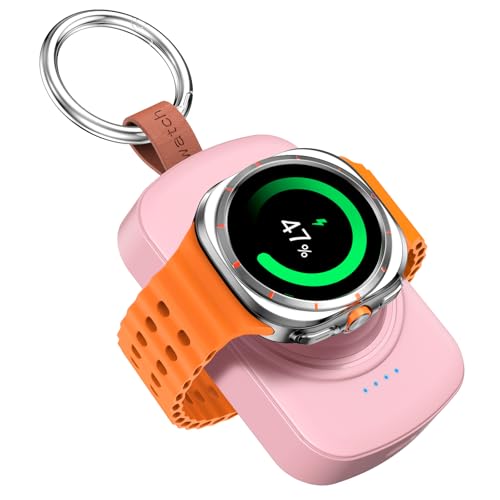
Designed for Samsung Watch: (Not for Galaxy Watch 9)This portable charger for Samsung Watch 8/8 Classic/7/ 7 Ultra / 6 /6 Classic / 5 / 5 Pro / 4 /3, Active 2 / Active 1 ensures seamless compatibility with new and old watches. This for Samsung galaxy watch charger can be carried around without a power source and can solve your low battery anxiety anytime
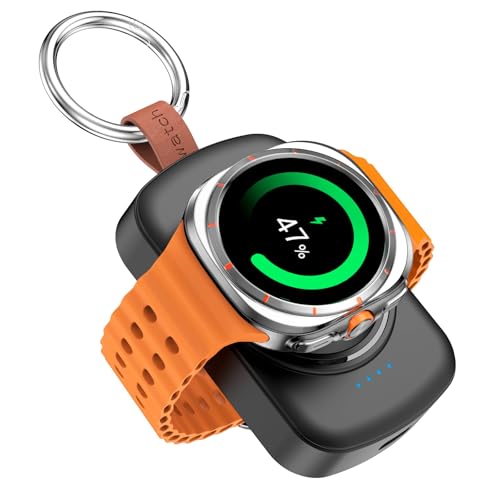
Designed for Samsung Watch: (Not for Galaxy Watch 9)This portable charger for Samsung Watch 8/8 Classic/7/ 7 Ultra / 6 /6 Classic / 5 / 5 Pro / 4 /3, Active 2 / Active 1 ensures seamless compatibility with new and old watches. This for Samsung galaxy watch charger can be carried around without a power source and can solve your low battery anxiety anytime.

Designed for Samsung Galaxy Watch Series: Compatible with Galaxy Watch 8/8 Classic/7/7 Ultra/6/6 Classic/5/5 Pro/4/4 Classic/3/Active 2/Active. Provides stable magnetic wireless charging anytime, anywhere. Not for Apple Watch
Using Power Saving Mode
Activate Power Saving Mode to limit certain features and conserve energy. This mode reduces display brightness and restricts apps running in the background. To enable this mode:
- Swipe down from the watch face to access Quick Settings.
- Tap the battery icon.
- Select “Power saving mode.”
- Confirm your choice.
When active, some features may have reduced functionality, but essential functions like time and notifications remain accessible. Use this mode during long days without charging.
Using Sleep Mode
Engaging Sleep Mode helps preserve battery while you rest. Sleep Mode disables non-essential features and dims the display. To turn on Sleep Mode:
- Open the Settings app on your watch.
- Scroll to “Modes.”
- Tap “Sleep mode.”
- Set your preferred sleep schedule or activate it manually.
This mode ensures your Galaxy Watch 4 remains unobtrusive while still monitoring your sleep patterns. You’ll wake up with a charged device, ready for the day.
Additional Tips for Extended Battery Life
Maximizing battery life on your Samsung Galaxy Watch 4 involves utilizing various features effectively. Consider these strategies.
Scheduling Do Not Disturb
Activating the Do Not Disturb mode helps minimize interruptions, which conserves battery. You can schedule this mode to activate during specific times, like when you’re sleeping or working.
- Open the Settings app on your watch.
- Tap Notifications.
- Select Do Not Disturb.
- Choose Turn on as scheduled, then set your desired times.
With this setup, your watch avoids unnecessary notifications, reducing screen activation and saving power.
Updating Software Regularly
Keeping your watch updated ensures optimal performance and battery efficiency. Software updates often include enhancements and fixes that can improve battery life.
- Open the Settings app on your watch.
- Scroll to About Watch.
- Tap Software Update.
- Select Download and install if an update is available.
Regular updates guarantee your watch runs the latest software, which can lead to improved power management and longer battery life.
Conclusion
Taking control of your Galaxy Watch 4’s battery life doesn’t have to be a daunting task. By making a few simple adjustments to settings and habits you can keep your watch running longer and avoid those frustrating moments when it dies unexpectedly.
Embrace the power-saving features and customize your notifications to fit your lifestyle. With a little effort you’ll find that your smartwatch can keep up with you throughout the day. Enjoy your Galaxy Watch 4 to the fullest while staying connected without the constant worry of battery life.
Frequently Asked Questions
What factors affect the battery life of the Samsung Galaxy Watch 4?
The battery life of the Samsung Galaxy Watch 4 is influenced by display settings, connectivity options, and active features. High brightness, multiple active connections, and continuous health monitoring can significantly drain the battery.
How long does the Samsung Galaxy Watch 4 battery last?
Under normal usage, the battery of the Samsung Galaxy Watch 4 typically lasts around 40 hours. However, engaging in intensive activities or using power-draining features may reduce this duration.
What are some tips to extend battery life on my Galaxy Watch 4?
To extend battery life, adjust screen brightness, reduce screen timeout, turn off the Always-On Display, limit background apps, and customize notification settings to minimize unnecessary alerts.
What is Power Saving Mode on the Galaxy Watch 4?
Power Saving Mode on the Galaxy Watch 4 limits certain features, reduces display brightness, and restricts background apps to significantly extend battery life while keeping essential functions, like time and notifications, available.
How can I optimize notification settings for better battery life?
You can optimize notification settings by disabling alerts from rarely used apps. This reduces the number of notifications that cause the watch to wake up frequently, thus conserving battery power.
Should I use Do Not Disturb mode on my Galaxy Watch 4?
Yes, scheduling Do Not Disturb mode helps minimize interruptions and reduces screen activation, which can contribute to prolonged battery life during periods when you don’t need notifications.
Why is it important to update my Galaxy Watch 4’s software?
Regularly updating your Galaxy Watch 4’s software is crucial as updates often include enhancements that improve battery efficiency, fixing bugs and optimizing performance for better battery management.
How can I manage my apps to save battery on the Galaxy Watch 4?
To save battery, optimize or restrict permissions for background apps you seldom use. This practice limits their activity, reducing power consumption and helping to extend battery life.
