

Key Takeaways
- Identify Common Causes: Battery drain in Samsung Galaxy Watches can result from background apps, excessive syncing, and specific usage settings.
- Optimize App Usage: Close unused apps and limit background activity to preserve battery life.
- Adjust Sync Settings: Reduce the frequency of syncing with your smartphone and disable automatic updates for non-essential apps.
- Manage Display Settings: Lower screen brightness and set a shorter screen timeout to minimize power consumption.
- Utilize Power Saving Mode: Activate Power Saving Mode to extend battery longevity by limiting features and reducing screen brightness.
- Keep Software Updated: Regular updates improve battery efficiency and address power-draining bugs, enhancing overall watch performance.
Is your Samsung Galaxy Watch draining its battery faster than you can keep up with? You’re not alone. Many users face this frustrating issue, and it can be a real hassle when you rely on your watch for notifications, fitness tracking, and more.
Common Reasons for Battery Drain
Battery drain in Samsung Galaxy Watches can stem from various factors. Understanding these can help you manage battery life effectively.
Background Apps
Background apps consume power even when you’re not actively using them. Apps like fitness trackers, health monitors, and messaging services often run continuously. To minimize drain:
- Close unused apps: Double-tap the home button and swipe away apps you don’t need.
- Limit background activity: Navigate to settings and restrict background data for specific apps.
Taking these steps can significantly improve battery longevity.
Syncing Issues
Frequent syncing with your smartphone or cloud services can rapidly deplete battery life. If your watch syncs constantly, it uses more energy. You can manage this by:
- Adjusting sync frequency: Access the watch’s settings and reduce the sync interval.
- Disabling automatic syncing: Turn off automatic updates for apps that don’t need real-time data.
Managing these settings will help conserve battery.
Usage Settings Impacting Battery Life
Certain usage settings on your Samsung Galaxy Watch significantly influence battery life. Adjusting these settings can lead to a noticeable difference in how long your watch lasts on a single charge.
Recommended Products

【Exact Fit Compatibility】 Designed specifically for Samsung Galaxy Watch 4 (40mm SM-R860/SM-R865) and Watch 4 Classic (42mm SM-R880/SM-R885). Matches OEM part number EB-BR880ABY for a seamless drop-in replacement.

Compatible Smartwatch Model: This battery kit is specifically designed for Samsung Galaxy Watch 5 40mm (with model SM-R900 SM-R905 series), please double confirm your smartwatch model before purchasing
Screen Brightness and Timeout
Screen brightness affects battery life directly. Keeping your watch’s brightness at a lower level can extend usage time. Use the auto-brightness feature to help balance visibility and power consumption. Additionally, set the screen timeout to a shorter duration, minimizing the time the display stays active when not in use. For example, choosing a timeout of 15 seconds instead of 30 seconds can help save energy.
GPS and Location Services
GPS and location services are notorious for draining battery quickly. If you don’t need location tracking constantly, disable it or set apps to use location only when open. For instance, using location services for fitness tracking during workouts instead of continuously can conserve power. Check your settings to ensure only essential apps use GPS. This simple adjustment can lead to a significant improvement in battery longevity.
Software Updates and Battery Performance
Keeping your Samsung Galaxy Watch updated is crucial for optimal performance. Software updates often bring enhancements that improve battery efficiency and overall functionality.
Recommended Products

【Liftable platform】The liftable platform is designed for better alignment of the punch pin and the watch link pin hole, helping you to complete the adjustment of the strap more efficiently.

EFIXTK Watch Band Tool Kit Includes 60‑in‑1 Accessories:1 watch link pin remover with 6 extra tips, 1 plastic watch holder, 1 spring bar tool with 3 replacement pins, 1 double‑headed hammer, 4 watch punches, 20 spring bars, 20 cotter pins, 1 cleaning cloth, 1 instruction manual, all stored in a portable storage bag.

【Watch strap adjustment kit】-- The kit includes a metal watch band link remover, a pin punch , a strap replacement tool, a double-headed hammer, a watch band holder, 13PCS spare needles, 20PCS of 1.5Φ spring bars (4* 16/18/20/22/24mm) and an instruction manual.
Importance of Regular Updates
Regular updates contain bug fixes, security patches, and performance improvements. These updates address existing issues that may be affecting your watch’s battery life. For example, a previous update might resolve a power-draining bug linked to specific apps. By keeping your watch current, you ensure access to the latest optimizations.
How Updates Affect Battery Life
Updates can significantly impact battery life for better or worse. New features introduced by an update may consume more power initially. However, subsequent updates often optimize these features to reduce energy consumption. For instance, after a major update, monitoring features may initially deplete the battery faster. Later updates typically provide enhancements that increase battery longevity.
To check for updates, follow these steps:
- Open the Galaxy Wearable app on your phone.
- Tap on “Watch settings.”
- Select “Software update.”
- Choose “Download and install.”
Perform updates regularly to benefit from improvements in battery performance.
Tips to Extend Battery Life
Improving the battery life of your Samsung Galaxy Watch involves a few simple adjustments. Implementing these tips can help you get more out of each charge.
Recommended Products

Designed for Samsung Watch: This portable charger for Samsung Watch 8/8 Classic/7/ 7 Ultra / 6 /6 Classic / 5 / 5 Pro / 4 /3, Active 2 / Active 1 ensures seamless compatibility with new and old watches. This for Samsung galaxy watch charger can be carried around without a power source and can solve your low battery anxiety anytime.(Not for Galaxy Watch 9,Ultra 2)
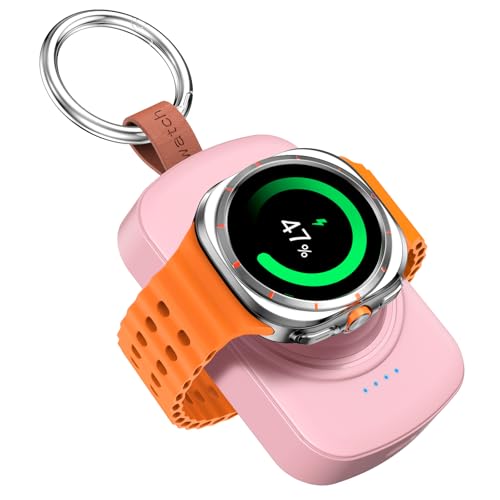
Designed for Samsung Watch: (Not for Galaxy Watch 9)This portable charger for Samsung Watch 8/8 Classic/7/ 7 Ultra / 6 /6 Classic / 5 / 5 Pro / 4 /3, Active 2 / Active 1 ensures seamless compatibility with new and old watches. This for Samsung galaxy watch charger can be carried around without a power source and can solve your low battery anxiety anytime

Designed for Samsung Galaxy Watch Series: Compatible with Galaxy Watch 8/8 Classic/7/7 Ultra/6/6 Classic/5/5 Pro/4/4 Classic/3/Active 2/Active. Provides stable magnetic wireless charging anytime, anywhere. Not for Apple Watch
Power Saving Mode
Activating Power Saving Mode significantly extends battery life. You can enable this feature by going to Settings > Battery > Power Saving Mode. This mode reduces screen brightness, limits background data, and disables certain features like always-on display. You’ll notice a marked improvement in battery longevity while maintaining essential functions.
Managing Notifications
Managing notifications effectively can minimize battery drain. Limit notifications to essential apps only by navigating to Settings > Notifications. Disable notifications for apps that aren’t crucial. Also, consider batching notifications to reduce the frequency of alerts. This adjustment cuts down on vibration and screen activation, both of which consume battery power.
Conclusion
Taming the battery drain on your Samsung Galaxy Watch doesn’t have to be a daunting task. By making a few simple adjustments and being mindful of your usage habits, you can significantly enhance your watch’s battery life.
Remember to manage your apps and notifications, tweak your settings, and stay updated with the latest software. These small changes can lead to a much more enjoyable experience with your watch.
So go ahead and implement these tips to keep your Galaxy Watch powered up and ready for whatever your day brings. You’ll be glad you did!
Frequently Asked Questions
What causes battery drain in Samsung Galaxy Watches?
Battery drain in Samsung Galaxy Watches can be caused by several factors, including background apps running when not in use, frequent syncing with smartphones, high screen brightness, GPS usage, and active location services. Identifying and managing these elements can significantly improve battery life.
How can I reduce battery drain on my Galaxy Watch?
To reduce battery drain, close unused apps, limit background activity, and adjust sync frequency with your smartphone. Additionally, lower the screen brightness and reduce the screen timeout duration to conserve power. Disabling GPS and unnecessary location services can also help.
How do I update my Samsung Galaxy Watch?
To update your Samsung Galaxy Watch, open the Galaxy Wearable app on your smartphone, select “Watch software update,” and follow the prompts to check for and install available updates. Keeping your watch updated is key for optimal battery performance and enhanced features.
What is Power Saving Mode on the Galaxy Watch?
Power Saving Mode is a feature that helps extend battery life by reducing screen brightness, limiting background data usage, and disabling features like the always-on display. Activating this mode can significantly increase the time between charges.
How can I manage notifications to save battery life?
To manage notifications effectively, limit incoming alerts to essential apps and consider batching notifications. This reduces screen activations and vibrations, both of which drain battery life. Customize alert settings in the Galaxy Wearable app to minimize unnecessary notifications.
