

Key Takeaways
- Understand Battery Drain Factors: Recognize common issues like background applications, display settings, and connectivity features that contribute to battery drain on the Samsung S6.
- Adjust Screen Brightness: Lowering screen brightness or enabling Auto-Brightness can significantly extend your battery life.
- Manage Background Apps: Limit or disable unnecessary background apps to conserve energy. Regularly check running services for insights into resource consumption.
- Utilize Power Saving Modes: Activate Power Saving Mode and Ultra Power Saving Mode to reduce performance and background activity, allowing your device to last longer between charges.
- Keep Software Updated: Regular software updates optimize battery performance and improve device efficiency, so check for updates frequently.
- Monitor Battery Health: Regularly check battery usage and health stats. Consider battery replacement if performance declines significantly.
Ever found yourself frantically searching for a charger when your Samsung S6 is about to die? You’re not alone. Many users face the same struggle as their battery drains faster than they’d like, especially during busy days.
Understanding Battery Life on Samsung S6
Battery life on your Samsung S6 can vary based on usage and settings. Recognizing the factors that affect performance can help you conserve power effectively.
Common Battery Drain Issues
Several factors cause battery drain on the Samsung S6.
- Background Applications: Apps running in the background consume battery. Limit active apps to save energy.
- Display Settings: A bright screen brightness level drains battery quickly. Lowering brightness extends life.
- Connectivity Features: Features like Wi-Fi, Bluetooth, and location services use power. Turning them off when not in use helps conserve battery.
- Age of Battery: As batteries age, they lose efficiency. If your phone is older, consider a battery replacement.
Importance of Battery Management
Effective battery management ensures optimal performance and prolongs battery life.
- Battery Saver Mode: Activating Battery Saver reduces background activity and limits performance for extended usage.
- Regular Updates: Keeping your software updated ensures efficiency improvements and bug fixes.
- Power-Hungry Apps: Monitor and limit usage of apps that drain battery most. Check usage statistics in settings for insights.
- Charge Habits: Proper charging practices, like avoiding full discharges, promote longer battery lifespan.
Understanding these aspects enables you to manage your battery better and improve the overall function of your Samsung S6.
Tips to Save Battery on Samsung S6
Saving battery life on your Samsung S6 involves a few simple adjustments. Implementing these strategies can extend your phone’s usage time throughout the day.
Recommended Products
![SHENMZ Galaxy S6 Battery,[Upgraded] 5800mAh High Capacity Li-Polymer EB-BG920ABE Replacement Battery for Samsung Galaxy S6 SM-G920 G920V G920T G920A G920P G920I G920F S906L with Repair Tools](https://m.media-amazon.com/images/I/41pc-APX7ML._SL500_.jpg)
✾【HIGH QUALITY, TRUSTWORTHY PREMIUM BATTERY】:This Upgraded S6 battery uses Grade A+ rated battery cells with CE and ROHS certification,ensure last over 1200 charge cycles. Multiple-protection for safer operation for both user and devices,build-in microchip to prevent over-charging,over-discharging and over-heating.
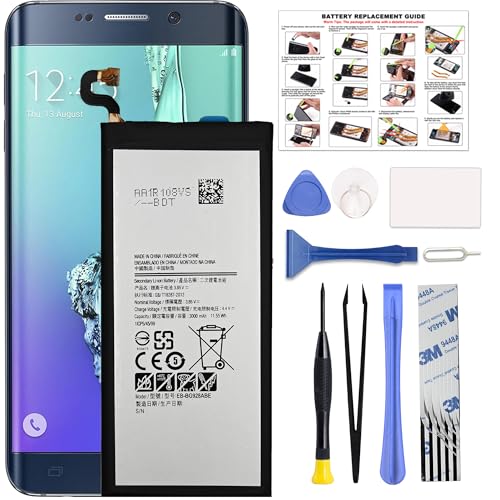
COMPATIBILITY: This battery only fits for Samsung Galaxy S6 Edge+ Plus, SM-G928A, SM-G928F, SM-G928A, SM-G928T, G928I, SM-G928G, SM-G928C, SM-G928I, SCV31, SM-G9280, SM-G928L, SM-G928S, SM-G928K, SM-G928W8. Please carefully confirm your phone model before purchase.

Compatible with: Fit for Samsung Galaxy Tab S6 10.5” SM-T860 T865, Samsung Galaxy Tab S5e 10.5” SM-T720 T725, please check the model of your tablet before purchase. Compatible Part Numbers: EB-BT725ABU. Installation Notice: Replacing battery for Samsung Galaxy Tab S6 / S5E requires careful disassembly. Please watch professional teardown video before installation. Improper installation may result in charging recognition error.
Adjusting Screen Brightness
Lowering your screen brightness is one of the easiest ways to save battery. Access the quick settings by swiping down from the top of the screen. Drag the brightness slider to a lower setting. Alternatively, enable Auto-Brightness, which adjusts brightness based on ambient light. This feature helps maintain visibility and conserves battery power.
Managing Background Apps
Background apps often drain battery without you realizing it. To manage them, go to Settings > Apps. Review the list and disable or force stop apps you don’t use frequently. Furthermore, check the “Running Services” option within Developer Options to see which apps are consuming resources. Consider using a task manager app to monitor and control these processes more effectively.
Optimizing Settings
Optimizing your settings can lead to significant battery savings. Turn off unnecessary connectivity features, such as Wi-Fi, Bluetooth, and GPS, when not in use. Head to Settings > Location to disable GPS for apps that don’t need it constantly. Also, switch to a darker wallpaper. Dark themes consume less power on AMOLED screens. Lastly, consider using the Battery Saver mode under Settings > Battery to limit background activity and conserve energy during low usage times.
Utilizing Power Saving Modes
You can significantly extend your Samsung S6’s battery life by utilizing its built-in power-saving modes. Activating these modes helps manage performance and background activity, ensuring your device lasts longer between charges.
Recommended Products

[Backlit Keyboard Case for Samsung S6 Lite Tab]: This keyboard case is exclusively designed for Samsung Galaxy Tab S6 Lite 10.4 Inch 2024/2022/2020 Tablet (Model: SM-P610/P613/P615/P619/P620/P625/P627). ***Please Click your tablet "Settings-System-About Tablet Model--SM-XXXX") confirm model number before ordering. Not fit for other size or model number!

[Backlit Keyboard Case for Samsung S6 Lite Tab]: This keyboard case is exclusively designed for Samsung Galaxy Tab S6 Lite 10.4 Inch 2024/2022/2020 Tablet (Model: SM-P610/P613/P615/P619/P620/P625/P627). ***Please Click your tablet "Settings-System-About Tablet Model--SM-XXXX") confirm model number before ordering. Not fit for other size or model number!

[Backlit Keyboard Case for Samsung S6 Lite Tab]: This keyboard case is exclusively designed for Samsung Galaxy Tab S6 Lite 10.4 Inch 2024/2022/2020 Tablet (Model: SM-P610/P613/P615/P619/P620/P625/P627). ***Please Click your tablet "Settings-System-About Tablet Model--SM-XXXX") confirm model number before ordering. Not fit for other size or model number!
How to Activate Power Saving Mode
- Open the Settings app on your Samsung S6.
- Scroll down and tap on Battery.
- Select Power Saving Mode.
- Toggle the switch to activate it.
- Adjust settings as needed, such as limiting CPU speed or reducing brightness.
You’ll notice an immediate improvement in battery performance after activating this mode.
Different Power Saving Options
Samsung S6 provides several power-saving options to choose from:
- Power Saving Mode: Reduces device performance, limits background data, and adjusts screen brightness. Ideal for everyday use when battery is low.
- Ultra Power Saving Mode: Turns your device into a basic phone. It disables most apps and features, allowing only essential ones like calls and texts. Perfect for emergencies when you need every ounce of battery life.
- Customized Power Saving Settings: You can tailor settings like screen time-out, brightness levels, and data usage limits to suit your needs. This offers flexibility for different usage scenarios while conserving battery.
By leveraging these modes, you can maintain your Samsung S6’s functionality while keeping the battery alive longer.
Regular Maintenance for Battery Longevity
Maintaining your Samsung S6 can significantly enhance battery life. Focus on these core aspects: updating software and checking battery health.
Updating Software
Keeping your software updated ensures you benefit from the latest features and optimizations. Updates often include performance enhancements and bug fixes that can improve battery efficiency. To check for updates, follow these steps:
- Open Settings.
- Scroll down to About Device.
- Tap on Software Update.
- Select Download Updates Manually to search for available updates.
Install any pending updates promptly. Regular updates help your device run smoothly and extend battery longevity.
Checking Battery Health
Monitoring battery health allows you to identify potential issues. A decline in battery performance can lead to faster drainage. Check the battery health by using built-in features or third-party apps. To assess battery status on your Samsung S6:
- Open Settings.
- Go to Device Maintenance.
- Tap on Battery.
- Review the battery usage statistics to spot power-hungry apps.
Consider replacing the battery if it shows significant degradation or consistently drains quickly. Regular checks enable better management and boost battery longevity.
Conclusion
Taking control of your Samsung S6’s battery life doesn’t have to be a daunting task. By making a few simple adjustments and being mindful of your usage habits, you can enjoy a longer-lasting charge throughout your day.
Remember to utilize the built-in power-saving modes and keep an eye on those apps that drain your battery the most. Regular updates and maintenance can also play a big role in keeping your phone running smoothly.
With these tips in your toolkit, you’ll find it much easier to manage your battery life and stay connected without constantly searching for a charger. Happy saving!
Frequently Asked Questions
What causes battery drainage in Samsung S6?
Battery drainage in Samsung S6 can result from several factors, including background applications running, high display brightness, connectivity features like Wi-Fi or GPS being turned on, and the age of the battery itself.
How can I extend my Samsung S6’s battery life?
You can extend your Samsung S6’s battery life by activating Battery Saver mode, updating software regularly, lowering screen brightness, managing background apps, and disabling unnecessary connectivity features.
What is the Battery Saver mode?
Battery Saver mode is a feature that reduces background activity, limits app performance, and optimizes device settings to prolong battery life when it’s running low, ensuring essential functions remain operational.
How do I check for software updates on my Samsung S6?
To check for software updates, go to Settings > About phone > Software update. From there, you can manually search for updates and install the latest version to enhance battery performance.
When should I consider replacing my Samsung S6 battery?
Consider replacing your Samsung S6 battery if you frequently encounter rapid battery drain, find that the battery health is significantly degraded, or notice performance issues that impact usability. Regular battery health checks can guide this decision.
