

Key Takeaways
- Understand Battery Management: Proper battery management is essential to avoid unexpected shutdowns and ensure your Samsung A51 remains functional throughout the day.
- Adjust Screen Settings: Lowering screen brightness, enabling adaptive brightness, and setting a shorter screen timeout significantly enhance battery life.
- Close Background Apps: Regularly closing unused apps and optimizing battery usage settings for background apps can conserve power.
- Optimize Connectivity Settings: Turn off Wi-Fi, Bluetooth, and Location Services when not in use and use Airplane Mode in low-signal areas to reduce battery drain.
- Utilize Built-In Features: Activate Power Saving Mode and Adaptive Battery in your settings to improve battery performance based on your usage patterns.
- Regularly Update Software: Keeping your software and apps updated ensures maximum efficiency and performance, contributing to longer battery life.
Are you tired of your Samsung A51 dying right when you need it? You’re not alone. Many users find themselves scrambling for a charger during the day, wishing they could stretch their battery life just a bit longer.
Understanding Battery Life on Samsung A51
Understanding how to manage your Samsung A51’s battery life can enhance your overall smartphone experience. You can address battery concerns with proper management techniques.
Importance of Battery Management
Battery management is crucial for extending your Samsung A51’s usage time. Effective management helps you avoid unexpected shutdowns and ensures your device remains operational throughout the day. Implementing battery-saving strategies can significantly reduce the frequency of charging sessions and allow you to enjoy your phone longer without interruptions.
Factors Affecting Battery Life
Several factors impact the battery performance of your Samsung A51, including:
- Screen Brightness: High brightness levels drain battery quickly. Lowering brightness or using adaptive brightness settings can help conserve power.
- Background Apps: Multiple apps running in the background consume energy. Regularly checking and closing unused apps improves battery life.
- Location Services: GPS and location services can rapidly deplete the battery. Disabling these features when not needed conserves energy.
- Network Connectivity: Weak cellular or Wi-Fi signals cause the phone to work harder to maintain connections, leading to increased battery usage. Switching to Airplane mode in low-signal areas can save power.
- Software Updates: Keeping your software up to date optimizes performance and improves battery life. Updates often include enhancements aimed at energy efficiency.
By being aware of these factors, you can take actionable steps to boost the battery performance of your Samsung A51.
Tips to Save Battery Life on Samsung A51
Managing your Samsung A51’s battery life requires simple adjustments. Implementing these tips helps extend your phone’s usage between charges.
Adjusting Screen Settings
Lower your screen brightness for significant power savings.
Check the brightness level by going to Settings > Display > Brightness.
Enable Adaptive Brightness to automatically adjust based on your environment.
Set a shorter screen timeout under Settings > Display > Screen timeout. Choose 15 or 30 seconds for optimal performance.
Consider using Night Mode to reduce power consumption, especially at night. You can turn it on in Settings > Display > Night mode.
Managing Background Apps
Close unused apps running in the background.
Access the recent app list by tapping the recent apps button, then swipe left or right to close them.
Use Battery Optimization for background apps. Go to Settings > Apps > Special access > Optimize battery usage. Here, select which apps to optimize.
Limit app notifications by going to Settings > Notifications. Disable non-essential notifications to reduce battery drain.
Optimizing Connectivity Settings
Turn off Wi-Fi, Bluetooth, and Location Services when not in use.
Access these functions quickly from the Quick Settings panel by swiping down from the top of your screen.
Use Airplane Mode in low-signal areas to prevent constant connection attempts. This mode disables all connectivity options.
Restrict Location Services to only essential apps. Go to Settings > Location and choose which apps can access your location. Select Battery saving mode for minimal activation.
Incorporate these tips to maximize your Samsung A51’s battery life, enabling longer usage between charges.
Utilizing Built-In Features
You can enhance your Samsung A51’s battery life by utilizing its built-in features designed for energy conservation. These settings allow you to maximize usage and minimize energy drain without compromising your experience.
Recommended Products
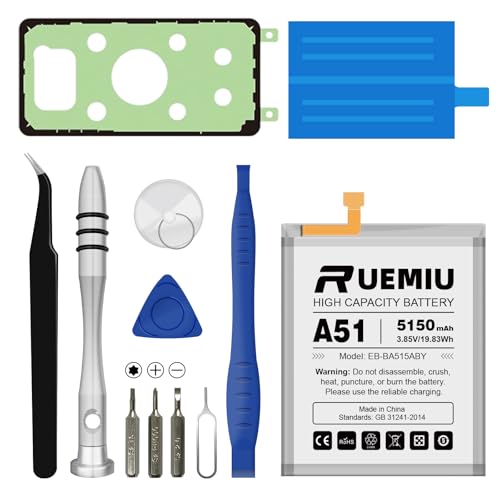
Durable Performance: Equipped with brand-new A+ grade cells and a 5150mAh capacity for efficient power use and long-lasting durability

Model: For Galaxy A51 SM-A515F SM-A515F/DS SM-A515U

Compatible Models: This A51 Battery For Samsung Galaxy A51 SM-A515F SM-A515F/DS SM-A515U EB-BA515ABY
Power Saving Mode
Activate Power Saving Mode to conserve battery when it runs low. This feature reduces background activity and limits unnecessary processes. Here’s how to enable it:
- Open the Settings app.
- Go to Battery and Device Care.
- Select Battery.
- Tap on Power Saving Mode.
- Switch the toggle to On.
Customize the settings for more flexibility, like reducing screen brightness, limiting background data usage, or turning off features like vibrations.
Adaptive Battery
Use Adaptive Battery to extend your phone’s battery life based on your usage patterns. This feature learns which apps you use frequently and limits the battery for less-used apps. To enable Adaptive Battery:
- Open the Settings app.
- Select Battery and Device Care.
- Tap on Battery.
- Look for Adaptive Battery and toggle it on.
With Adaptive Battery, you’ll notice improved battery performance, especially for apps that run in the background. This adjustment helps keep your Samsung A51 running longer throughout the day.
Additional Strategies
Enhancing your Samsung A51’s battery life can extend its usability throughout the day. In addition to the previous tips, consider these additional strategies for optimal performance.
Updating Software
Updating your software ensures you benefit from the latest enhancements and fixes. Manufacturers often release updates that improve battery performance. To check for software updates:
- Open Settings.
- Scroll down and tap Software update.
- Select Download and install.
Regularly updating your apps also contributes to better battery management. Outdated apps can drain power due to inefficient performance.
Using Dark Mode
Using Dark Mode can significantly save battery life, especially on OLED screens like your A51’s. Dark Mode uses less power by displaying darker pixels. To enable Dark Mode:
- Open Settings.
- Tap Display.
- Select Dark.
You can also activate Dark Mode for individual apps, which helps in reducing battery consumption further while maintaining a visually comfortable interface.
Conclusion
By following these tips and tricks you can really make a difference in your Samsung A51’s battery life. It’s all about making small adjustments that add up over time. Whether it’s tweaking your screen settings or utilizing built-in features like Power Saving Mode and Adaptive Battery, every little bit helps.
Staying on top of software updates and being mindful of your app usage can keep your phone running longer between charges. With just a few simple changes you can enjoy your device without the constant worry of running out of juice. So go ahead and give these strategies a try and experience a more reliable battery life.
Frequently Asked Questions
How can I improve my Samsung A51 battery life?
To improve your Samsung A51 battery life, adjust screen brightness, enable adaptive brightness, and shorten screen timeout. Manage background apps by closing unused ones and using battery optimization features. Additionally, turn off Wi-Fi, Bluetooth, and Location Services when not in use.
What features help save battery on Samsung A51?
Samsung A51 includes Power Saving Mode, which limits background processes, and Adaptive Battery, which optimizes usage based on your habits. Activating these features can help extend battery life effectively throughout the day.
Should I update my Samsung A51 software?
Yes, regularly updating your Samsung A51 is crucial. Software updates often include enhancements and fixes that improve battery efficiency, ensuring your device runs optimally and consumes less power.
How does Dark Mode help with battery life?
Dark Mode helps save battery life on OLED screens, like the one on the Samsung A51, by displaying darker pixels that use less power. Enabling Dark Mode can significantly reduce battery consumption while providing a visually comfortable experience.
What are some common battery-draining apps?
Common battery-draining apps often include social media, streaming services, and location-based apps. To manage battery life, monitor app usage and close those that are not essential to minimize power consumption.
